
pTTY — Terminal Persistente para Agentes de IA
zentala/pTTY
Sessões SSH persistentes para agentes de IA coding — sobrevive drops e WiFi
Ver no GitHubAgent que mantém sessões de terminal virtual vivas em servidores remotos via SSH, mesmo após desconexões de rede, sleep de laptop ou reboot do cliente. Construído sobre tmux com hotkeys Ctrl+F1–F10 para navegar entre 10 sessões de terminal, preservando contexto de conversação com Claude, Codex, Gemini e outros agentes de IA.
Instalação
npx convez-ai zentala/pTTY1 comando no terminal: detecta o formato do repositório (marketplace ou plugin avulso) e instala via Claude Code. Requer Node 18+ e o Claude Code instalado.
Métricas
Casos de uso
- Manter sessões Claude Code / Codex ativas durante instabilidade de rede
- Recuperar contexto de IA após desconexão de SSH ou sleep de laptop
- Gerenciar múltiplas sessões de agentes de IA simultaneamente em servidor remoto
- Desenvolver com IA em ambientes de WiFi instável (café, trem, hotel)
Veredito

Solução focada e pragmática para o problema real de desconexões SSH em sessões de IA. Implementação limpa com tmux, cobre 95% dos casos de perda de conexão (client-side). Útil para desenvolvedores que trabalham com agentes de IA em ambientes remotos instáveis.
README
A tradução para o português deste README ainda está na fila.
🖥️ pTTY — Persistent terminals for AI coding
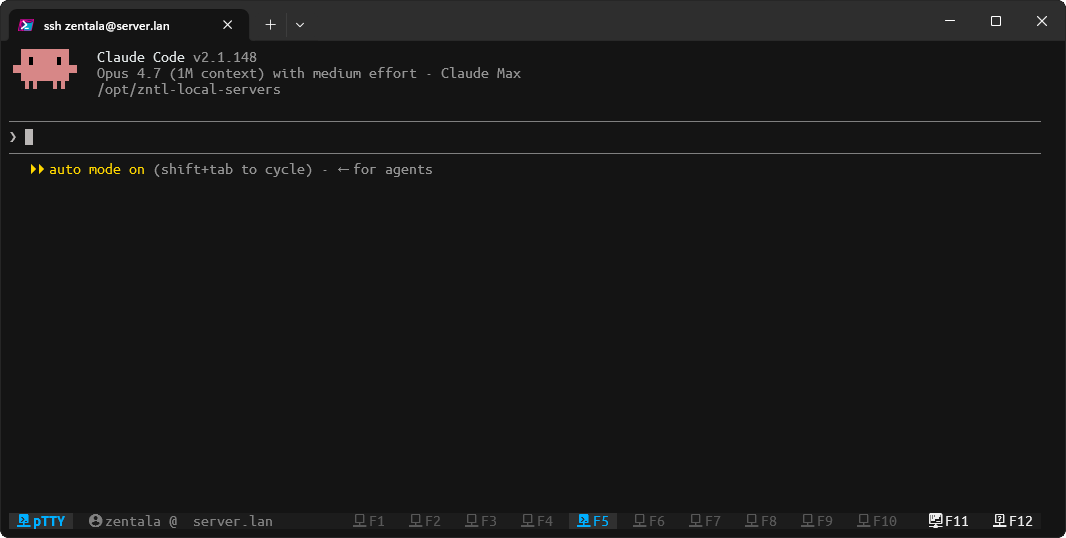
Your Claude Code, Codex, Gemini CLI, and Aider sessions survive SSH drops, bad WiFi, laptop sleep, and even a full client reboot. SSH back into the server and your tmux sessions are still running — same conversation context, same scrollback, same running processes. Once attached,
Ctrl+F1–F10jumps between 10 consoles like browser tabs (5 active, 5 on-demand);Ctrl+F11opens the manager menu,Ctrl+F12shows the keyboard cheatsheet.


The Problem
You're SSH'd into a remote server running a long Claude Code session. Your WiFi flakes for 10 seconds. SSH disconnects. You reconnect — and your AI conversation context, your scrollback, your background processes are gone. You rebuild context. It takes 20 minutes. Then it happens again.
This is the daily reality of remote AI-assisted development:
- SSH drops when WiFi changes or VPN flaps
- Laptop sleep kills the connection mid-session
- Network switches (home → mobile → cafe) require full reconnection
- Accidental
exitin the wrong terminal destroys the session - All your Claude Code / Codex / Aider context lives in memory — and it dies with the connection
The Solution
pTTY keeps the process alive on the server while you reconnect. tmux runs as a server process; your AI CLI runs as its child; both keep going even when SSH dies. SSH back into the server (ssh user@host -t "tmux attach -t console-1", or via the connect-console menu, or a pre-configured Windows Terminal / iTerm profile) and you land exactly where you were — same conversation, same scrollback, same running processes. From there, Ctrl+F1–F12 switches between 5 always-on consoles inside tmux, each holding its own session.
What pTTY protects you from
- ✅ SSH connection drops (network instability, ISP issues, VPN flap)
- ✅ WiFi glitches (coffee shop, train, hotel)
- ✅ Laptop sleep (lid close, low battery, OS suspend)
- ✅ Client reboot (your laptop restarts — sessions keep running on the server; SSH back in and resume)
- ✅ Network changes (home WiFi → mobile hotspot → office)
- ✅ Accidental
exitin the wrong terminal (safe-exit confirmation)
What pTTY does NOT protect you from
- ❌ Server reboot — tmux daemon auto-restarts via systemd, but in-memory sessions (AI context, scrollback, running processes) are lost. The daemon comes back ready for new sessions; old ones are gone. Rare in practice (~5% of real-world session loss).
- ❌ tmux server crash (OOM kill, manual
kill-server)
If you need crash-survivable AI sessions, that's a different product (state replication + cloud sync). pTTY is laser-focused on the 95% case: client-side disconnections.
✨ Features
🚀 Instant Session Switching
- Ctrl+F1-F5: Jump directly to active consoles (1-5)
- Ctrl+F6-F10: Access suspended consoles on demand (6-10)
- Ctrl+F11: Open Manager Menu (interactive terminal manager)
- Ctrl+F12: Show Help Reference (keyboard shortcuts)
🛡️ Disconnection-Resistant Design
- Sessions persist across SSH disconnects, WiFi changes, and laptop sleep
- Reconnect over any new network and pick up where you left off
- Survives client reboots — your laptop can restart, sessions keep running on the server
- tmux daemon auto-starts on server boot (systemd user service + linger), so the daemon is ready immediately even after a server restart — though sessions themselves don't survive that
- AI conversation context stays in memory on the server — not just metadata
- Safe-exit protection — prevents accidental session termination via
exit
🤖 AI CLI Optimized
Perfect companion for:
- Claude Code remote development sessions
- GitHub Copilot CLI workflows
- Long AI-assisted coding sessions
- Remote server maintenance with AI tools
🖥️ Windows Terminal Friendly
- Function keys work perfectly in Windows Terminal
- No complex key combinations to remember
- Visual session indicators
- Easy remote access setup
How pTTY Compares to Adjacent Tools
Each entry: one sentence on what the tool is, one sentence on how pTTY differs.
- Raw tmux — The underlying terminal multiplexer pTTY is built on. pTTY is a zero-config preset on top: 10 always-on consoles, F-key direct hotkeys, safe-exit, AI-CLI-tuned defaults — no
.tmux.confarchaeology required. - tmuxinator — YAML-driven per-project layouts (panes, windows, working dirs). Complementary, not competitive: tmuxinator defines what each project looks like, pTTY keeps your AI session alive across SSH drops — use both.
- tmux-resurrect — Snapshots tmux layout to disk so you can restore after server reboot. Different guarantee: resurrect restarts processes from scratch (AI conversation context is gone); pTTY keeps the actual process running, so Claude/Codex/Aider state survives.
- zellij — Modern Rust-based multiplexer alternative to tmux with a nicer default UX. pTTY sticks with tmux because the AI-CLI ecosystem (Claude Code, asciinema recipes, SSH dotfiles) is tmux-shaped; if you want zellij as your substrate, pTTY isn't for you.
- mosh — Replaces SSH with a roaming-friendly UDP protocol that survives IP changes. Complementary: mosh fixes the connection layer, pTTY fixes the session layer — combine them for the best long-running-agent setup.
- standardagents/dmux — Spawns and orchestrates multiple AI agents in parallel tmux panes (one agent per pane, coordinated from a controller). Different problem: dmux is a multi-agent fan-out tool; pTTY is single-session persistence — you can run dmux inside a pTTY console.
- Wetty / ttyd — Expose a terminal in the browser over HTTP. pTTY is server-side only and uses your real terminal emulator over SSH — no browser tab, no extra port, no auth layer to lock down.
pTTY's unique combination:
- Zero configuration — 10 always-on
console-1…console-10sessions created by one install command - Direct F-key hotkeys —
Ctrl+F1–F10for the 10 consoles (no prefix-key gymnastics, works like browser tabs);Ctrl+F11for the manager menu;Ctrl+F12for the cheatsheet - Safe-exit protection — typing
exitin the wrong terminal prompts before destroying the session - AI-coding-first defaults — opinionated tmux config tuned for long-running Claude Code / Codex / Aider sessions over flaky SSH
pTTY explicitly does not try to survive server reboot — that's a fundamentally different product (state replication, cloud sync). pTTY's contract is "survives SSH disconnect, not server restart."
🚀 Quick Start
1. Install on the server
One-liner (recommended):
curl -sSL https://raw.githubusercontent.com/zentala/tmux-persistent-console/main/install.sh | bash
This installs the scripts, copies tmux.conf, registers a systemd user service (tmux-console.service), enables loginctl lingering, and creates 5 always-on sessions (console-1…console-5). After install, sessions auto-recreate on every reboot — see A note on server reboots for what that does and does not mean.
If you'd rather inspect the script before running it:
git clone --depth 1 https://github.com/zentala/tmux-persistent-console.git
cd tmux-persistent-console
bash install.sh
After install you can verify everything is wired up:
bash scripts/doctor.sh
Should print all green; if anything is yellow/red it tells you exactly what's wrong.
This creates 5 active sessions (console-1…console-5) and the tpcon helper. Five additional on-demand slots (console-6…console-10) are bound to Ctrl+F6–F10 and spring up when first invoked.
2. Set up a short SSH alias (recommended — this is the real DevEx win)
Edit ~/.ssh/config on your laptop and add a dedicated alias that drops you straight into tmux. Pick any short hostname you like — for example tmux.example.com, dev, ptty:
Host tmux.example.com
    HostName your-server.example.com
    User you
    RequestTTY yes
    RemoteCommand tmux attach -t console-1 || tmux new -s console-1
    ServerAliveInterval 30
    ServerAliveCountMax 3
What each line does:
HostName/User— the actual server you're SSH'ing toRequestTTY yes+RemoteCommand— bypass the login shell and attach directly to tmuxtmux attach -t console-1 || tmux new -s console-1— attach if it exists, otherwise create it (idempotent; safe to run after a fresh reboot)ServerAliveInterval 30/ServerAliveCountMax 3— keep the TCP connection healthy on flaky WiFi; SSH will give up cleanly after ~90s of true silence
Now from your laptop:
ssh tmux.example.com
…and you're in console-1 on the server. WiFi dies? Run the same command again — same session, same AI conversation, same scrollback. Once attached, Ctrl+F1–F12 jumps between the 5 consoles.
3. (Optional) Per-console aliases for jumping straight into a specific tab
If you want SSH bookmarks for each console, duplicate the block and change the RemoteCommand target:
Host tmux1
    HostName your-server.example.com
    User you
    RequestTTY yes
    RemoteCommand tmux attach -t console-1 || tmux new -s console-1
    ServerAliveInterval 30

Host tmux2
    HostName your-server.example.com
    User you
    RequestTTY yes
    RemoteCommand tmux attach -t console-2 || tmux new -s console-2
    ServerAliveInterval 30
Then ssh tmux1, ssh tmux2, etc.
4. Bookmark in Windows Terminal / iTerm / Ghostty (optional)
Once the SSH alias works, point your terminal profile's command at it:
- Windows Terminal:
"commandline": "ssh tmux.example.com" - iTerm2: New Profile → Command →
ssh tmux.example.com - Ghostty / WezTerm / Alacritty: any "launch command" field accepts
ssh tmux.example.com
Alternative: skip the alias and type the long form
If you don't want to edit ~/.ssh/config, the equivalent one-liner works too:
ssh user@server -t "tmux attach -t console-1 || tmux new -s console-1"
But seriously — set up the alias. It's the difference between ssh tmux.example.com and 60 characters of muscle memory.
🎯 Perfect For
👨💻 AI CLI Users
- Claude Code sessions that survive disconnects
- GitHub Copilot CLI long conversations
- AI-assisted debugging and development
- Remote pair programming with AI
🔧 System Administrators
- Server updates and maintenance
- Monitoring multiple services
- Long-running deployment scripts
- Emergency troubleshooting
🌐 Remote Workers
- Unstable internet connections
- Working across multiple time zones
- Switching between different client servers
- Mobile/travel development
📖 Key Bindings Reference
🚀 Active Consoles (F1-F5)
| Key | Console | Purpose |
|---|---|---|
Ctrl+F1 | 🤖 Console-1 | Claude Code / AI Development |
Ctrl+F2 | 🎪 Console-2 | GitHub Copilot CLI |
Ctrl+F3 | 💻 Console-3 | General Development |
Ctrl+F4 | 🧪 Console-4 | Testing & QA |
Ctrl+F5 | 📊 Console-5 | Monitoring & Logs |
💤 Suspended Consoles (F6-F10)
| Key | Console | Status |
|---|---|---|
Ctrl+F6 | Console-6 | Available on demand |
Ctrl+F7 | Console-7 | Available on demand |
Ctrl+F8 | Console-8 | Available on demand |
Ctrl+F9 | Console-9 | Available on demand |
Ctrl+F10 | Console-10 | Available on demand |
🎛️ Manager & Help (F11-F12)
| Key | Action | Purpose |
|---|---|---|
Ctrl+F11 | Manager Menu | Interactive terminal manager (TUI) |
Ctrl+F12 | Help Reference | Keyboard shortcuts & help |
⚡ Additional Navigation & Actions
| Key | Action | Purpose |
|---|---|---|
Ctrl+Left | ⬅️ Previous Session | Navigate backwards |
Ctrl+Right | ➡️ Next Session | Navigate forwards |
Ctrl+H | 📋 Shortcuts Popup | Quick reference popup |
Ctrl+R | 🔄 Restart Console | Restart current console (with confirmation) |
Ctrl+Alt+R | 🔄 Reset Terminal | Clear & refresh current terminal |
🔄 Backup: Traditional tmux Navigation
| Key | Action |
|---|---|
Ctrl+b, s | Visual session list |
Ctrl+b, 1-10 | Switch to console 1-10 |
Ctrl+b, ( | Previous session |
Ctrl+b, ) | Next session |
Ctrl+b, L | Last used session |
🔧 Advanced Usage
Remote SSH Access
The clean DevEx is the ~/.ssh/config alias documented in Quick Start — ssh tmux.example.com and you're in. The long-form equivalents below are for users who haven't set up the alias yet:
# Long-form: SSH with explicit RemoteCommand
ssh you@your-server.example.com -t "tmux attach -t console-1 || tmux new -s console-1"

# Interactive menu (lets you pick a console after connecting)
ssh you@your-server.example.com -t "/path/to/connect-console"

# Windows Terminal profile pointing at the SSH alias
{
  "name": "pTTY",
  "commandline": "ssh tmux.example.com",
  "icon": "📟"
}
Session Management
# List all sessions
tmux ls

# Kill specific session
tmux kill-session -t console-1

# Reset all sessions
tmux kill-server && setup-console-sessions

# Create additional sessions
tmux new-session -d -s "project-work"
🤖 AI CLI Workflow Examples
Claude Code Remote Development
You SSH in once — ssh tmux.example.com — and then use Ctrl+F1–F5 to flip between consoles inside that single tmux session. No second SSH, no second terminal window required.
ssh tmux.example.com         # one connection — lands you in console-1

# Inside tmux, set each console up once:
#   Ctrl+F1 → console-1 → run: claude-code
#   Ctrl+F2 → console-2 → run: tail -f logs/app.log
#   Ctrl+F3 → console-3 → run: git status

# Then just press Ctrl+F1 / F2 / F3 to switch between them instantly.
# WiFi dies? Run `ssh tmux.example.com` again — everything is still there.
GitHub Copilot CLI Workflow
Same pattern — one SSH connection, multiple consoles via F-keys:
ssh tmux.example.com

# Ctrl+F1 → Copilot chat:  gh copilot explain "complex function"
# Ctrl+F2 → Testing:       npm test --watch
# Ctrl+F3 → Git/deploy:    git status && git push

# All three consoles stay alive on the server. Disconnect any time;
# reconnect with `ssh tmux.example.com` and pick up exactly where you left off.
💡 Why one SSH, not three? tmux multiplexes inside the single SSH connection — one TCP socket carries all 10 consoles. Opening three SSH sessions just to switch between three consoles wastes connections and forces you to track three separate terminal windows. The whole point of pTTY is: one connection, many consoles, F-keys to flip between them.
📁 Project Structure
tmux-persistent-console/
├── install.sh              # One-liner installer
├── src/
│   ├── setup.sh            # Creates 5 persistent sessions
│   ├── connect.sh          # Interactive connection menu
│   ├── tmux.conf           # Optimized tmux configuration
│   └── uninstall.sh        # Clean removal script
├── docs/
│   ├── ai-cli-workflow.md  # AI CLI integration guide
│   ├── remote-access.md    # SSH and remote setup
│   ├── windows-terminal.md # Windows Terminal configuration
│   └── troubleshooting.md  # Common issues and solutions
└── README.md               # This file
🛠️ Installation Details
What It Does
- Installs tmux configuration with function key bindings
- Installs
tmux-console.service(systemd user unit) and enables it vialoginctl enable-lingerso empty sessions auto-recreate on boot - Creates 5 persistent sessions (console-1 to console-5)
- Sets up
connect-consolecommand alias - Configures optimal tmux settings for remote work
System Requirements
- Linux/macOS with bash
- tmux 2.0+ (will install if missing)
- SSH access to remote servers
Manual Installation
# Clone repository
git clone https://github.com/zentala/tmux-persistent-console.git
cd tmux-persistent-console

# Install
./install.sh

# Or copy files manually to ~/.tmux-persistent-console/
mkdir -p ~/.tmux-persistent-console
cp -r src/* ~/.tmux-persistent-console/
chmod +x ~/.tmux-persistent-console/*.sh
ln -s ~/.tmux-persistent-console/connect.sh /usr/local/bin/connect-console
A note on server reboots
pTTY does not try to survive a server reboot in the sense of preserving session state. When the host restarts, the tmux server dies and every session — along with the AI conversation context in process memory — is gone. If you need crash-survivable AI sessions, that's a different product class (state replication + cloud sync); pTTY is laser-focused on surviving SSH disconnects.
What pTTY does do on boot is auto-recreate empty sessions so tmux attach -t console-1 keeps working after a restart instead of failing with no sessions. install.sh wires this up via tmux-console.service + loginctl enable-linger. Manual equivalent:
mkdir -p ~/.config/systemd/user
cp tmux-console.service ~/.config/systemd/user/
systemctl --user daemon-reload
systemctl --user enable --now tmux-console.service
sudo loginctl enable-linger $USER   # required — without this, the service won't start on boot

# Verify
systemctl --user status tmux-console.service
tmux ls   # console-1 .. console-5 (empty, freshly created)
🛡️ Safe Exit Protection
Problem: Typing exit in a tmux session kills the shell → destroys the session → you lose everything!
Solution: Safe-exit wrapper that prompts before destroying sessions.
When you type exit in a tmux session:
⚠️  WARNING: You are in a tmux session!

If you exit this shell, the tmux session will be DESTROYED and you will lose:
  • Command history from this session
  • Any running processes
  • Scrollback buffer

Options:
  [Enter/Space] - Detach safely (recommended) - keeps session alive
  [d]           - Detach safely (same as above)
  [y]           - YES, kill this session permanently
  [n]           - Cancel, stay in session
Features:
- 🛡️ Safe by default - Enter/Space detaches without killing
- ⚠️ Requires confirmation - Must type
yto destroy session - 📚 Educates users - Shows consequences before action
- 🚀 Automatic installation - Included in setup
See: SAFE-EXIT.md for complete documentation
🚨 Troubleshooting
Sessions Don't Exist After Reboot
# Option 1: Run setup script manually
setup-console-sessions
# or
~/.tmux-persistent-console/setup.sh

# Note: pTTY does not try to persist sessions across server reboots.
# After a reboot, run setup-console-sessions again. See "A note on server reboots" above.
Function Keys Don't Work
- Check terminal emulator settings
- Verify TERM environment variable:
echo $TERM - See troubleshooting guide
"Sessions Should Be Nested With Care"
# You're already in tmux, detach first
Ctrl+b, d
# Then connect to desired session
SSH Connection Issues
- Verify SSH key authentication
- Check network connectivity
- See remote access guide
Status Bar Icons Show as _ Underscores
Status bar uses Nerd Font glyphs from the Material Design Icons range
(U+F0000+). If they render as _, in order of likelihood:
- Server locale is not UTF-8 —
ssh user@server 'locale'; ifLANG=C, addexport LANG=C.UTF-8 LC_ALL=C.UTF-8to~/.bashrcand recreate sessions (tmux kill-server && setup-console-sessions). - SSH
RemoteCommandbypasses your shell init — bake the locale into the command itself:RemoteCommand LANG=C.UTF-8 LC_ALL=C.UTF-8 /usr/bin/tmux -u attach -t console-1 - Local terminal isn't using a Nerd Font — install a Nerd Font (e.g. CaskaydiaCove, JetBrainsMono) and set it in your terminal profile.
Full diagnostic flow: troubleshooting guide.
🤝 Contributing
Contributions welcome! Please read our Contributing Guide.
Ideas for Contributions
- Additional key bindings
- Integration with other terminal multiplexers
- Docker/container support
- More AI CLI tool integrations
- Windows WSL optimization
📄 License
MIT License - see LICENSE file for details.
🌟 Why This Exists
Created out of frustration with losing hours of work when SSH connections crashed during:
- Remote server updates with Claude Code
- Long AI CLI sessions that took time to rebuild context
- System maintenance that couldn't be interrupted
- Collaborative debugging sessions
This tool makes remote server work with AI CLI tools much simpler and safer!
🧪 Testing Infrastructure
Want to test pTTY on a real server? We provide automated testing infrastructure using Oracle Cloud Free Tier!
Quick Test Deployment
# 1. Clone repository
git clone https://github.com/zentala/tmux-persistent-console.git
cd tmux-persistent-console

# 2. Setup Oracle Cloud credentials
cp tests/terraform/terraform.tfvars.example tests/terraform/terraform.tfvars
# Edit with your Oracle Cloud details

# 3. Deploy test server (FREE!)
cd tests/scripts
./deploy.sh

# 4. Run comprehensive tests
./test-remote.sh

# 5. Interactive testing
./interactive-test.sh

# 6. Cleanup when done
./destroy.sh
What You Get
- Free ARM server (4 cores, 24GB RAM) on Oracle Cloud
- Automated installation and configuration
- Comprehensive test suite with 10+ test scenarios
- Interactive testing menu for manual validation
- One-click deployment/cleanup
See tests/README.md for detailed testing documentation.
🎉 Test your pTTY setup risk-free on real cloud infrastructure!
📐 Project Specification
This project follows spec-driven development. All features and behavior are documented in:
SPEC.md - Complete unified specification
- F-key bindings and behavior
- Active vs suspended terminals
- Manager Menu (F11) specification
- Help Reference (F12) specification
- Status bar design
- Icons and iconography
For contributors: Please read SPEC.md before making changes.
See also:
docs/naming.md- Naming conventions (pTTY/ptty/PersistentTTY)docs/ICONS.md- Icon reference and usageARCHITECTURE.md- Technical architecture detailsCLAUDE.md- AI assistant development guidelines
🔗 Related Projects
- tmux - Terminal multiplexer
- tmux-sessionx - Session manager with preview
- Claude Code - AI-powered coding assistant
⭐ Star this repo if it saved your work from an SSH crash!
Made with ❤️ for developers who code with AI on remote servers.
Note from the author: This tool was born from my personal frustration with losing SSH sessions during unstable WiFi, laptop sleep, or moving between locations. I wanted something that "just works" without complex configuration. I'm not a tmux expert, but I value good developer experience (DevEx). If you find bugs or have ideas, contributions are welcome! We use conventional commits and encourage working with Claude Code via CLAUDE.md.