
Editor MCP para Craft CMS
westonhancock/craft-cms-content-ops-mcp
IA gerencia conteúdo Craft com suas próprias permissões
Ver no GitHubServidor MCP que conecta assistentes de IA ao Craft CMS via OAuth 2.1, permitindo operações de conteúdo com permissões nativas do CMS. O assistente atua como um editor autenticado, respeitando todas as restrições de acesso da sua conta Craft — sem chaves API ou contas de serviço.
Instalação
npx convez-ai westonhancock/craft-cms-content-ops-mcp1 comando no terminal: detecta o formato do repositório (marketplace ou plugin avulso) e instala via Claude Code. Requer Node 18+ e o Claude Code instalado.
Métricas
Casos de uso
- Delegar edição de posts/entradas para assistentes IA
- Automação de operações de conteúdo (criar, atualizar, buscar)
- Integrar Craft CMS com Claude Code, Claude Desktop ou Cursor
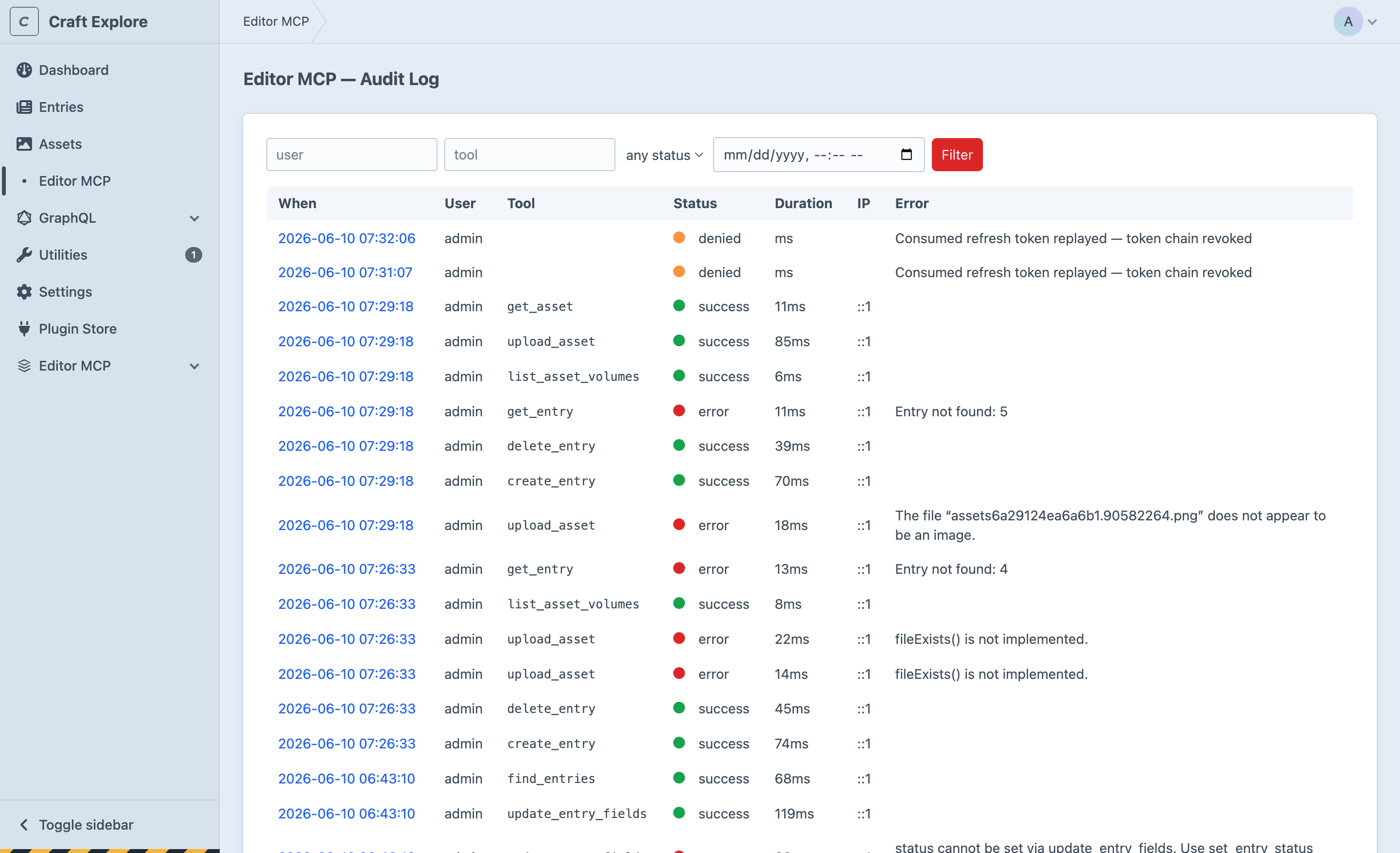
- Auditoria de mudanças via logs de ação do Craft
Veredito

Solução sólida e bem pensada para democratizar operações de conteúdo no Craft CMS via IA, com segurança por OAuth e auditoria nativa. Ideal para equipes que já usam Craft 5.0+ e querem automação respeitando o próprio sistema de permissões.
README
A tradução para o português deste README ainda está na fila.
Editor MCP for Craft CMS
Editor MCP turns your Craft site into a Model Context Protocol server, so AI assistants — Claude Code, Claude Desktop, Cursor, Codex, and any other MCP client — can read and edit your content for you.
You connect the assistant once through a normal Craft login. From then on it acts as you: it can only see and change what your Craft account is allowed to, and every action runs through Craft's own permission system. No API keys to mint, no service accounts, no shell access.
Ask things like “find the last five news entries,” “draft a post titled X with this body,” or “update the summary on entry 1234,” and the assistant uses the tools below to do it.
- Works with Craft 5.0+ and PHP 8.2+
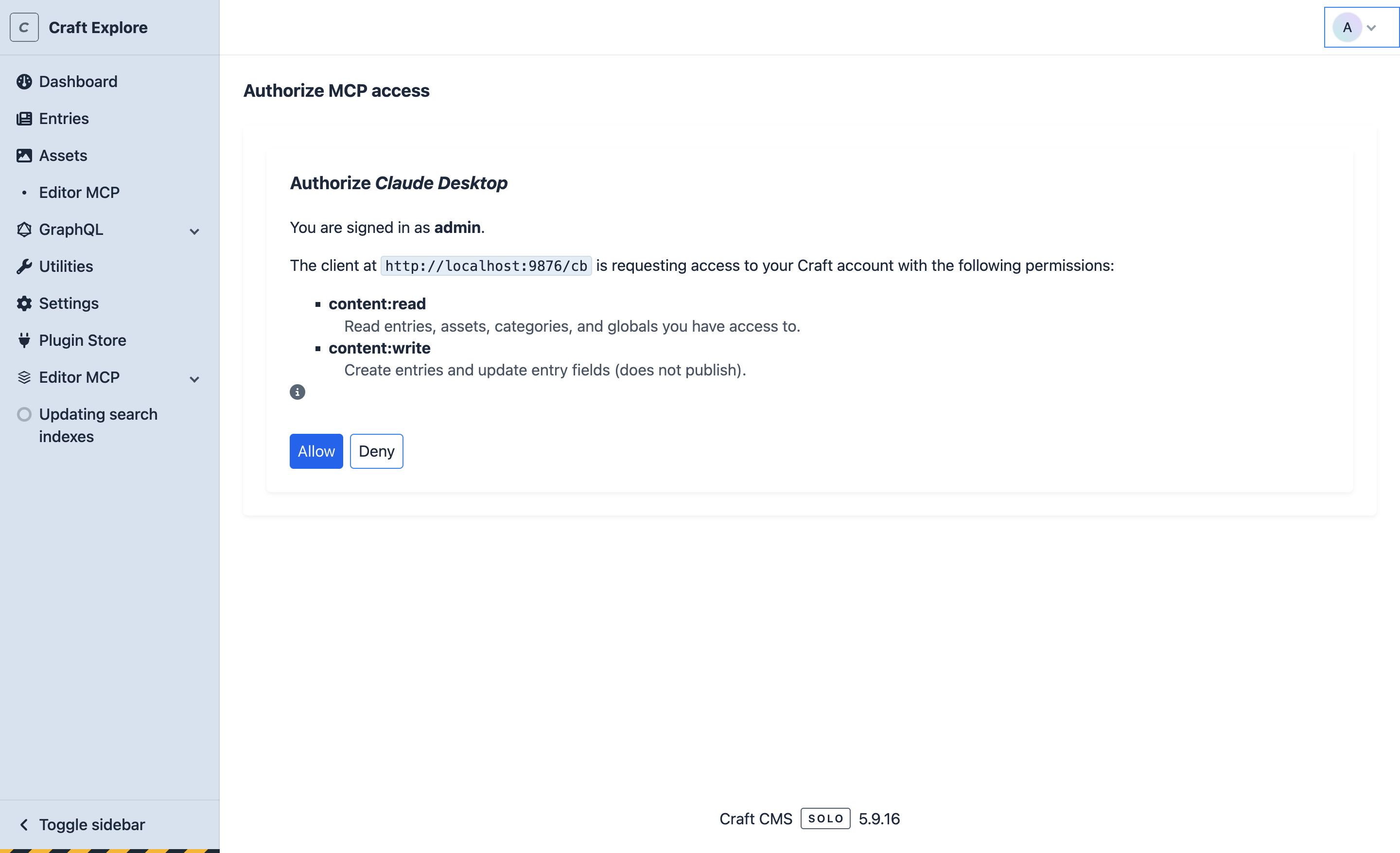
- Connects over HTTPS using standard OAuth — the assistant opens your browser, you log in to Craft, you approve, done
- 15 focused content tools (entries, assets, sections, categories, globals)
Screenshots
| Authorize an assistant | Audit log |
|---|---|
 |  |
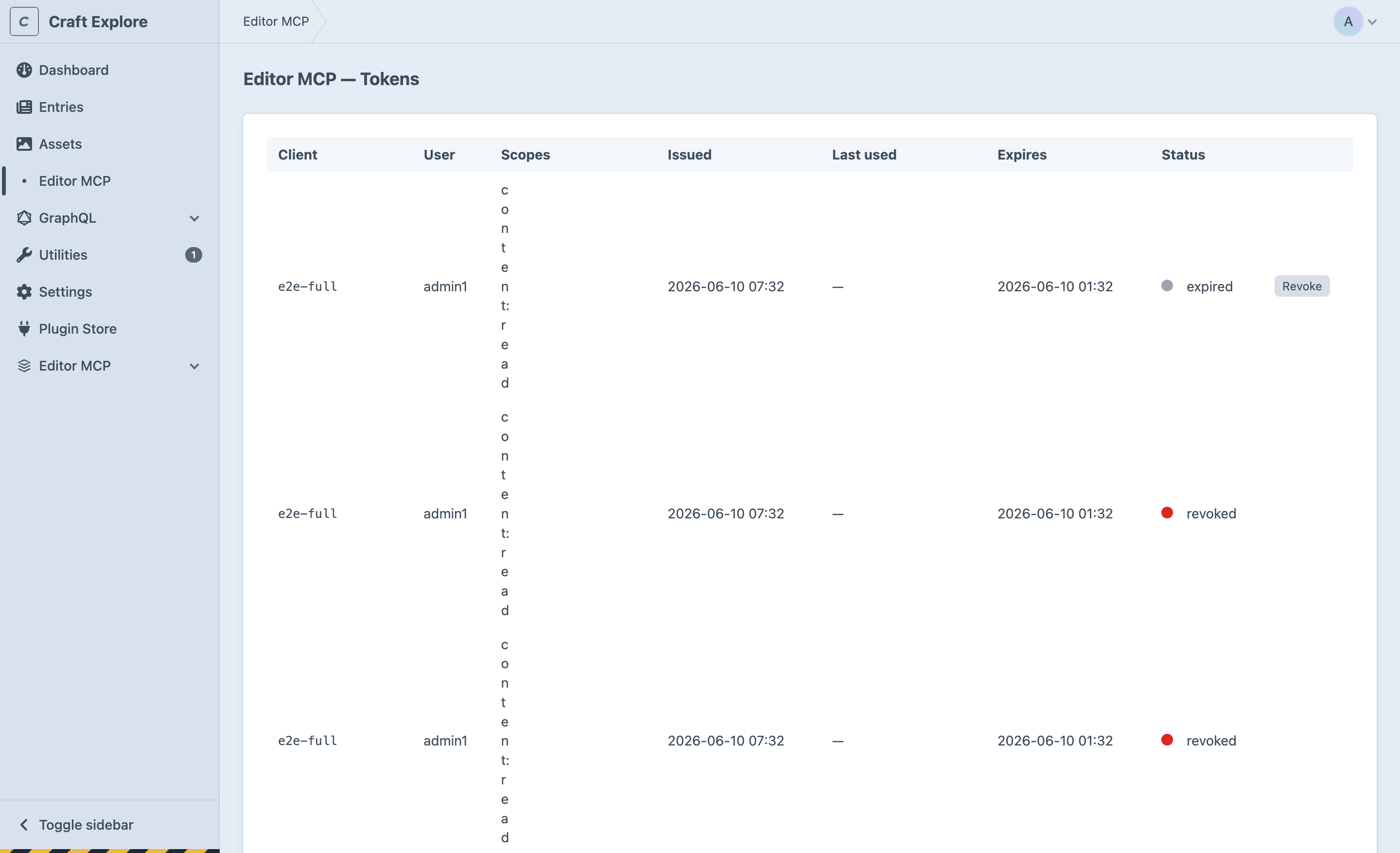
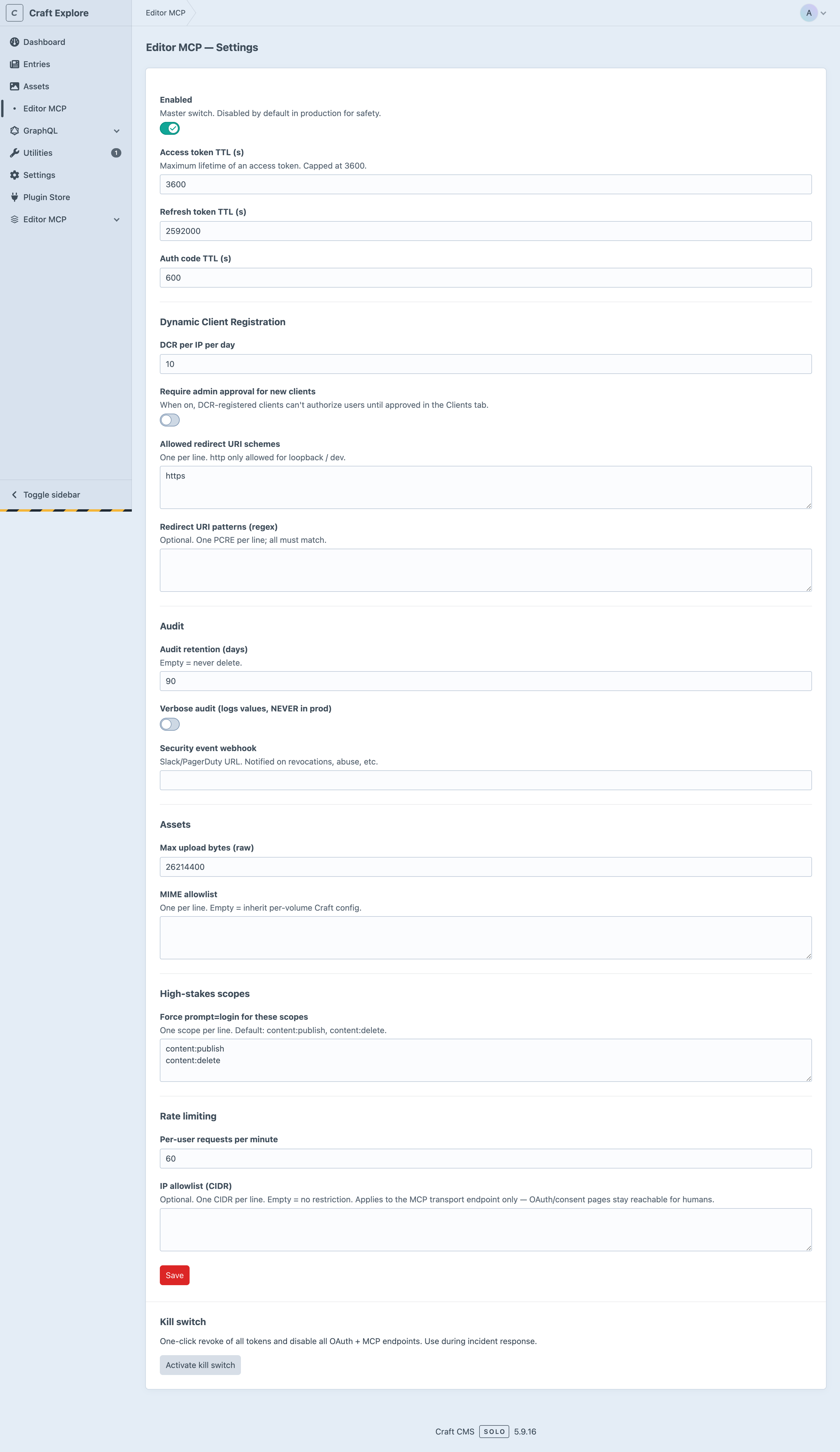
| Connected tokens | Settings |
|---|---|
 |  |
Install
From the Craft Plugin Store
Control Panel → Plugin Store → search Editor MCP → Install.
With Composer
cd /path/to/your/craft/project
composer require westonhancock/craft-editor-mcp
php craft plugin/install editor-mcp
Turn it on
The plugin ships disabled. In the Control Panel go to Settings → Editor MCP, toggle Enabled, and save. That's the only required setting — everything else has sensible defaults.
Your MCP endpoint is your site URL with /mcp on the end:
https://your-craft-site.example/mcp
Connect your assistant
Every client points at the same /mcp URL. The first time you connect, the assistant opens your browser, you log into Craft (including 2FA if you use it), you approve the access screen, and you're connected. Swap https://your-craft-site.example/mcp for your real endpoint in the examples below.
Claude Code
claude mcp add --transport http editor-mcp https://your-craft-site.example/mcp
Start Claude Code, run /mcp, choose editor-mcp, and pick Authenticate. Your browser opens for the Craft login and approval.
Claude Desktop
Settings → Connectors → Add custom connector, then paste your /mcp URL and follow the browser login.
If your version doesn't show custom connectors, add it to claude_desktop_config.json using the mcp-remote bridge instead:
{
  "mcpServers": {
    "editor-mcp": {
      "command": "npx",
      "args": ["mcp-remote", "https://your-craft-site.example/mcp"]
    }
  }
}
Restart Claude Desktop; the browser login opens on first use.
Cursor
Settings → MCP → Add new MCP server, or edit ~/.cursor/mcp.json:
{
  "mcpServers": {
    "editor-mcp": {
      "url": "https://your-craft-site.example/mcp"
    }
  }
}
Cursor handles the browser login on first connection.
Codex CLI
Codex launches MCP servers as local commands, so use the mcp-remote bridge in ~/.codex/config.toml:
[mcp_servers.editor-mcp]
command = "npx"
args = ["mcp-remote", "https://your-craft-site.example/mcp"]
Run Codex; the browser login opens on first use.
Any other MCP client: point it at the
/mcpURL if it supports remote HTTP servers, or wrap it withnpx mcp-remote https://your-craft-site.example/mcpif it only speaks stdio.
Tools
| Tool | What it does |
|---|---|
list_sections | List the sections in the site and the entry types each one supports |
list_section_fields | List the fields available on a section's entry types |
list_asset_volumes | List the asset volumes you can use |
find_entries | Search and filter entries in a section (by status, keywords, slug) |
get_entry | Get the full content of one entry, including all custom fields |
create_entry | Create a new entry (a draft by default) |
update_entry_fields | Update the title, slug, or custom fields on an entry |
set_entry_status | Publish, unpublish, or disable an entry |
delete_entry | Soft-delete an entry (recoverable from Craft's trash) |
find_assets | Search and filter assets in a volume |
get_asset | Get full metadata and the URL for one asset |
upload_asset | Upload a file (base64, up to 25 MB) into a volume |
list_categories | List the categories in a group |
get_global | Read a global set by handle |
who_am_i | Show who you're connected as and what you can do |
How permissions work
When you approve the connection you grant a set of capabilities — reading content, writing content, publishing, deleting, and uploading assets. The assistant can only use the ones you approve, and on top of that, every action is checked against your Craft account. If you can't edit a section in the Control Panel, the assistant can't either. Publishing and deleting ask for an extra confirmation of your login.
Basic usage
Once connected, just talk to your assistant in plain language. A few examples:
- “Who am I connected as?”
- “What sections does this site have?”
- “Find the five most recent entries in the
newssection.” - “Show me the full content of entry 1234.”
- “Create a draft in
blogtitled Spring Release Notes with this body: …” - “Update the
summaryfield on entry 1234 to …” - “Publish entry 1234.”
- “Upload this image to the
uploadsvolume and set its alt text to …”
The assistant decides which tools to call. New entries are created as drafts by default, so nothing goes live until you ask it to publish.
Configuration
Everything lives under Settings → Editor MCP in the Control Panel:
- Tokens — see every connected assistant, when it was last used, and revoke any of them
- Audit Log — a record of every action taken through the plugin
- Settings — enable/disable the plugin, and adjust optional limits
Defaults are conservative and most sites never need to change anything beyond enabling the plugin.
What it does not do
Editor MCP is intentionally limited to everyday content work. It does not expose database queries, user management, plugin or system configuration, or arbitrary code execution. If you need that kind of access, use the Control Panel directly.
Local development
Symlink the plugin into a Craft site via a Composer path repository for fast iteration. From the Craft site root:
{
  "repositories": [
    {"type": "path", "url": "../craft-cms-content-ops-mcp", "options": {"symlink": true}}
  ],
  "require": {
    "westonhancock/craft-editor-mcp": "@dev"
  }
}
Then composer update westonhancock/craft-editor-mcp and php craft plugin/install editor-mcp. Edits to the source tree are live on the next request.
vendor/bin/phpstan analyse --memory-limit=1G   # static analysis
vendor/bin/ecs check                            # code style
Support
- Issues: https://github.com/westonhancock/craft-cms-content-ops-mcp/issues
- Source: https://github.com/westonhancock/craft-cms-content-ops-mcp
License
MIT