
Unreal MCP – Controle Unreal Engine via IA
voodoofox/unreal-mcp
Controle o Unreal Editor com IA natural – 150+ ferramentas integradas
Ver no GitHubServidor MCP que permite controlar o Unreal Editor através de assistentes de IA (Claude, Cursor, Windsurf) usando linguagem natural. Oferece 150+ ferramentas especializadas em blueprints, materiais, Niagara VFX (71 comandos), animação, áudio e mais, com integração profunda para efeitos visuais complexos.
Instalação
npx convez-ai voodoofox/unreal-mcp1 comando no terminal: detecta o formato do repositório (marketplace ou plugin avulso) e instala via Claude Code. Requer Node 18+ e o Claude Code instalado.
Métricas
Casos de uso
- Gerar sistemas de partículas Niagara com descrição em texto
- Criar e iterar blueprints automaticamente via prompt
- Construir materiais e wired graphs com IA
- Automatizar workflows de efeitos visuais e animação
- Prototipar jogos e mecânicas com interação natural
Veredito

Implementação robusta e profissional que estende significativamente as capacidades de automação do Unreal Engine via IA. A integração Niagara com 71 comandos é genuinamente impressionante. Recomendado para estúdios e desenvolvedores que buscam acelerar pipelines técnicos de game dev.
README
A tradução para o português deste README ainda está na fila.
Unreal MCP





Control Unreal Engine from AI assistants via the Model Context Protocol
Unreal MCP lets AI assistants (Claude Code, Cursor, Windsurf, Claude Desktop) control the Unreal Editor through natural language. 150+ tools across 11 categories, including the deepest Niagara VFX integration (71 commands) of any MCP plugin. Custom HLSL module creation, ViewModel-based parameter control, dynamic inputs, and batch operations.
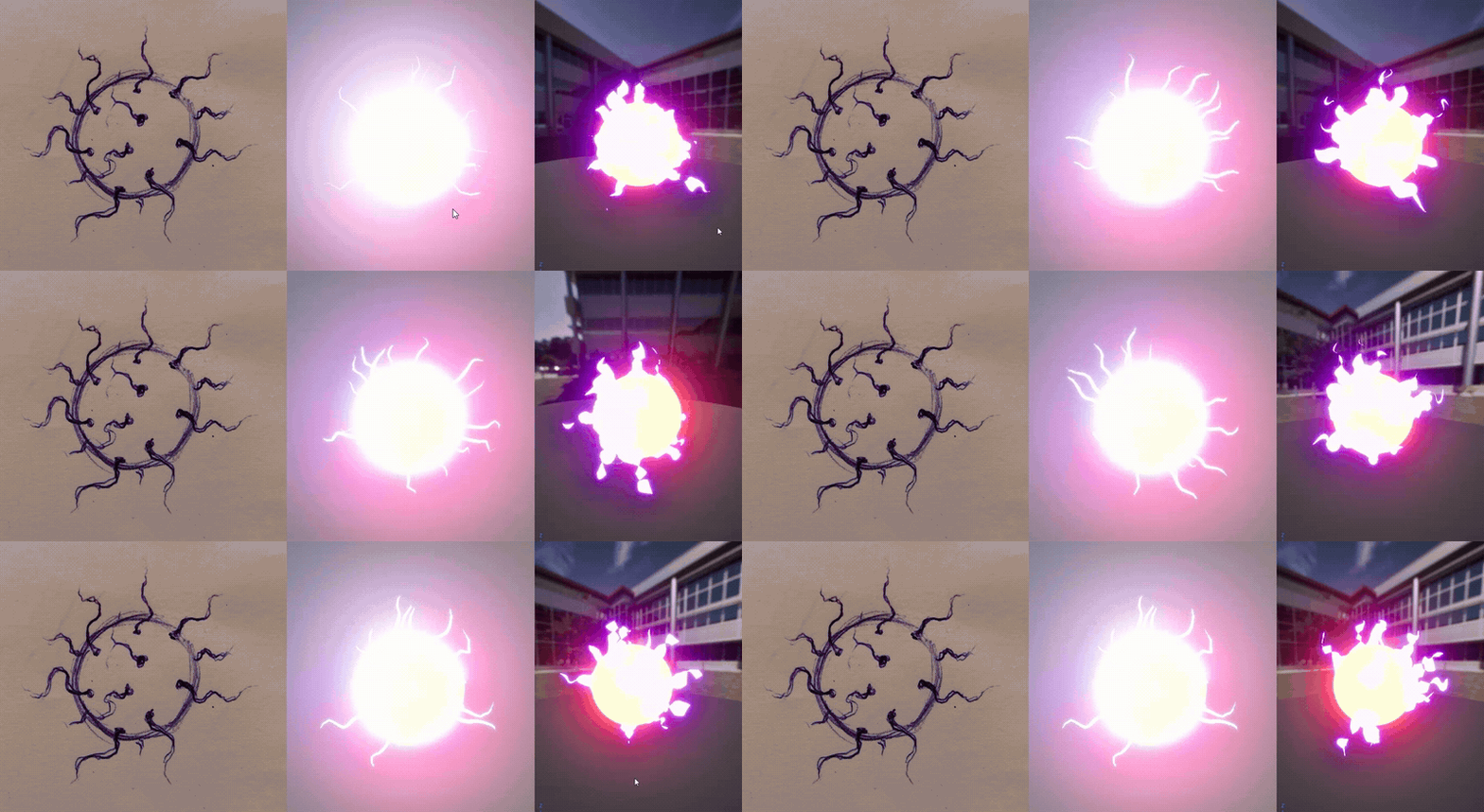
Small example regarding Niagara implementation, on the left, is my drawing of the effect I wanted. I provided this with general descriptive prompt. Second image is the result, and thrid one is my slight tweak. Other then tweaking I did not have any interaction with Niagara whatsover. https://www.flatvoxel.com/unlisted/combined-12c1e23c45.mp4
What Can It Do?
| Category | Tools | Highlights |
|---|---|---|
| Actor Management | 9 | Spawn, delete, transform, inspect, find actors |
| Blueprint Development | 7 | Create blueprints, add components, set properties, compile |
| Blueprint Graph Editing | 16 | Add nodes, variables, events, connections, control flow |
| Materials & Inspection | 20 | Create/wire materials, inspect assets, Nanite control |
| Niagara VFX | 71 | System/emitter/module/renderer control, curve keypoint editing, DI properties, simulation stages, event handlers, scratch pad HLSL, Custom HLSL module creation, parameter collections, batch ops, system spec export/import, scalability, stateless emitters, ViewModel parameter control, dynamic inputs, module input linking |
| UMG Widgets | 6 | Create widget blueprints, buttons, text blocks, bindings |
| Animation | 7 | Inspect sequences, montages, skeleton bone hierarchy |
| Audio | 6 | Inspect sound waves, cues, attenuation, play sounds |
| DataTables | 4 | List, inspect, export DataTable rows as JSON |
| Level & World | 6 | Level info, world settings, streaming, actor summaries |
| AI / Behavior Trees | 7 | BT structure, blackboard keys, MetaSound graph reader, data channel inspection |
Plus run_python_in_unreal - execute arbitrary Python inside the editor for anything the tools don't cover.
Architecture
AI Assistant (Claude, Cursor, etc.)
    |
    | MCP Protocol (JSON-RPC over stdio)
    v
Python MCP Server (FastMCP)
    |
    | TCP (port 55557, newline-delimited JSON)
    v
C++ Plugin (UnrealMCP) ──> Unreal Editor APIs
Two implementation layers:
- C++ command handlers - native performance for blueprint graphs, materials, Niagara, actors
- Python bridge tools - use
run_python_in_unrealfor inspection and query tools (no C++ rebuild needed)
Quick Start
Prerequisites
- Unreal Engine 5.5+ (tested on 5.7)
- Python 3.12+
- uv (Python package manager)
1. Set Up the Plugin
Option A: Use the sample project
cd MCPGameProject
# Right-click .uproject → Generate Visual Studio project files
# Open .sln → Build (Development Editor)
Option B: Add to your project
# Copy MCPGameProject/Plugins/UnrealMCP to YourProject/Plugins/
# Regenerate project files and build
2. Configure Your MCP Client
Add to your MCP client config (.mcp.json, claude_desktop_config.json, etc.):
{
  "mcpServers": {
    "unreal": {
      "command": "uv",
      "args": [
        "--directory", "/path/to/unreal-mcp/Python",
        "run", "unreal_mcp_server.py"
      ]
    }
  }
}
Config file locations:
| Client | Location |
|---|---|
| Claude Code | .mcp.json in project root |
| Claude Desktop | ~/.config/claude-desktop/mcp.json |
| Cursor | .cursor/mcp.json in project root |
| Windsurf | ~/.config/windsurf/mcp.json |
3. Open Unreal Editor and Connect
- Open your project in Unreal Editor (the C++ plugin starts the TCP server automatically on port 55557)
- Enable the MCP server in your AI assistant
- Try: "List all actors in the current level"
Project Structure
unreal-mcp/
├── MCPGameProject/
│   └── Plugins/UnrealMCP/     # C++ plugin (TCP server + command handlers)
│       └── Source/UnrealMCP/
│           ├── Private/Commands/  # Handler classes (Editor, Blueprint, Material, etc.)
│           └── Public/            # Headers
├── Python/
│   ├── unreal_mcp_server.py   # MCP server entry point
│   ├── connection_holder.py   # Thread-safe connection management
│   └── tools/                 # Tool modules
│       ├── editor_tools.py    # Actor management, console, Python execution
│       ├── blueprint_tools.py # Blueprint creation and components
│       ├── node_tools.py      # Blueprint graph editing
│       ├── inspection_tools.py# Asset inspection, materials, Nanite
│       ├── umg_tools.py       # UMG widget blueprints
│       ├── animation_tools.py # Animation and skeleton inspection
│       ├── audio_tools.py     # Audio asset inspection
│       ├── datatable_tools.py # DataTable inspection and export
│       ├── level_tools.py     # Level and world queries
│       └── project_tools.py   # Input mappings, project settings
├── Docs/Tools/                # Per-category tool documentation
└── scripts/                   # Example scripts
Adding Custom Tools
The fastest way to add tools is the Python bridge pattern - no C++ rebuild needed:
# In Python/tools/my_tools.py
from connection_holder import async_tool, get_unreal_connection

def register_my_tools(mcp):
    @async_tool(mcp)
    def my_custom_tool(ctx, asset_path: str) -> dict:
        """My tool description."""
        unreal = get_unreal_connection()
        code = f"""
import unreal, json
asset = unreal.EditorAssetLibrary.load_asset('{asset_path}')
print(json.dumps({{"name": asset.get_name()}}))
"""
        response = unreal.send_command("run_python_in_unreal", {"code": code})
        output = response.get("result", {}).get("output", "").strip()
        return {"success": True, "result": json.loads(output)}
Register it in unreal_mcp_server.py:
from tools.my_tools import register_my_tools
register_my_tools(mcp)
For performance-critical tools, add a C++ command handler in Plugins/UnrealMCP/Source/UnrealMCP/Private/Commands/.
Documentation
See Docs/Tools/README.md for the full tool reference with parameters and examples.
Support the Project
If you find Unreal MCP useful, consider supporting its development:

Credits
Bojan Spasojevic (@voodoofox) - Material editing, Niagara VFX, blueprint graph editing, animation/audio/datatable/level tools, parallel MCP support, stability rewrite.
- Website: flatvoxel.com
- X: @voodoo_fox
Based on chongdashu/unreal-mcp by Chong-U Lim (MIT).
License
MIT - see LICENSE.