
Copilot Chat Exporter
TomSchmidtDev/intellij-ai-chat-exporter
Exporte chats do Copilot e Claude Code em Markdown ou HTML da sua IDE
Ver no GitHubPlugin para JetBrains que exporta histórico de chats do GitHub Copilot e Claude Code em Markdown ou HTML estilizado, direto da IDE. Inclui busca avançada com sintaxe booleana, filtragem por IDE e projeto, e 10 temas de cor pré-definidos para saída HTML.
Instalação
npx convez-ai TomSchmidtDev/intellij-ai-chat-exporter1 comando no terminal: detecta o formato do repositório (marketplace ou plugin avulso) e instala via Claude Code. Requer Node 18+ e o Claude Code instalado.
Métricas
Casos de uso
- Documentar conversas com IA para referência futura
- Compartilhar sessões de coding com a equipe em formato portável
- Arquivar histórico de assistência de IA com temas personalizáveis
- Buscar rapidamente em múltiplas sessões de chat com queries booleanas
Veredito

Plugin bem-construído que resolve um problema real: capturar e reutilizar conversas com IA. Implementação sólida em Kotlin, suporta múltiplas fontes (Copilot e Claude Code), oferece controle fino sobre o que exportar e estilização HTML robusta. Essencial para desenvolvedores que dependem de assistentes de código.
README
A tradução para o português deste README ainda está na fila.
Copilot Chat Exporter
An IntelliJ plugin that lets you export your GitHub Copilot and Claude Code chat history to Markdown or styled HTML — directly from your IDE.
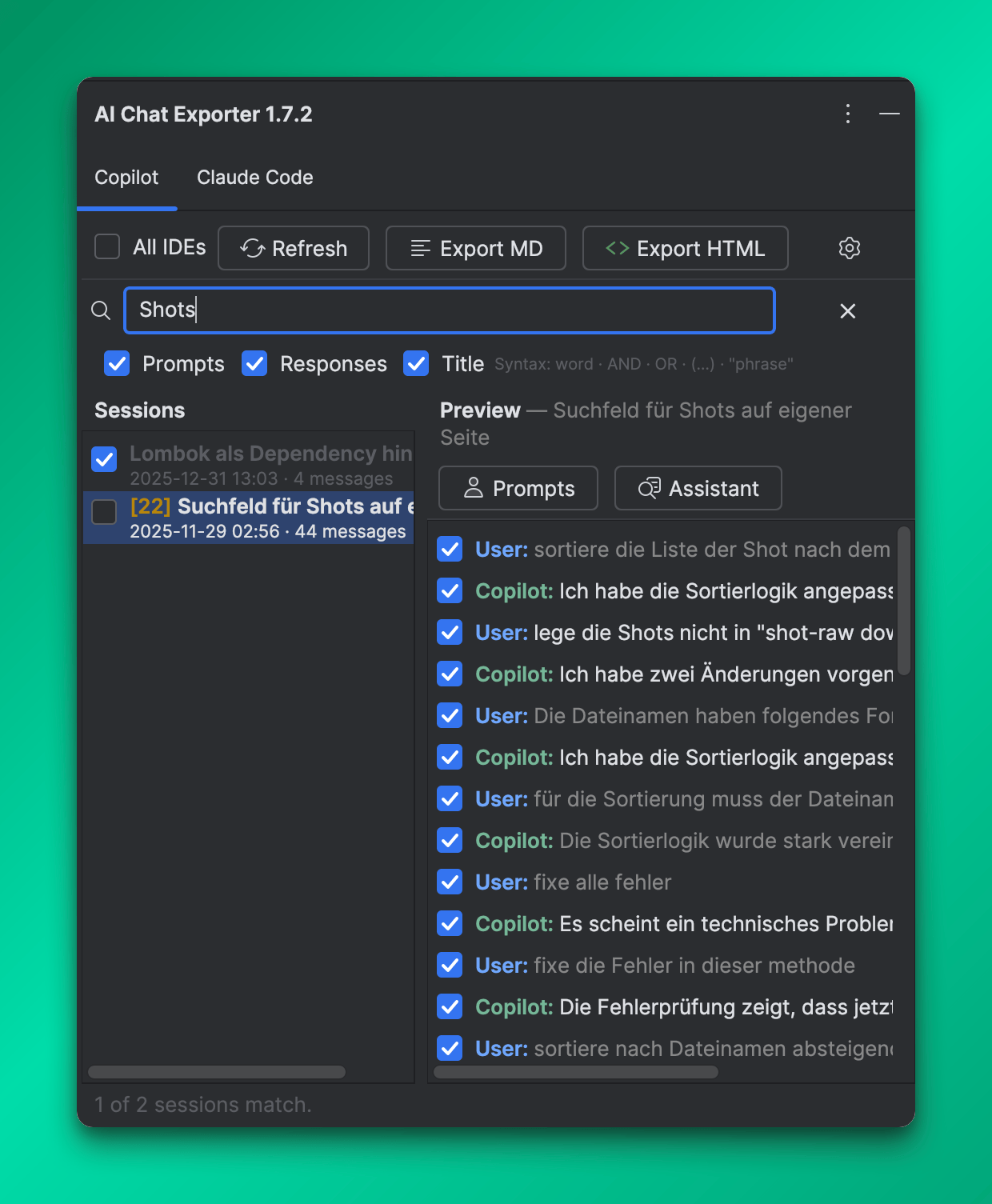
Features
Search
- Search across all sessions — find sessions by content, title, or message text in both tabs
- Boolean query syntax —
AND,OR, exact phrases with quotes, and grouping with parentheses - Scope toggles — search prompts, responses, and/or session titles independently
- Live filtering — sessions are filtered as you type with a match-count badge; matching messages are highlighted in the preview panel
GitHub Copilot
- Browse all Copilot chat sessions — inline chat, agent mode, and edit mode
- Select individual messages per session for partial exports
- Filter by IDE — show only sessions from the current JetBrains IDE, or toggle "All IDEs"
Claude Code
- Browse all Claude Code sessions from
~/.claude/projects/— CLI, Claude Desktop, and JetBrains IDE sessions included - Filter by project — narrow the session list to a specific project directory
- Toggle Tool Calls and Thinking blocks on/off (hidden by default)
Export
- Export to Markdown (
.md) — clean, portable, paste-ready - Export to HTML (
.html) — fully styled with syntax-highlighted code blocks, opens directly in the IDE after export - 10 built-in color themes for HTML output: Catppuccin Mocha, GitHub Dark, Dracula, Nord, Tokyo Night, One Dark, Monokai Pro, Material Ocean, Solarized Dark, Light Classic
- Custom color profile — configure all HTML colors individually via the settings page
- Read-only access — no chat data is ever modified
Settings
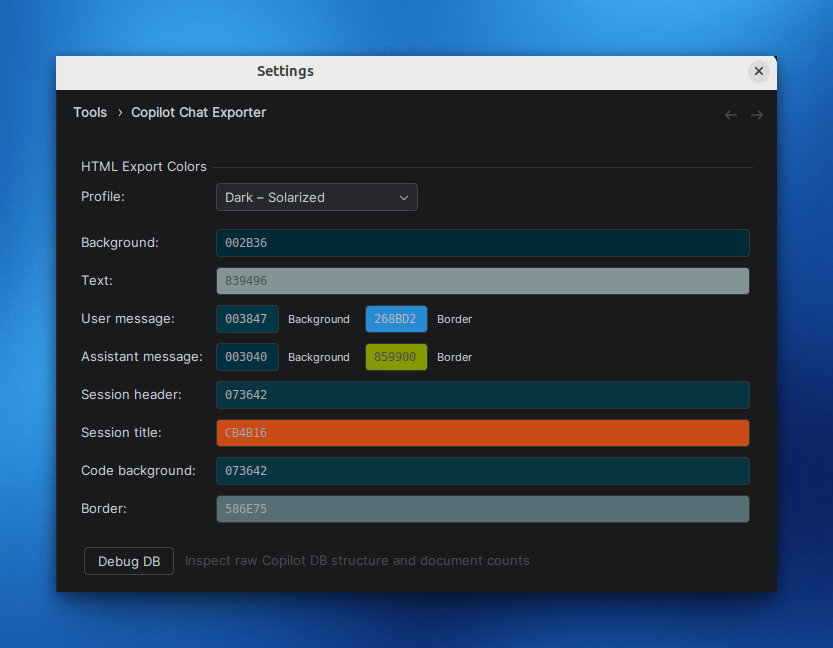
Open Settings → Tools → Copilot Chat Exporter to configure the HTML color profile. Choose from 10 presets or customize each color individually.
Installation
- Open your JetBrains IDE (IntelliJ IDEA, GoLand, PyCharm, etc.)
- Go to Settings → Plugins → Marketplace
- Search for Copilot Chat Exporter and install
Or install manually via Settings → Plugins → Install Plugin from Disk using the .zip from the Releases page.
Usage
Searching sessions
- Type in the Search field below the toolbar buttons
- Use
AND,OR,"exact phrase", and(grouping)for boolean queries - Use the Prompts / Responses / Title checkboxes to control which content is searched
- Sessions with matches show a badge with the match count; click a session to see highlighted messages
Copilot tab
- Open the AI Chat Exporter tool window (right sidebar) and select the Copilot tab
- Select the sessions you want to export using the checkboxes
- Optionally select individual messages in the preview panel on the right
- Click Export MD or Export HTML and choose a save location
Claude Code tab
- Select the Claude Code tab in the tool window
- Optionally filter by project using the Project dropdown
- Select sessions and individual messages as above
- Use the Tool Calls and Thinking toggles to include or exclude those block types
- Click Export MD or Export HTML
Requirements
- JetBrains IDE 2025.1 or later
- For Copilot export: GitHub Copilot plugin installed with at least one chat session recorded
- For Claude Code export: Claude Code installed with at least one session in
~/.claude/projects/
Privacy
This plugin does not collect, transmit, or store any personal data. All operations are performed locally on your machine. No telemetry, analytics, or network requests are made.
License
Business Source License 1.1 — free for personal, non-commercial, and internal business use. Converts to Apache 2.0 on 2031-04-04. See LICENSE.md for details.