
ggsrun - MCP Server para Google Drive com Apps Script
tanaikech/ggsrun
CLI e MCP server para Google Drive com execução nativa de Apps Script
Ver no GitHubServidor MCP de alta performance que integra Google Drive e Apps Script com agentes de IA. Executa dinamicamente Google Apps Script, automatiza políticas de conflito, transferências recursivas e gerencia infraestrutura de Drive com paralelismo massivo e tolerância a falhas.
Instalação
npx convez-ai tanaikech/ggsrun1 comando no terminal: detecta o formato do repositório (marketplace ou plugin avulso) e instala via Claude Code. Requer Node 18+ e o Claude Code instalado.
Métricas
Casos de uso
- Automatizar operações em massa no Google Drive via agentes IA
- Executar Google Apps Script dinamicamente sem Deploy manual
- Transferência paralela de arquivos com retry inteligente
- Integrar Google Drive com fluxos de IA e agentic workflows
Veredito

Ferramenta robusta para desenvolvedores que precisam integrar Google Drive e Apps Script em pipelines de IA. Arquitetura sólida com MCP nativo, paralelismo e tolerância a falhas, mas requer configuração complexa de OAuth e GAS.
README
A tradução para o português deste README ainda está na fila.
ggsrun
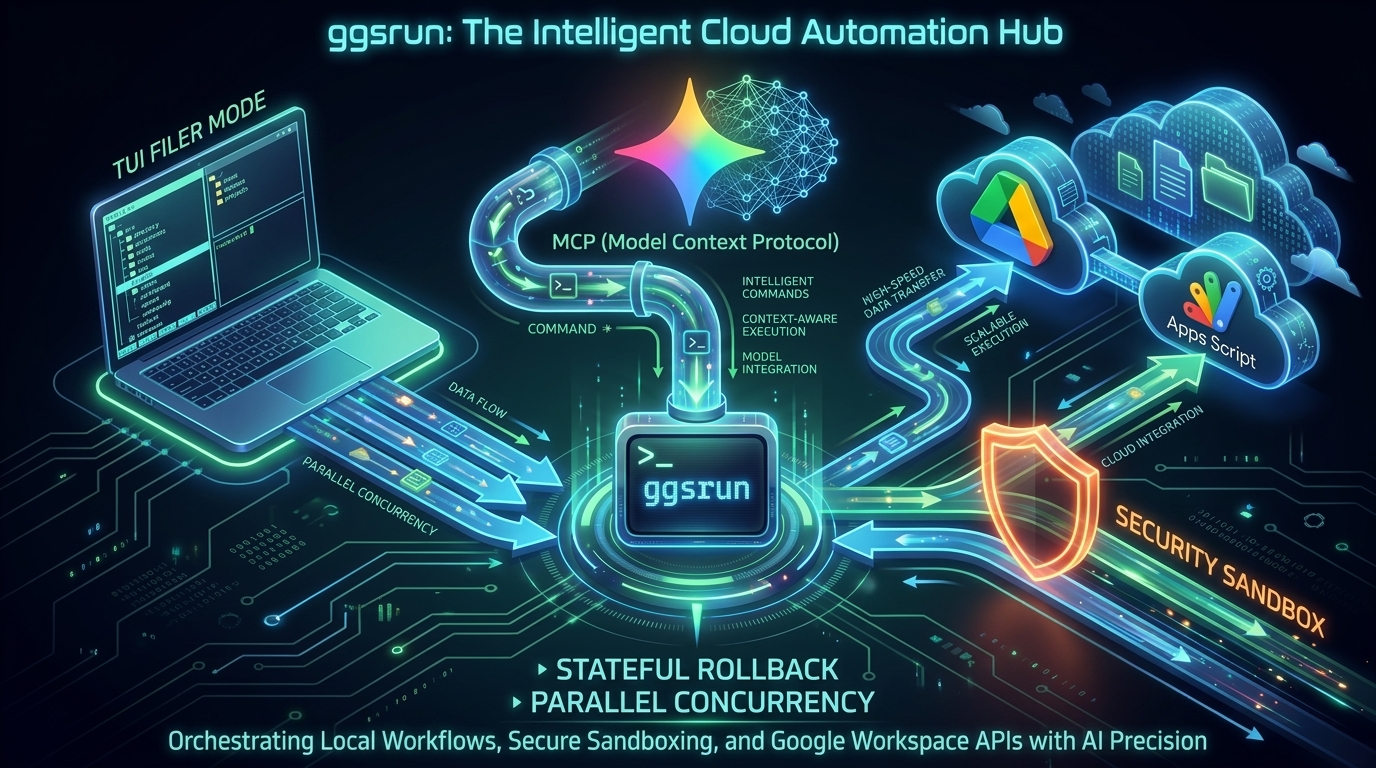




Table of Contents
- ggsrun
- Table of Contents
- Overview
- Features of ggsrun
- The 5 Pillars of the v5 Architecture
- Installation & Setup
- Command Reference & Usage
- Model Context Protocol (MCP) Server & LLM Integration
- Deep Dive: Executing Google Apps Script (exe1, exe2, webapps)
- Advanced Configurations
- Troubleshooting
- Licence & Author
- Update History
Overview
ggsrun is an enterprise-grade CLI tool and MCP (Model Context Protocol) Server designed to relentlessly orchestrate Google Drive I/O operations and execute Google Apps Script (GAS) natively from a local terminal.
With the release of v5.2.0, ggsrun transcends its origins as a mere CLI tool. Built on Go 1.26.4+, the execution engine has been entirely rewritten from legacy serial processing into a channel-based, streaming concurrent architecture. It now serves as a high-performance, fault-tolerant I/O backend fully integrated with Omni-Drive (Shared Drives) support, advanced MIME resolution, secure redirect-following Auth logic, and a native MCP Server Mode allowing LLM agents to autonomously manage your cloud infrastructure.
Features of ggsrun
- Develops GAS using your terminal and text editor seamlessly.
- Executes GAS directly by injecting values into your script dynamically.
- Downloads files concurrently from Google Drive with stunning progress visualizations.
- Uploads files concurrently to Google Drive via native Resumable upload wrappers.
- Downloads standalone scripts and container-bound scripts flawlessly.
- Recursively downloads all files and folders retaining absolute directory structures.
- Uploads script files and creates projects as standalone scripts OR container-bound scripts.
- Manages file and folder permissions across your entire Drive.
- Searches files in Google Drive utilizing advanced search queries and Regex.
- Supports both robust OAuth2 looping and Service Accounts natively.
The 5 Pillars of the v5 Architecture
A. Massively Parallel I/O & UI
Legacy pseudo-asynchronous processing has been eradicated. ggsrun now utilizes a channel-based worker pool built on golang.org/x/sync/errgroup to maximize network throughput on massive folder trees.
B. Full Shared Drive (Omni-Drive) Support
The v5 engine forces supportsAllDrives=true and includeItemsFromAllDrives=true across all Google Drive API permutations. Enterprise users can now execute bulk batch operations targeting deeply nested structures within organizational Shared Drives.
C. Intelligent GAS & MIME Resolution
The extraction logic dynamically categorizes Google workspace entities. Requests targeting GAS code bypass the standard Drive API and are automatically routed to the Apps Script API, securely landing as structured .json locally.
D. Robust Fault Tolerance & Auto-Retry
The v5 execution phase is strictly non-blocking. HTTP 429 (Rate Limits) and 5xx (Server Errors) trigger a mathematical exponential backoff sequence per-worker, ensuring aggressive self-healing.
E. MCP (Model Context Protocol) Integration
Running ggsrun mcp transforms the application into an autonomous JSON-RPC server via stdio. Large Language Model (LLM) agents can natively invoke internal capabilities without requiring any API keys locally.
Installation & Setup
Complete Beginner's Guide: How to Install, Authenticate, and Execute Google Apps Script with ggsrun
This beginner-friendly, step-by-step guide will walk you through installing ggsrun, configuring your Google Cloud environment, deploying your script, and executing your Google Apps Script (GAS) or Web App directly from your local computer. No advanced programming experience required.
Step 1: Install ggsrun on Your Computer
ggsrun is a lightweight application that runs through your terminal (Command Prompt or PowerShell on Windows, or Terminal on macOS/Linux). You do not need to install complex development environments; you can simply download a ready-to-use version.
For Windows Users
- Go to the official ggsrun Releases Page.
- Download the file named
ggsrun_windows_amd64.exe(orarm64if you are using an ARM-based Windows device like a Surface Pro). - Rename the downloaded file to simply
ggsrun.exe. - Move this file into a dedicated folder where you want to work (for example, create a new folder on your Desktop named
ggsrun-workspace).
For macOS & Linux Users
- Go to the official ggsrun Releases Page.
- Download the appropriate binary for your system:
- macOS (Intel):
ggsrun_darwin_amd64 - macOS (Apple Silicon M1/M2/M3):
ggsrun_darwin_arm64 - Linux:
ggsrun_linux_amd64(or matching CPU architecture)
- macOS (Intel):
- Rename the downloaded file to simply
ggsrun. - Move the file to your working folder (e.g., a folder on your Desktop named
ggsrun-workspace). - Open your Terminal, navigate to your working folder, and grant execution permissions to the binary:
cd ~/Desktop/ggsrun-workspace
chmod +x ggsrun
Step 2: Configure Your Google Cloud Project (Critical Setup)
To allow ggsrun to securely communicate with your Google account, you must create a private connection keyset inside the Google Cloud Console.
2.1 Create a New Project
- Open your browser and navigate to the Google Cloud Console.
- Log in with the same Google/Gmail account you use for Google Apps Script.
- Click the project dropdown menu at the top left corner of the screen and select New Project.
- Give your project an easy-to-remember name (e.g.,
My-ggsrun-Project) and click Create. Ensure this newly created project is selected in the top dropdown menu before moving forward.
2.2 Enable the Required Google APIs
- In the search bar at the top, search for Google Drive API and click on it from the results.
- Click the blue Enable button.
- Next, search for Google Apps Script API in the top search bar, click on it, and click Enable.
2.3 Configure the OAuth Consent Screen
Google requires you to set up an authorization screen that pops up when you link your account.
- Click the Navigation Menu (the three horizontal lines at the top-left) and navigate to APIs & Services > OAuth consent screen.
- Select User Type:
- If you use a regular
@gmail.comaccount, choose External and click Create. - If you use a Google Workspace business/school account, you can choose Internal (which simplifies the process).
- If you use a regular
- Fill out the required App Information fields:
- App name:
ggsrun Client - User support email: Select your own Gmail address.
- Developer contact information: Enter your own Gmail address again.
- App name:
- Click Save and Continue. Skip the "Scopes" page by clicking Save and Continue again.
- CRITICAL STEP (For External Type): On the Test users page, click + ADD USERS. Type your exact Gmail address and click Add / Save.
⚠️ Warning: If you skip adding your email as a test user, Google will block you with an
Error 400: invalid_scopelater during the authorization process. - Click Save and Continue to finish.
2.4 Download Your Security Credentials
- In the left-hand sidebar, click Credentials.
- Click the + CREATE CREDENTIALS button at the top and select OAuth client ID.
- Under Application type, select Desktop app.
- In the Name field, type
ggsrun Desktop Client. Click Create. - A popup window will show your Client ID and Client Secret. Click OK.
- Look at the list under "OAuth 2.0 Client IDs". Click the Download icon (a down arrow pointing into a tray) on the far right side of your newly created credentials.
- A file with a long name ending in
.jsonwill download. - Move this downloaded file directly into your working folder (
ggsrun-workspace). - Rename the file to exactly:
client_secret.json
Step 3: Link Your Google Cloud Project to Google Apps Script
Now, you must tell your Google Apps Script project to use the specific cloud credentials you just generated.
3.1 Get Your Project Number
- Return to your Google Cloud Console.
- Click on the Dashboard or Welcome page of your project.
- Look for the Project Info card. Copy the Project number (this is a long string of numbers, e.g.,
123456789012). Do not copy the Project ID text; you specifically need the numerical number.
3.2 Change the Project in the Google Apps Script Editor
- Go to the Google Apps Script Dashboard and open the specific script project you wish to run, or create a New Project.
- On the left sidebar of the modern GAS editor, click the gear icon (Project Settings).
- Scroll down to the section titled Google Cloud Platform (GCP) Project.
- Click the Change project button.
- Paste the Project number you copied in the previous step into the text box.
- Click Set project. Your Apps Script project is now linked with your cloud infrastructure.
Step 4: Perform the Automated Authorization
- Open your terminal application and change your directory to your working folder where
ggsrunandclient_secret.jsonare placed:- Windows Command Prompt:
cd %USERPROFILE%\Desktop\ggsrun-workspace - macOS/Linux Terminal:
cd ~/Desktop/ggsrun-workspace
- Windows Command Prompt:
- Run the authentication command:
- Windows:
ggsrun auth - macOS/Linux:
./ggsrun auth
- Windows:
ggsrunwill automatically open your default web browser and present a standard Google login page.- Select your Google account. You may see a safety warning screen stating "Google hasn't verified this app". Since this is your own private project, click Advanced and then click Go to ggsrun Client (unsafe) to proceed.
- Click Allow to grant permission.
- The browser will display a success message saying authentication is complete. You can close the browser window.
- Configure Default Values (Highly Recommended): In the terminal, the latest version of
ggsrunwill prompt you to enter your Google Apps Script Project Script ID and your Web Apps URL (optional).- Entering these now saves them in
ggsrun.cfg, allowing you to run execution commands later without passing the-ior-uoptions every time! - A file named
ggsrun.cfgis automatically generated in your folder; this stores your login session and configurations securely.
- Entering these now saves them in
Step 5: Set Up the Execution Server on Google Apps Script
To let ggsrun securely trigger your scripts remotely (necessary for stateless exe2 and webapps modes), you must add a small gateway wrapper inside your Google Apps Script.
5.1 Add the Shared Server Library
- Inside your Google Apps Script editor, look at the left sidebar and click the
+icon next to Libraries. - Paste the following official
ggsrunifLibrary ID into the box:115-19njNHlbT-NI0hMPDnVO1sdrw2tJKCAJgOTIAPbi_jq3tOo4lVRov - Click Look up. Select the latest version from the dropdown menu, keep the Identifier named exactly as
ggsrunif, and click Add.
5.2 Add the Gateway Code
Open your Code.gs file in the script editor and replace the default code with the following wrapper endpoints (for both exe2 and webapps modes):
const doPost = (e) => ggsrunif.WebApps(e, "pass1");
const ExecutionApi = (e) => ggsrunif.ExecutionApi(e);
(Note: Change "pass1" to a secure custom password if you plan to execute webapps anonymously).
5.3 Deploy the Script as an API Executable (For exe1 & exe2)
- At the top-right corner of the editor, click Deploy > New Deployment.
- Click the gear icon next to "Select type" and choose API Executable.
- In the description, type
ggsrun API Engine. - In the Who has access dropdown, select Only myself (this keeps your automation completely private and secure).
- Click Deploy.
- Copy the Script ID (a long string of alphanumeric characters) displayed on this screen.
5.4 Deploy the Script as a Web App (For webapps)
- At the top-right corner of the editor, click Deploy > New Deployment.
- Click the gear icon next to "Select type" and choose Web app.
- In the description, type
ggsrun Web Engine. - Set Execute as to Me (your email address).
- Set Who has access to:
- Only myself: Highly recommended for secure execution. This requires the
ggsrunCLI to be authenticated viaggsrun authwith Drive scopes enabled. - Anyone: Select this if you need to trigger the webapp anonymously from a CI/CD pipeline without a token. (Access is secured by the password flag
-p).
- Only myself: Highly recommended for secure execution. This requires the
- Click Deploy.
- Copy the generated Web app URL (e.g.,
https://script.google.com/macros/s/[WEB_APP_ID]/exec).
Step 6: Test Execution from Your Computer
Let's test everything to ensure your computer can run scripts inside your Google Account successfully.
- Create a simple text file on your local computer inside your working folder (
ggsrun-workspace) and name ittest_script.js. - Open it with any text editor (Notepad, VS Code, etc.) and paste the following simple test code inside:
function main(message) { return "Success! Received local message: " + message; } - Open your terminal window in your working folder (
cd ~/Desktop/ggsrun-workspaceor your Windows path). - Run the test commands below:
Test Option A: Execution via API Executable (exe2 mode)
Run the script using ggsrun exe2. Replace [YOUR_SCRIPT_ID] with the Script ID you copied during Step 5.3 (or omit the -i flag if you saved the Script ID in ggsrun.cfg during authentication):
- Windows Command Prompt:
ggsrun exe2 -i "[YOUR_SCRIPT_ID]" -f ExecutionApi -s test_script.js -v "Hello Google Apps Script!" -j - macOS/Linux Terminal:
./ggsrun exe2 -i "[YOUR_SCRIPT_ID]" -f ExecutionApi -s test_script.js -v "Hello Google Apps Script!" -j
Test Option B: Execution via Web App (webapps mode)
Run the script using ggsrun webapps. Replace [YOUR_WEB_APP_URL] with the Web App URL you copied during Step 5.4 (or omit the -u flag if you saved the Web App URL in ggsrun.cfg during authentication):
- Windows Command Prompt:
ggsrun webapps -u "[YOUR_WEB_APP_URL]" -p pass1 -s test_script.js -v "Hello Google Apps Script!" -j - macOS/Linux Terminal:
./ggsrun webapps -u "[YOUR_WEB_APP_URL]" -p pass1 -s test_script.js -v "Hello Google Apps Script!" -j
Expected Output
In both cases, ggsrun will securely upload the script payload, run it in the Google Cloud environment, and output a clean JSON result directly to your terminal showing the return string:
"Success! Received local message: Hello Google Apps Script!". Your local workspace automation is completely operational!
1. Install ggsrun
Using Go
Requires Go 1.26.4 or higher. Pull and compile the latest binary natively:
$ go install github.com/tanaikech/ggsrun@latest
Downloading Pre-built Binaries
Alternatively, you can download pre-built binaries directly from the Releases page.
The following compiled binaries are available:
- macOS (Darwin)
ggsrun_darwin_amd64ggsrun_darwin_arm64
- Linux
ggsrun_linux_386ggsrun_linux_amd64ggsrun_linux_arm64ggsrun_linux_arm7ggsrun_linux_mipsggsrun_linux_mipsle
- FreeBSD
ggsrun_freebsd_amd64ggsrun_freebsd_arm64
- Windows
ggsrun_windows_386.exeggsrun_windows_amd64.exeggsrun_windows_arm64.exe
2. Obtain Google Cloud Credentials
- Access the Google Cloud Console.
- Create a new Project.
- Navigate to APIs & Services > Library. Enable both the Google Drive API and Google Apps Script API.
- Configure the OAuth consent screen (External/Internal).
- Navigate to Credentials > Create Credentials > OAuth client ID. Select Desktop app.
- Download the resulting JSON file, move it to your working directory, and rigorously rename it to exactly
client_secret.json.
3. Automated Authorization (OAuth2 Loopback)
With your client_secret.json in the current directory, execute:
$ ggsrun auth
ggsrun spins up a secure local loopback listener. Your default browser will launch, request authorization, and securely hand the token back to the CLI. A persistent ggsrun.cfg file is generated.
4. Set Up Execution Server (GAS Side)
To execute arbitrary GAS functions locally without permanent deployments (exe2 and webapps modes), you must establish a gateway endpoint on Google Apps Script using the ggsrunif library.
Step 4.1: Bind the Server Library
- Navigate to the Google Apps Script Dashboard and create a New Project.
- Click the
+icon next to Libraries. - Input the Target Script ID:
115-19njNHlbT-NI0hMPDnVO1sdrw2tJKCAJgOTIAPbi_jq3tOo4lVRov. - Set the Identifier to
ggsrunifand select the latest version.
Step 4.2: Inject the Gateway Code
Replace the default code in Code.gs with the following ultra-lightweight wrappers.
const doPost = (e) => ggsrunif.WebApps(e, "pass1");
const ExecutionApi = (e) => ggsrunif.ExecutionApi(e);
(Note: Change "pass1" to a secure custom password if you plan to execute webapps anonymously).
Step 4.3: Deploy as API Executable (For exe1 & exe2)
- Click Deploy > New Deployment.
- Choose API Executable.
- Set Who has access strictly to Only myself.
- Click Deploy. Copy the Script ID for the
-iflag.
Step 4.4: Deploy as Web App (For webapps)
- Click Deploy > New Deployment.
- Choose Web app.
- Set Execute as to Me.
- Set Who has access to Only myself.
(Note: This highly secure setting requires the
ggsrunCLI to be authenticated viaggsrun authwith Drive scopes enabled. If you need to trigger the webapp anonymously from a CI/CD pipeline without a token, set access to Anyone and rely on the-ppassword flag). - Click Deploy. Copy the generated Web app URL for the
-uflag.
Command Reference & Usage
Authentication & MCP
| Command | Action |
|---|---|
$ ggsrun auth | Initiates the secure OAuth2 loopback flow. Use --port to change the binding port. |
$ ggsrun status | Health diagnostic tool to verify the validity and expiration of your current Access Token. |
$ ggsrun mcp | Starts the stdio-bound MCP Server. Listens for tools like searchfiles, download, upload. |
Massively Parallel Download
Target IDs can belong to Standard Drives, Shared Drives, or Team Drives seamlessly. ggsrun natively handles the recursive mapping of folders and parallel byte-streaming.
| Command | Action |
|---|---|
$ ggsrun download -i "FILE_ID1, FILE_ID2" -w 5 | Downloads specific files utilizing 5 parallel channel workers. |
$ ggsrun download -i "FOLDER_ID" -w 10 | Recursively maps and downloads an entire folder tree concurrently. |
$ ggsrun download -i "SPREADSHEET_ID" -e xlsx | Directs the Drive API to transpile and export a native Google Sheet into an .xlsx binary. |
$ ggsrun download -i "DOCUMENT_ID" -e md | Directs the Drive API to transpile and export a Google Doc into a Markdown (.md) file. |
$ ggsrun download -i "DOCUMENT_ID" -e pdf | Directs the Drive API to transpile and export a Google Doc into a PDF (.pdf) file. |
$ ggsrun download -i "FOLDER_ID" -m "application/pdf" | Recursively downloads a folder, but filters specifically to retrieve only PDF files. |
$ ggsrun download -i "SCRIPT_ID" -z | Downloads an entire GAS project, bundles all .js/.html files, and saves it as a .zip archive. |
$ ggsrun download -i "SCRIPT_ID" -r | Downloads a GAS project natively as raw .json payload. |
$ ggsrun download -i "FOLDER_ID" -cm update | Recursively downloads a folder, updating only files that are newer on Drive. |
$ ggsrun download -i "FOLDER_ID" -d "./downloads" | Recursively downloads a folder, saving all files inside the ./downloads directory (created automatically). |
[!NOTE] When downloading a folder concurrently, specified export extensions via
-eare dynamically validated against each file's native format. For example, if you download a folder with-e xlsx, Sheets inside the folder will convert to.xlsxfiles while unsupported files (like Slides or Docs) will print a warning and skip, allowing the queue to continue without failure.
Massively Parallel Upload
Pushes local hierarchical structures to Google Drive asynchronously. Resumable chunked uploads are inherently supported for massive binaries (default chunk size: 100MB).
| Command | Action |
|---|---|
$ ggsrun upload -f "a.txt, b.txt" -p "FOLDER_ID" | Uploads multiple individual files sequentially or concurrently. |
$ ggsrun upload -f "/path/to/folder" -p "FOLDER_ID" -w 5 | Uploads a local directory recursively, mimicking the exact file tree on Google Drive. |
$ ggsrun upload -f "script.js" --projectname "MyAPI" | Uploads a local file and provisions it as a brand new Standalone GAS Project. |
$ ggsrun upload -f "script.js" -pid "SHEET_ID" --projecttype "spreadsheet" | Uploads a script and provisions it as a Container-Bound Script directly attached to the specified Google Sheet. |
$ ggsrun upload -f "data.csv" -c "sheet" | Uploads a CSV file and automatically commands Google Drive to convert it into a native Google Spreadsheet. |
$ ggsrun upload -f "document.docx" -c "doc" | Uploads a Word document and converts it to a native Google Doc. |
$ ggsrun upload -f "slides.pptx" -c "slide" | Uploads a PowerPoint presentation and converts it to a native Google Slide. |
$ ggsrun upload -f "large_file.mp4" --chunksize 250 | Accelerates massive file transfers by increasing the Resumable Upload chunk size to 250MB. |
$ ggsrun upload -f "/path/to/folder" -p "FOLDER_ID" -cm rename | Uploads a directory, appending timestamps to any conflicting filenames on Drive. |
[!NOTE] Recursive folder uploads natively support batch conversion. When specifying
-c(or--convertto), every eligible file within the uploaded folder tree is evaluated and converted to the target Workspace format concurrently. Files that cannot be converted will log a conversion error warning and skip, leaving other files in the queue unaffected.
Conflict Resolution Mode
Both download and upload commands support the --conflict-mode (or -cm) flag to handle collisions when files already exist in the target destination.
If not specified, ggsrun will default to an interactive CLI prompt allowing you to dynamically select the resolution per collision.
| Conflict Mode | Behavior (Download) | Behavior (Upload) |
|---|---|---|
skip | Skips downloading the file if it already exists locally. | Skips uploading the file if it already exists on Google Drive. |
overwrite | Overwrites the local file. | Overwrites the remote file on Google Drive (triggers a PATCH request). |
rename | Appends a timestamp (_YYYYMMDD_HHMMSS) to the filename locally. | Appends a timestamp (_YYYYMMDD_HHMMSS) to the filename on Google Drive. |
update | Downloads only if the remote file is newer than the local file. | Uploads/updates only if the local file is newer than the remote file. |
[!NOTE] The legacy
--overwrite(-o) and--skip(-s) flags indownloadare deprecated. Please migrate to--conflict-mode. For massive concurrent uploads, metadata queries are pre-fetched in bulk to bypass Google Drive API rate limits. Naming collisions on directories/folders do not trigger prompts. They are silently reused, applying file-level conflict resolution strictly to the items within. When-j(--jsonparser) is active, TUI logs and progress bars are fully muted and interactive prompts are bypassed, defaulting toOverwriteIfNewerunless overriden by--cm/--conflict-mode.
Model Context Protocol (MCP) Server & LLM Integration
Running $ ggsrun mcp transforms ggsrun into a native Model Context Protocol (MCP) Server, communicating with LLM clients (such as Claude Desktop, Cursor, or specialized AI agents) over standard I/O (stdin/stdout).
With the release of v5.1.1, the MCP capabilities are enhanced to fully expose modern conflict resolution and deliver deeply structured JSON results.
MCP Server Configuration for Antigravity CLI
To configure ggsrun as an MCP server inside your Antigravity CLI environment, specify the server details in your global config file at ~/.gemini/config/mcp_config.json.
Add the following JSON configuration snippet, ensuring that the command value points to your exact local ggsrun executable path:
{
  "mcpServers": {
    "ggsrun-drive-agent": {
      "command": "/path/to/ggsrun",
      "args": ["mcp"]
    }
  }
}
1. Exposed Tools
The MCP server exposes the following high-level tools to your AI agent:
searchfiles: Search Google Drive files using standard Google Drive API v3 queries (e.g.,name='target' and trashed=false). Supports optional regex filename filtering.download: Download files or folders by File ID. Includes a--conflict-modeoption to handle name collisions, and supports custom local filename mapping.upload: Upload a local file or recursive folder to a Google Drive location. Includes a--conflict-modeoption and--projectnamefor GAS scripts.exe1: Stateful execution of Google Apps Script projects. Now supports passing local script sources (scriptfileorstringscript), executing target entry functions, and automatically resolvesscriptidfrom the local configuration fileggsrun.cfgas a fallback.filelist: Exact name or ID search for files, returning Google Drive File details and names.
2. Standardized JSON Output (TransferResult)
When executing transfer operations (uploads/downloads), ggsrun outputs a standardized JSON payload structure named TransferResult. This allows your AI agent to reliably parse the result, extract metadata, and identify multi-turn actions like conflict resolution.
Example TransferResult JSON structure:
{
  "message": [
    "Upload processed successfully."
  ],
  "files": [
    {
      "name": "file_2.txt",
      "fileId": "1a2b3c4d5e6f7g8h9i0j",
      "mimeType": "text/plain",
      "url": "https://drive.google.com/file/d/1a2b3c4d5e6f7g8h9i0j/view",
      "size": 1024,
      "localPath": "/local/path/file_2.txt",
      "status": "uploaded"
    }
  ],
  "pendingConflicts": [
    {
      "name": "file_1.txt",
      "mimeType": "text/plain",
      "size": 2048,
      "localPath": "/local/path/file_1.txt",
      "status": "pending_conflict"
    }
  ],
  "actionRequired": "Conflicts detected. Please invoke upload again with a conflict-mode: 'skip', 'overwrite', 'rename', or 'update' for the pending files."
}
Manual Testing of the MCP Server
You can manually test the MCP server configuration and schemas directly on your command line by piping JSON-RPC payloads into the standard input of ggsrun mcp.
1. Test MCP Server Initialization
$ echo '{"jsonrpc": "2.0", "method": "initialize", "id": 1}' | ggsrun mcp
2. List All Available Tools and Schemas
$ echo '{"jsonrpc": "2.0", "method": "tools/list", "id": 2}' | ggsrun mcp
3. Test Drive Search (searchfiles tool)
$ echo '{"jsonrpc": "2.0", "method": "tools/call", "params": {"name": "searchfiles", "arguments": {"query": "name = '\''test_script.gs'\'' and trashed = false"}}, "id": 3}' | ggsrun mcp
4. Test Stateful GAS Script Execution (exe1 tool)
This invokes the main function using the local configuration fallback for scriptid:
$ echo '{"jsonrpc": "2.0", "method": "tools/call", "params": {"name": "exe1", "arguments": {"scriptfile": "./my_script.js", "function": "main"}}, "id": 4}' | ggsrun mcp
3. AI Agent Prompt Scenarios & Expected Behaviors
To help your AI agent interact effectively with the ggsrun MCP server, use the following standardized and optimized prompts.
Scenario A: Batch Upload with Interactive Conflict Resolution
Test how the AI coordinates partial execution and handles unexpected collisions when some files already exist in Google Drive while others do not.
- Setup: Ensure
file_1.txtalready exists on your Google Drive, whilefile_2.txtis a brand-new local file. - Agent Prompt:
"Please upload
file_1.txtandfile_2.txtto Google Drive using theuploadtool. Do not specify the conflict mode initially. If there are pending conflicts, ask me how to resolve them." - Expected Interaction Flow:
- The AI invokes the
uploadtool for both files without passing the--conflict-modeargument. - The
ggsrunbackend uploadsfile_2.txtsuccessfully and populates it in thefilesarray, but registersfile_1.txtunderpendingConflictswith"status": "pending_conflict". - The AI parses the
TransferResultand successfully reports: "I have uploadedfile_2.txt(ID: ...). However,file_1.txtalready exists. Would you like to skip, overwrite, rename, or update it?" - You reply: "Please overwrite it."
- The AI intelligently invokes the
uploadtool specifically forfile_1.txtwithconflict-modeset to"overwrite".
- The AI invokes the
Scenario B: Granular Metadata Extraction and Parsing
Test if the AI can retrieve full file metadata from TransferResult and report specific file properties precisely.
- Agent Prompt:
"Please download the file with ID
[YOUR_FILE_ID]from Google Drive. Tell me exactly where it was saved (localPath) and itssizefrom the result." - Expected Interaction Flow:
- The AI invokes the
downloadtool passing the target file ID. ggsrunperforms the parallel download and returns a standardized JSON structure containing the file array.- The AI successfully parses the
filesarray inTransferResultand replies to you with clear, accurate metadata: "The file has been saved to[localPath]and its size is[size]bytes."
- The AI invokes the
4. Sample Prompts to Give to Your AI Agent
You can use the following sample prompts to instruct an AI Agent (e.g. Claude Desktop, Cursor, or Gemini Agent) connected to your ggsrun MCP server:
- Find and download a script file by name:
"Please search my Google Drive for a file named 'backup_utility.js'. If you find it, download it to my local workspace and let me know the path where you saved it."
- Run a local GAS script on Google Drive statefully:
"Upload the local script file
./main.gsto my Google Apps Script project (Script ID is1IRpZ4Hu...) and execute themainfunction. Please return the output payload." - Search files with Drive API v3 queries:
"Search for folders modified within the last 7 days that do not contain 'archive' in their name. Give me a list of their names and IDs."
- Upload local files and handle conflicts dynamically:
"Upload the local file
./data/report_2026.csvto the Drive folder1a2b3c.... If a file with the same name already exists in that folder, ask me whether to overwrite, skip, or rename it, and then proceed with my choice."
Deep Dive: Executing Google Apps Script (exe1, exe2, webapps)
Mode 1: exe1 (Stateful Project Execution)
exe1 relies on the Apps Script API to permanently upload (sync) your local .js/.gs file to the remote GAS project, and then invokes a specific function via the Execution API.
When to use: You want to permanently update the code on the cloud and run it. Requires an OAuth Token.
Step-by-Step:
- Create a local script
sample.gs:function targetFunction(data) { return "Processed data: " + data; } - Execute the CLI:
$ ggsrun exe1 -i [YOUR_SCRIPT_ID] -s sample.gs -f targetFunction -v "Hello World"
Architecture Workflow
sequenceDiagram
    autonumber
    participant CLI as ggsrun (Local PC)
    participant AAPI as Apps Script API
    participant EAPI as Execution API
    participant GAS as Remote GAS Project

    CLI->>AAPI: PUT /v1/projects/{id}/content<br>(Push local .js files)
    AAPI-->>CLI: 200 OK (Project Overwritten)
    CLI->>EAPI: POST /v1/scripts/{id}:run<br>Target: targetFunction
    EAPI->>GAS: trigger targetFunction()
    Note right of GAS: Executes utilizing the<br>permanently saved code
    GAS-->>EAPI: Return Value
    EAPI-->>CLI: Pure JSON Result
Mode 2: exe2 (Stateless Dynamic Execution)
exe2 is the pinnacle of dynamic execution. It does not modify or update your remote GAS project files. Instead, it reads your local script, heavily sanitizes it into a secure JSON-encoded string, and transmits it as a payload to the ExecutionApi wrapper.
When to use: Rapid local prototyping and executing complex data-extraction algorithms on the cloud without polluting the production GAS project's codebase. Requires an OAuth Token.
Step-by-Step:
- Create a local script
compute.js. The local entry point must bemain():function main(multiplier) { return multiplier * 10; } - Execute the CLI:
$ ggsrun exe2 -i [YOUR_SCRIPT_ID] -f ExecutionApi -s compute.js -v 5 -j
Architecture Workflow
sequenceDiagram
    autonumber
    participant CLI as ggsrun (Local PC)
    participant API as Execution API
    participant GAS as GAS Project (ggsrunif)
    participant V8 as V8 Engine

    CLI->>CLI: Wrap local code in IIFE<br>Encode to JSON literal
    CLI->>API: POST /v1/scripts/{id}:run<br>Target: ExecutionApi
    API->>GAS: trigger ExecutionApi(payload)
    GAS->>V8: eval(script string)
    Note right of V8: Executes stateless logic<br>without saving files to Drive
    V8-->>GAS: Return Object/Value
    GAS-->>API: Response Wrapper
    API-->>CLI: Pure JSON Result
Mode 3: webapps (Anonymous OR Secure Endpoint Execution)
webapps functions similarly to exe2 (stateless dynamic evaluation) but bypasses the Google Execution API entirely. Instead, it routes the payload through a standard HTTP POST request to a deployed Google Web App URL.
When to use:
- Secure Mode: You want to execute arbitrary scripts natively on a highly-secured ("Only myself") endpoint utilizing the
drivescope OAuth token. - Anonymous Mode: You need to execute GAS scripts from a remote CI/CD pipeline without deploying an OAuth token. (Requires the Web App to be deployed as "Anyone" and utilizes the
-ppassword flag).
Step-by-Step:
- Create your local logic script
report.js(entry pointmain()). - Execute the CLI:
(Note: If$ ggsrun webapps -u "https://script.google.com/macros/s/[WEB_APP_ID]/exec" -p pass1 -s report.js -jggsrun authhas been executed locally, the CLI automatically detects the token, bypasses the-prequirement, and securely traverses Google's 302 redirects to execute the code. The-jJSON output will includetokenAuthUsed: true.)
Architecture Workflow
sequenceDiagram
    autonumber
    participant CLI as ggsrun (Local PC)
    participant URL as Web App URL
    participant GAS as GAS Project (doPost)
    participant V8 as V8 Engine

    CLI->>CLI: URL-encode payload & Verify Token
    alt Has OAuth Token
        CLI->>URL: HTTP POST (Bearer Token attached)
        URL-->>CLI: 302 Redirect (Google Auth)
        CLI->>URL: Follow Redirect (Bearer Token re-attached)
    else Anonymous Mode
        CLI->>URL: HTTP POST (No Token, requires "Anyone" access)
    end

    URL->>GAS: trigger doPost(e)
    GAS->>V8: eval(script string)
    V8-->>GAS: Return Object/Value
    GAS-->>URL: ContentService (MimeType.JSON)
    URL-->>CLI: Pure JSON Result
Verification & Diagnostics
To quickly verify the functionality of all execution modes using a stateless beacon request, you can run the following test commands:
ggsrun e1 -ss "const main = (_) => ggsrunif.Beacon();" -j
ggsrun e2 -ss "const main = (_) => ggsrunif.Beacon();" -j
ggsrun w -ss "const main = (_) => ggsrunif.Beacon();" -j
Advanced Configurations
Modifying OAuth Scopes
By default, ggsrun requests all necessary scopes for Drive and GAS execution. If you need to inject custom scopes or trim existing ones:
- Open the
ggsrun.cfgfile generated in your working directory. - Locate the
"scopes": [ ... ]JSON array. - Add or remove your desired Google API scopes.
- Save the file and simply run
$ ggsrun authagain. The CLI will automatically re-read your modified configuration, launch the browser, and provision a new token with your exact custom scopes.
Troubleshooting
1. Web Apps Returns Status Code 200, but output is HTML
If you set your Web App to "Only myself" but the CLI returns a parsing error with HTML, it means your ggsrun lacks the proper OAuth token. Run ggsrun auth to generate a token with the drive scope, which the CLI will automatically use to authenticate the Web App request across the Google 302 Redirects.
2. "Requested entity was not found" or 404 Errors
If utilizing GAS execution (e1 / e2), verify the target project is currently deployed as an API Executable on the latest version. Un-deployed or draft states cannot be invoked externally.
3. Headless Server Authentication
If ggsrun auth detects a headless Linux environment (where it cannot spawn a local browser loopback), it elegantly degrades into manual mode. It prints the URL; copy it into an external browser, authorize, and paste the code block back into standard input.
Licence & Author
Licence: MIT
Author: Tanaike
For architectural questions, advanced enterprise integrations, or bug disclosures, contact: tanaike@hotmail.com
Update History
ggsrun
- v5.2.4 (June 2026) - Latest MIME Type Formats, CLI Option Help Details, Concurrent Conversion Overhaul, and Destination Directory Support
Updated internal MIME type mapping definitions (
googlemimetypes.go) to synchronize with the latest Google Drive APIimportFormats/exportFormats. Revamped the CLI options help display for--extension(download/revision) and--convertto(upload) to explicitly list all supported formats. Overhauled the concurrent upload/download engines to handle--convertto/--noconvertdirectly in parallel streams without falling back to the legacy single-threaded uploader, adding validation capability checks and graceful error warning feedback. Added--destination(-d) option to thedownloadandrevisioncommands to allow specifying the target local directory for saving downloaded files. - v5.2.3 (June 2026) - Directory Reuse Conflict Resolution, Output Control, and CLI/MCP Alignment
Upgraded the directory upload conflict resolution mechanism to silently and recursively reuse existing remote folders without prompting. Aligned the
--conflict-modebehavior for-j/--jsonparserCLI runs to match the automated MCP mode (defaulting toOverwriteIfNewer, overridable via--cm). Muted TUI output and progress bars (mpb) when running with the-joption to return clean JSON. Supported--cmas a shorthand alias for--conflict-modein file transfers. - v5.2.2 (June 2026) - MCP Help Display Expansion, Safety Review Prompt, Dual-Mode Conflict Engine, and File-Level Error Feedback
Expanded
ggsrun mcp -h(and--help) to display all exposed MCP tool names and their detailed description outputs directly. Implemented strict programmatic safety review prompts inside theexe1MCP tool description, instructing LLMs to statically analyze Apps Script payloads for API mutations (write/update/delete) and obtain user Y/N confirmations before running, while allowing read-only scripts to run automatically. Re-designed the conflict resolution engine into a dual-mode system: automated and non-interactive for MCP server sessions (defaulting toOverwriteIfNewer, with options forIgnoreandRename), and preserving legacy interactive CLI prompts for raw executions. Refactored parallel transfer loops to capture and return detailed file-level error feedback instead of crashing. - v5.2.1 (June 2026) - Dynamic CLI Help Customization, Beacon Script Integration, and Namespace Binding
Updated the CLI help systems for
e1,e2, andwto integrate comprehensive execution command examples (including stateless beacon checks) dynamically within both the--helpflag screens and optionless execution error overlays. Fixed a namespace bug where evaluated scripts executingggsrunif.Beacon()inside the library threw aggsrunif is not definedReferenceError, by bindingggsrunifto the library's global execution context. - v5.2.0 (June 2026) - Go standard layout, WSL2 browser integration, Web Apps URL registration, CLI UX hardening, and MCP Server Schema Improvements
Reorganized the codebase to follow the standard Go project structure (
main.go,/internal/app/,/internal/utl/). Expandedggsrun authto request Web Apps URL registration and dynamically persist it inggsrun.cfg, allowingggsrun wto run without the-uoption. Integrated WSL 2 environment detection to prompt the user to choose between the Windows host browser, WSL/Ubuntu native browser, or manual URL copy-pasting. Upgradedggsrun e1,ggsrun e2, andggsrun wcommands to dynamically print full CLI flag helps alongside custom usage examples. Improved the MCP server (ggsrun mcp) tools schema, adding rich parameter descriptions, Drive API query examples, newscriptfile/stringscriptparameters to theexe1schema,searchbyidparameter to thefilelistschema, and makingscriptidoptional by resolving automatically fromggsrun.cfg(viaGGSRUN_CFG_PATHor the local directory). Refinedtools/callbackend handling to safely strip null/empty values. - v5.1.1 (May 2026) - Modular Handlers & Enhanced MCP Server Core
Refactored the codebase to modularize legacy single-file command handlers into dedicated, organized handler files (
handler_download.go,handler_upload.go,handler_transfer.go,handler_mcp.go,handler_execute.go). Strengthened the MCP server core (ggsrun mcp) by capturing stdout and stderr execution logs for comprehensive error recovery. Embedded full support for--conflict-modeinside the MCP JSON-RPC schemas and standardized file transfer outputs intoTransferResultto support interactive multi-turn collision resolution in LLM conversations. Fully updated pre-built binaries for all major architectures. - v5.1.0 (May 2026) - Advanced Conflict Resolution Engine
Introduced a robust pre-computation conflict resolution matrix for both
downloadanduploadcommands via the new--conflict-mode(-cm) flag. Users can now choose fromskip,overwrite,rename(appends timestamp_YYYYMMDD_HHMMSSto avoid collisions), orupdate(syncs only if the source file is newer than the target). Includes interactive fallback CLI prompts if no mode is specified. Deprecated the legacy--overwrite(-o) and--skip(-s) options in favor of--conflict-mode. To avoid Drive API rate limits during massive concurrent uploads, metadata query is pre-fetched in bulk. - v5.0.3 (May 2026) - CLI UX Overhaul & Dynamic TUI Integration
Introduced a highly visual, modern Terminal UI (TUI) powered by
ptermforexe1,exe2, andwebappscommands. Added interactive loading spinners with anti-ghosting fixed-width padding (%-70s) and beautifully structured execution reports. Maintained strict backward compatibility by preserving pure JSON output streams via the-jflag for CI/CD pipeline automation. - v5.0.2 (May 2026) - Secure Web Apps Protocol Upgrade
Upgraded the
webappscommand to natively support "Only myself" execution deployments by bridging OAuth tokens (drivescope) across Google's HTTP 302 Auth Redirects. Ported the IIFE/JSON-literal double-eval protections fromexe2towebapps. - v5.0.1 (May 2026) - Execution Engine Hardening & Double-Eval Eradication
Eliminated the V8 engine double-eval 500 server crash during dynamic script execution by enforcing IIFE and JSON-literal payload encoding. Redefined
-fflag mapping for proper API gateway resolution inexe2. Added precision deployment documentation for stateful and stateless execution modes. - v5.0.0 (May 2026) - The Omnibus Architecture Rewrite
Engine fundamentally rewritten for Go 1.26.3+. Implemented channel-based concurrency (
errgroup), freeze-proof TUI (mpb/v8), SIMD JSON parsing (goccy/go-json), native MCP server (ggsrun mcp), Shared Drives full-support, auto MIME-mapping, isolated fault tolerance, and OAuth2 loopback automation. - v3.2.2 (May 2026) - Pure MCP Node Evolution
Finalized the
mcpcommand backend logic. - v3.2.0 (May 2026) - The AI/MCP Architecture Update
Transformed
ggsruninto a background daemon capability. Redefined Config and Credentials path priority. - v3.1.0 (May 2026) - Recursive Structure Update Re-engineered Drive file transfer logic mapping deeply nested structures.
- v3.0.0 (May 2026) - Massive Concurrency Update Core engine rewritten for Go 1.26+. Deprecated OOB OAuth.
- v2.0.3 (June 2025) Rebuild with go1.24.4.
- v2.0.0 (February 2022) Modified using the latest libraries.
- v1.7.0 (December 2018) Manage permissions; Service Account integration.
- v1.6.0 (November 2018) Files searchable via query and regex.
- v1.5.0 (October 2018) Recursive folder downloads while maintaining structure.
- v1.4.1 (February 2018) Resumable upload chunking added.
- v1.4.0 (January 2018) Official Google Apps Script API integration.
- v1.3.3 (October 2017) Manifest modification support (
appsscript.json). - v1.3.2 (October 2017) Interactive script rearrangement feature.
- v1.3.0 (August 2017) Container-bound script support.
- v1.2.1 (May 2017) Added
GGSRUN_CFG_PATHenvironment variable support. - v1.1.0 (April 2017) Update project command and
TotalElapsedTimeadditions. - v1.0.0 (April 2017) Initial release.
Server
- v1.2.1 (June 2026) - V8 Modernization, Log Sheet Lazy Loading, and Namespace Scope Resolution
Refactored the core library script into an optimized V8 ES6 class structure. Added lazy-loading of log spreadsheets to bypass spreadsheet lookup overhead on non-logging runs (such as Beacon checks). Replaced deprecated
arguments.calleewith named recursive functions infoldertree, transitioned to the modernFile.moveTomethod for folder reorganization, and boundggsrunifglobally to the library context to permit evaluated script payloads to call namespace alias methods safely. - v1.0.0 (April 2017) Initial release.