
Portfolio Manager
rodionlim/portfolio-manager-go
Gestor de portfólio multi-ativos com MCP Server e integração LLM
Ver no GitHubAplicação para valorizar portfólios multi-ativos (ações, moedas, commodities, criptomoedas, bonds) com cálculo automático de dividendos e preços de mercado de fontes gratuitas. Expõe um MCP Server para integração com LLMs e gera insights de trading via IA.
Instalação
npx convez-ai rodionlim/portfolio-manager-go1 comando no terminal: detecta o formato do repositório (marketplace ou plugin avulso) e instala via Claude Code. Requer Node 18+ e o Claude Code instalado.
Métricas
Casos de uso
- Valorizar e monitorar portfólios pessoais diversificados em tempo real
- Gerar insights de trading automatizados via integração com Gemini/Claude
- Importar/exportar dados de blotter para migrações entre sistemas
Veredito

Ferramenta robusta e bem arquitetada para gestão de portfólios complexos. A integração MCP com LLMs é o diferencial principal, permitindo análises contextualizadas. Requer conhecimento técnico para setup e customização.
README
A tradução para o português deste README ainda está na fila.
Portfolio Manager


An application to value equities, fx, commodities, cash, bonds (corps / gov), and cryptocurrencies in your personal portfolio and use LLMs to generate trading insights.
Full Documentation: https://rodionlim.github.io/portfolio-manager-go/
Table of Contents
- Features
- Installation
- Quickstart
- CLI Commands
- Project Structure
- For Developers
- MCP Server Integration
- Built-in Scheduler
- UI
- Backend API Examples
- Historical Market Data
- Configurations
- Roadmap
- Contributing
- License
Features
- Value assets of different currencies based on current market prices
- Fetch market data based on free data sources (Yahoo finance, Google finance, dividends.sg, ilovessb.com, mas, nasdaq, barcharts, TradingView), current and historical
- Import / Export portfolio blotter data using CSV file for easy migration to other portfolio systems
- Allow users to supply their own custom dividends metadata
- Export ticker reference data in yaml format
- Autoclosing expired positions
- Infer historical fx rates for blotter trades
- Store portfolio, reference, dividends and coupon data in leveldb for persistence
- Display detailed information for individual and aggregated assets
- Collect and display portfolio statistics such as IRR, MV, Price Paid
- Integration with Gemini to derive trading insights via Analytics module
- Portfolio analytics such as generating correlation matrix and benchmarking book performance against user-defined benchmarks
- OpenAPI compliant for easy integration with other systems
- UI for end users
- Cloud and Local backup and restore (Google Drive)
- MCP (Model Context Protocol) server for LLM integration
Installation
The easiest way to install Portfolio Manager is to download the latest release with the setup script. This does not require Go, Node.js, or cloning the repository.
macOS and Linux
curl -fsSL https://raw.githubusercontent.com/rodionlim/portfolio-manager-go/main/scripts/install.sh | bash
The installer downloads the binary, asks for optional analytics environment variables, and starts Portfolio Manager immediately.
To keep Portfolio Manager running in the background on macOS or Linux:
curl -fsSL https://raw.githubusercontent.com/rodionlim/portfolio-manager-go/main/scripts/install.sh | bash -s -- --daemon
Windows
Run this in PowerShell:
irm https://raw.githubusercontent.com/rodionlim/portfolio-manager-go/main/scripts/install.ps1 | iex
cd "$env:USERPROFILE\portfolio-manager"
.\portfolio-manager.exe
After startup, the backend is available at http://localhost:8080 and the MCP server is available at http://localhost:8081/mcp.
Build from Source
Use this path if you want to develop Portfolio Manager locally or build from the repository.
- Install Go version 1.26.2 or higher.
- Clone the repository to your local machine.
- Run
maketo build and install the application. - Run the
portfolio-managerbinary to start the application. Pass in config flag-config custom-config.yamlif you want to use a custom config file.
Environment Variables
The application supports the following environment variables:
-
GEMINI_API_KEY: API key for Google Gemini AI service (used for SGX report analysis). If set, this will override thegeminiApiKeysetting in the config file. -
ANALYTICS_SCHEDULE: Cron expression for scheduling the collection of SGX Reports, If set, this will override theanalytics.schedulesettings in the config file.
Proxmox VE Helper Scripts
For home-labbers, helpers scripts are exposed to allow easy installation of portfolio-manager in lxc containers within Proxmox VE.
bash -c "$(wget -qLO - https://github.com/rodionlim/portfolio-manager-go/raw/main/lxc/portfolio-manager.sh)"
To upgrade later, open a shell inside the LXC container and run:
update
Setting Environment Variables in Proxmox
For Proxmox deployments, you can set environment variables directly in the systemd unit file. After installation, edit the service file:
# Edit the systemd service file
sudo systemctl edit PortfolioManager --full

# Check environment variables file in the [Service] section:
[Service]
EnvironmentFile=/etc/sysconfig/PortfolioManager

# Create an env file with the following
GEMINI_API_KEY=your_api_key_here

# Reload and restart the service
sudo systemctl daemon-reload
sudo systemctl restart PortfolioManager
Quickstart
Start the application
make run # only start application backend
make run-full # if user wants to start with the UI, run this command instead
For Developers
make run # start backend
cd web/ui && npm run dev # start ui with hot reload on http://localhost:5173
Build the application
make
Wipe the entire database
make clean-db
Tests
make test # unit tests
make test-integration # integration tests
CLI Commands
The portfolio-manager binary includes CLI commands for interacting with a local/remote server, database backup and restore operations:
List all positions
./portfolio-manager position-list
Delete a specific position
./portfolio-manager position-delete <book> <ticker>
Reference data CRUD
./portfolio-manager refdata-list --asset-class eq
./portfolio-manager refdata-get --id AAPL --json
./portfolio-manager refdata-add --id AAPL --name Apple --underlying-ticker AAPL --asset-class eq --asset-sub-class stock --category technology --ccy USD --domicile US
./portfolio-manager refdata-update --file ./refdata-aapl.yaml
./portfolio-manager refdata-delete --id AAPL --yes
Specify custom server URL
./portfolio-manager --url=http://localhost:8080 position-list
./portfolio-manager --url=http://localhost:8080 position-delete "Rodion" "AAPL"
./portfolio-manager --url=http://localhost:8080 refdata-list --id AAPL
Database Backup
Note: Backup and Restore commands only work for a local portfolio-manager server because they require direct access to the database files on disk. To backup a remote server, run these commands locally on that server (e.g., via SSH).
Create a backup of the database:
./portfolio-manager backup --source [local|gdrive|nextcloud] --uri [path|url] --user [username] --password [password] --include-data [true|false]
Parameters:
--source: Backup destination (local, gdrive, nextcloud)--uri: File location or URL (required for local and nextcloud)--user: Credentials filepath for remote sources (gdrive, nextcloud)--password: Password for remote sources (nextcloud)--include-data: Include the data folder (funds flow, reports etc.) in the backup (default: true)
Examples:
# Local backup to ./backups directory
./portfolio-manager backup --source local --uri ./backups

# Local backup to specific directory
./portfolio-manager backup --source local --uri /path/to/backup/location

# Google Drive backup (personal account with OAuth2), if no uri specified, defaults to portfolio-manager-go/backups folder
./portfolio-manager backup --source gdrive --user ./credentials.json
Note on Google Drive OAuth2: If you are using a personal Google account, use OAuth2 Desktop credentials instead of a Service Account to avoid storage quota issues.
- Create an OAuth 2.0 Client ID of type Desktop App in Google Cloud Console.
- Download the JSON file and use it with the
--userflag. - Important: Google has blocked the out-of-band (OOB) "copy-paste" flow. The application now uses a local loopback server on port 8888 for authentication.
- Ensure your OAuth Client ID in Google Console allows
http://localhost:8888as a redirect URI (though for Desktop App types, localhost is usually allowed by default). - On first run, follow the link in your terminal. After authorization, you will be redirected to the URI specified in your
credentials.json(e.g.,http://localhost:8888or your Tailscale domain) and the application will capture the code automatically. - A
token.jsonwill be saved locally for future automatic backups. - Remote Servers (Proxmox/LXC): If you are running the app on a remote server, you have two options for the one-time authentication step:
- Option A (Custom Domain): Use a reachable domain in your
redirect_uris(like a Tailscale.ts.netaddress). Ensure port 8888 (or the port in your URI) is open in your server firewall. (Note: Only works for "Web Application" client types, not "Desktop App"). - Option B (Port Forwarding): Keep
localhost:8888in your credentials and "beam" the traffic from your local laptop to the server using one of these commands on your local machine:- SSH Tunnel:
ssh -L 8888:localhost:8888 your-server - Socat:
socat TCP4-LISTEN:8888,fork TCP4:your-server:8888
- SSH Tunnel:
- Option A (Custom Domain): Use a reachable domain in your
Nextcloud backup (not yet implemented)
./portfolio-manager backup --source nextcloud --uri https://your-nextcloud.com --user username --password password
Database Restore
Restore database from a backup:
./portfolio-manager restore-from-backup --source [local|gdrive|nextcloud] --uri [path|url] --user [username] --password [password]
Important: The application must be stopped before restoring from backup. The restore operation will completely replace the existing database.
Examples:
# Restore from local backup file
./portfolio-manager restore-from-backup --source local --uri ./backups/portfolio-manager-backup-20240101-120000.tar.gz

# Restore from Google Drive
# 1. Default: If no filename or folder is specified, default to portfolio-manager-go/backups
./portfolio-manager restore-from-backup --source gdrive --user ./credentials.json

# 1. Automatic: If no filename is specified (just the folder), the latest backup is selected
./portfolio-manager restore-from-backup --source gdrive --user ./credentials.json --uri portfolio-backups

# 2. Manual: Specify a specific backup file in the folder
./portfolio-manager restore-from-backup --source gdrive --user ./credentials.json --uri portfolio-backups/portfolio-manager-backup-20240101-120000.tar.gz

# Restore from Nextcloud (not yet implemented)
./portfolio-manager restore-from-backup --source nextcloud --uri https://your-nextcloud.com --user username --password password
Version Information
Display version information:
./portfolio-manager -v
# or
./portfolio-manager --version
Backup and Restore in Proxmox Environment
For users running portfolio-manager in a Proxmox LXC container:
Creating a Backup:
-
Stop the portfolio-manager service:
sudo systemctl stop PortfolioManager -
Create the backup:
cd /opt/PortfolioManager ./portfolio-manager backup --source local --uri /backup/portfolio-manager -
Restart the service:
sudo systemctl start PortfolioManager
Restoring from a Backup:
-
Stop the portfolio-manager service:
sudo systemctl stop PortfolioManager -
Restore the database:
cd /opt/PortfolioManager ./portfolio-manager restore-from-backup --source local --uri /backup/portfolio-manager/portfolio-manager-backup-YYYYMMDD-HHMMSS.tar.gz -
Restart the service:
sudo systemctl start PortfolioManager
Note: Always ensure you have recent backups before performing restore operations. Backups from different versions may not be compatible.
Project Structure
portfolio-manager/
├── astro/
│   ├── astro.config.mjs    # Astro/Starlight docs site for GitHub Pages
│   └── src/content/docs/   # Published documentation content
├── cmd/
│   └── portfolio/
│       └── main.go
├── docs/
│   ├── market-rotation-strategy.md
│   ├── mcp-pattern.md
│   ├── openclaw-market-rotation.md
│   └── swagger.json
├── internal/
│   ├── analytics/
│   ├── blotter/
│   ├── config/
│   ├── dal/
│   ├── dividends/
│   ├── fxinfer/
│   ├── historical/
│   ├── metrics/
│   ├── migrations/
│   ├── mocks/
│   ├── portfolio/
│   └── server/
│       ├── server.go    # Main HTTP server
│       └── mcp.go       # MCP server integration
├── lxc/
├── pkg/
│   ├── common/
│   ├── csvutil/
│   ├── event/
│   ├── logging/
│   ├── mdata/
│   │   └── sources/
│   ├── rdata/
│   ├── scheduler/
│   └── types/
├── templates/
│   └── blotter_import.csv # Sample for users to reference when trying to import blotter trades via csv
│   └── dividends_metadata_import.csv # Sample for users to reference when inserting custom dividends
├── web/
├── .gitignore
├── go.mod
└── README.md
The Astro docs site lives under astro/ and is published separately to GitHub Pages by .github/workflows/pages.yml.
For Developers
Testing and Mocking Strategy
This project uses the testify framework for testing and mocking. While there are two different mocking approaches in this codebase:
- Testify-based mocks (preferred): Located in
internal/mocks/testify/directory - Custom mocks: Located in
internal/mocks/directory
When writing new tests or modifying existing ones, please use the testify mocks instead of the custom mock implementation.
Example:
// Import testify mocks (preferred)
import "portfolio-manager/internal/mocks/testify"

// Create a mock
mockService := new(testify.MockService)
mockService.On("MethodName", arg1, arg2).Return(expectedResult)

// Later verify expectations
mockService.AssertExpectations(t)
Astro Docs Site
The Astro/Starlight documentation site is built from the astro/ directory.
cd astro
npm install
npm run dev
Use npm run build to validate the site locally before publishing changes.
MCP Server Integration
This project includes a Model Context Protocol (MCP) server that enables Large Language Models (LLMs) to interact directly with your portfolio data. This allows you to query your portfolio using natural language through compatible LLM interfaces.
Configuration
Enable the MCP server by setting the following in your config.yaml:
mcp:
  enabled: true
  host: 127.0.0.1
  port: 8081
Connect Codex to the MCP Server
Portfolio Manager exposes a Streamable HTTP MCP server at /mcp. With Portfolio Manager running locally on port 8081, add it to Codex using the CLI:
codex mcp add portfolio-manager --url http://localhost:8081/mcp
Confirm that Codex can see the configuration:
codex mcp list
Inside the Codex terminal UI, run /mcp to inspect the active server and its tools. You can then ask Codex questions such as “show me the best-performing USA semiconductor stocks over one month.”
Alternatively, add the server directly to ~/.codex/config.toml:
[mcp_servers.portfolio_manager]
url = "http://localhost:8081/mcp"
enabled = true
tool_timeout_sec = 60
Codex also supports project-scoped configuration in .codex/config.toml for trusted projects. See the official Codex MCP documentation for the complete configuration reference.
Proxmox and Tailscale
If Portfolio Manager runs in a Proxmox VM or LXC and Codex runs on another machine, replace localhost with the server's Tailscale MagicDNS hostname or stable Tailscale 100.x.y.z address:
codex mcp add portfolio-manager --url http://portfolio-manager.your-tailnet.ts.net:8081/mcp

# Or use the Tailscale IP directly
codex mcp add portfolio-manager --url http://100.x.y.z:8081/mcp
Set mcp.host in config.yaml to the Proxmox guest's Tailscale IP, or to 0.0.0.0 if it must listen on every interface. Prefer the Tailscale IP and restrict access with Tailscale ACLs; the MCP endpoint should not be exposed directly to the public internet.
Available Tools
The MCP server provides the following tools for LLM interaction:
1. Query Blotter Trades (query_blotter_trades)
Query your trading history with flexible filtering options:
- ticker: Filter by specific ticker symbol
- start_date: Filter trades from a specific date (YYYY-MM-DD format)
- end_date: Filter trades up to a specific date (YYYY-MM-DD format)
- trade_type: Filter by trade type (BUY or SELL)
- limit: Limit the number of results (default: 100)
2. Get Portfolio Positions (get_portfolio_positions)
Retrieve current portfolio positions with market values and P&L:
- book: Filter by specific book/account (optional, returns all books if not specified)
3. Delete Portfolio Position (delete_portfolio_position)
Destructive operation. The agent MUST obtain explicit user confirmation before calling with confirm="yes".
Example tool call payload (conceptual):
{
  "name": "delete_portfolio_position",
  "arguments": {
    "book": "main",
    "ticker": "AAPL",
    "confirm": "yes", // only after user confirms
  },
}
4. Fetch Benchmark Interest Rates (fetch_benchmark_interest_rates)
Fetch benchmark interest rates for a specific country:
- country: Country code (e.g., 'SG' for Singapore) [Required]
- points: Number of data points to fetch (default: 100)
5. Fetch Stock Industry Overview (fetch_stock_industry_overview)
Fetch TradingView overview data for all USA stock market industries, including market cap, indicated dividend yield, daily change, volume, sector, and number of stocks. This tool takes no arguments.
6. Fetch Stock Industry Performance (fetch_stock_industry_performance)
Fetch TradingView performance data for all USA stock market industries, including daily, 1-week, 1-month, 3-month, 6-month, YTD, 1-year, 5-year, 10-year, and all-time performance. This tool takes no arguments.
7. Fetch Stocks Within an Industry (fetch_stock_industry_stocks_overview)
Fetch overview screening data for the individual stocks in a USA industry:
- industry: TradingView industry name or URL slug, such as
Semiconductorsorsemiconductors[Required]
8. Fetch Stock Performance Within an Industry (fetch_stock_industry_stocks_performance)
Fetch daily, weekly, monthly, YTD, multi-year, and volatility performance for the individual stocks in a USA industry:
- industry: TradingView industry name or URL slug, such as
Semiconductorsorsemiconductors[Required]
9–10. Fetch Stock Market-Mover Screens
Fetch TradingView USA stock market-mover overview screens. These tools take no arguments and return stocks, not ETFs:
fetch_stock_unusual_volume_overviewfetch_stock_premarket_most_active_overview
11–16. Fetch ETF Fund-Flow Screens
Fetch the Overview, Performance, and Fund Flows tabs for the top 100 global ETFs ranked by largest inflows or outflows. These tools take no arguments:
fetch_etf_largest_inflows_overviewfetch_etf_largest_inflows_performancefetch_etf_largest_inflows_fund_flowsfetch_etf_largest_outflows_overviewfetch_etf_largest_outflows_performancefetch_etf_largest_outflows_fund_flows
17–19. Fetch Sector ETF Screens
Fetch the Overview, Performance, and Fund Flows tabs for the top 100 global sector ETFs. These tools take no arguments:
fetch_sector_etf_overviewfetch_sector_etf_performancefetch_sector_etf_fund_flows
20. Screen Daily Market Rotation (screen_daily_market_rotation)
Build a deterministic US market-rotation payload from the TradingView Sector ETFs Overview, Performance, and Fund Flows tabs plus USA stock-industry and stock-performance data. The tool computes sector-level 1M flows, acceleration, breadth, broad/subsector divergence, industry mappings, setup classifications, and zero to five stock candidates before returning data to the LLM.
- persist_history: persist the session for transition detection; defaults to
true. Usefalsefor dry runs. - max_stock_candidates: maximum candidates from 1 to 5; defaults to 5.
The LLM should narrate the returned ranking without recalculating it and must describe flows as ETF product flows, not direct stock-level institutional flows. See the OpenClaw prompt and schedule.
Stock Industries vs. Sector ETFs
The MCP server treats these as distinct datasets:
- Stock industries group operating companies and provide Overview and Performance data. They do not provide fund flows.
- Stock market movers are TradingView USA stock screens such as unusual volume and pre-market most active. They provide stock overview metrics only and do not provide fund flows.
- Sector ETFs are traded funds and provide Overview, Performance, and Fund Flows data.
- Requests mentioning sector fund flows, capital flows, inflows, or outflows are routed to
fetch_sector_etf_fund_flowsunless the user explicitly rejects ETFs. - If a request could reasonably mean either dataset and contains no fund-flow signal, the MCP client should ask whether the user means stock-market industries or sector ETFs.
These explicit names replace the older fetch_usa_industry_* and fetch_etf_sector_* MCP tool names. Restart Portfolio Manager and reconnect Codex after upgrading so it reloads the server instructions and tool list.
Usage Examples
Once configured and running, you can interact with your portfolio data through any MCP-compatible LLM interface. Example queries:
- "Show me all my Apple trades from last month"
- "What are my current positions in the tech book?"
- "List all sell trades for the past quarter"
- "Show me my portfolio positions with current market values"
- "Fetch the latest benchmark interest rates for Singapore"
- "Show me the best-performing USA industries over the last month"
- "Compare the USA semiconductor industry performance across all available periods"
- "Show me the individual semiconductor stocks with the strongest one-month performance"
- "Which ETFs have the largest one-year inflows, and how have they performed this month?"
- "Which sector ETFs have the strongest performance and positive fund flows?"
- "Delete portfolio position for main book and ticker SBAUG24"
Potential Use Cases
The MCP server opens up numerous possibilities for LLM-powered portfolio analysis:
Real-time Portfolio Queries
- Ask natural language questions about your holdings
- Get instant summaries of positions, P&L, and performance
- Query specific trades or transactions with flexible criteria
Investment Research & Analysis
- Analyze trading patterns and performance trends
- Generate custom reports and summaries
Risk Management
- Monitor portfolio concentration and exposure
- Identify underperforming positions or sectors
The MCP server essentially transforms your portfolio manager into an AI-queryable database, making your investment data accessible through natural language interfaces and enabling sophisticated AI-powered analysis workflows.
Built-in Scheduler
This project includes a flexible, cron-based scheduler component that can be used by any package to trigger jobs at specific times or intervals. The scheduler supports standard 5-field cron expressions, enabling developers to easily schedule tasks such as data collection, reporting, or maintenance jobs.
Key Features
- Schedule any Go function or job using a cron expression (minute, hour, day of month, month, day of week)
- Reusable across the codebase for any periodic or time-based automation
- Powered by the robust robfig/cron library
Example Use Case: Metrics Collection
Portfolio metrics collection is scheduled using the built-in scheduler. For example, to collect metrics every day at midnight:
service.StartMetricsCollection("0 0 * * *") // Every day at midnight
Or, to collect every 5 minutes:
service.StartMetricsCollection("*/5 * * * *")
You can use the scheduler in your own packages to trigger any job on a schedule:
sched, _ := scheduler.NewCronSchedule("0 9 * * MON") // Every Monday at 9:00 AM
scheduler.ScheduleTaskFunc(myJobFunc, sched)
Cron Expression Format
A cron expression consists of five fields:
* * * * *
| | | | |
| | | | +----- day of week (0 - 6) (Sunday=0)
| | | +------- month (1 - 12)
| | +--------- day of month (1 - 31)
| +----------- hour (0 - 23)
+------------- minute (0 - 59)
Examples
| Cron Expression | Schedule Description |
|---|---|
| * * * * * | Every minute |
| 0 * * * * | Every hour |
| 0 0 * * * | Every day at 12:00 AM |
| 0 0 * * FRI | At 12:00 AM, only on Friday |
| 0 0 1 * * | At 12:00 AM, on day 1 of the month |
For more details, see crontab.guru or the robfig/cron Go library documentation.
UI
Positions
Users can get an aggregated view of all their positions via the positions component in the user interface. Positions are grouped by economic underlying in the outer row, with outright and derivative legs shown together in an expandable detail panel. Open option positions are intentionally displayed with zero live market value and zero unrealized PnL until the closing trade is booked.

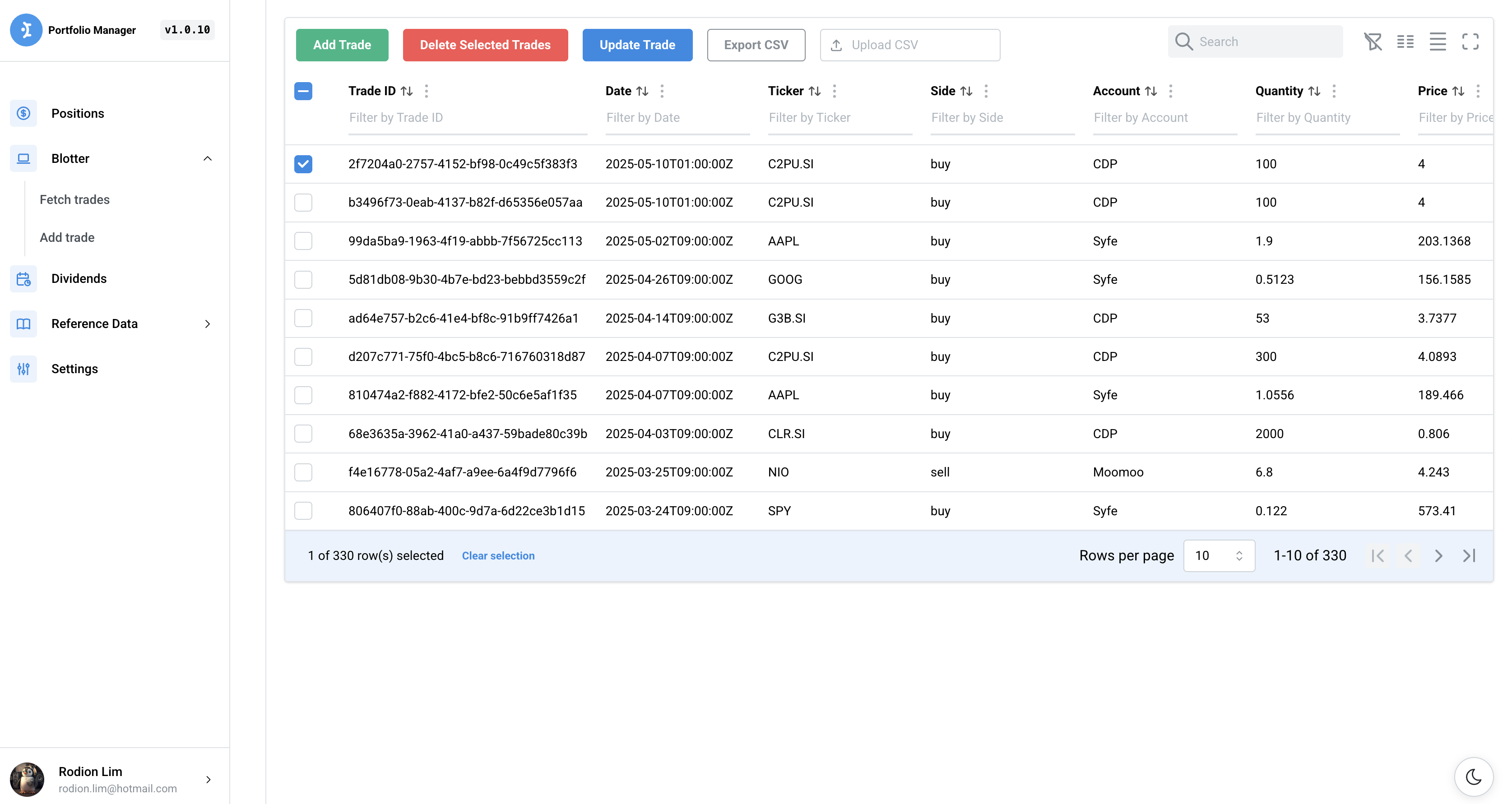
Blotter Table
User can add, delete and update trades via the blotter component in the user interface.
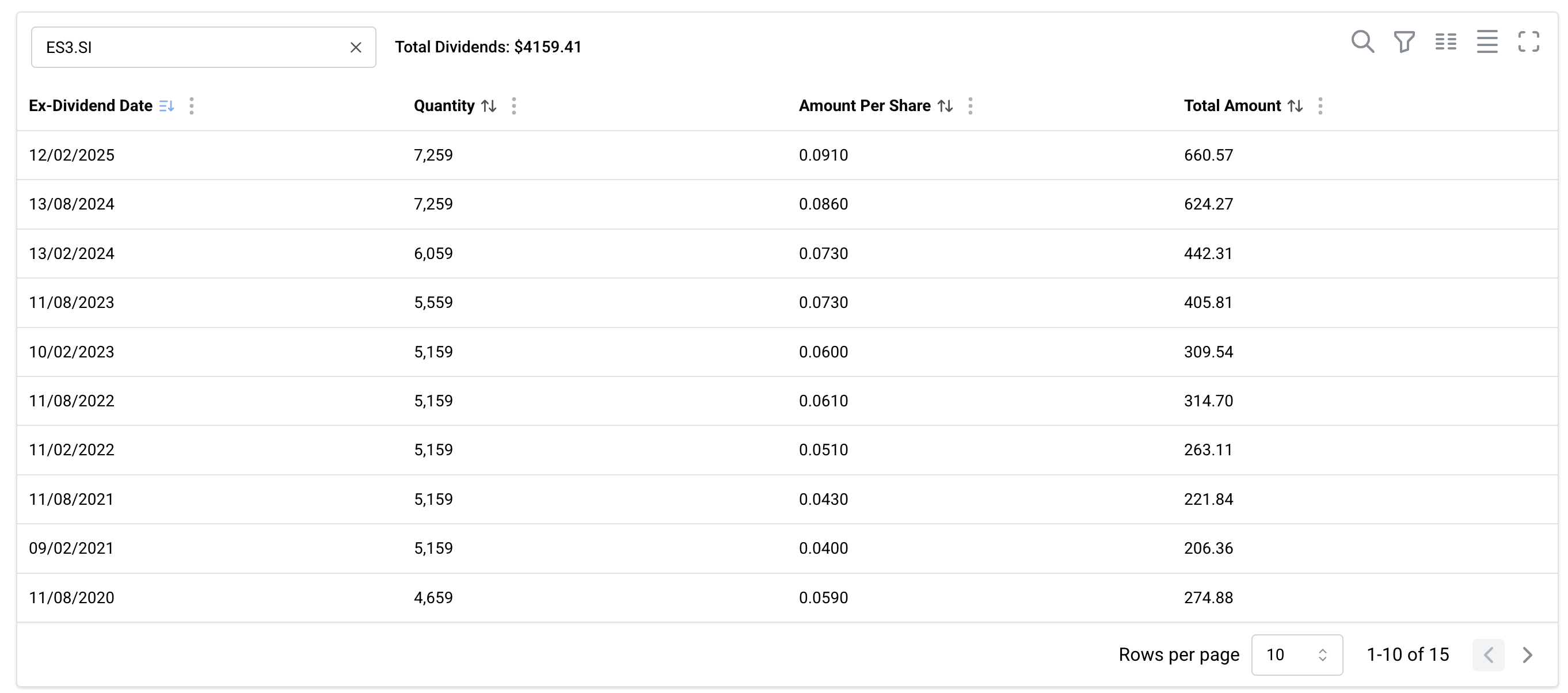
Dividends Table
User can view dividends history of any given ticker at a granular level by ex-date
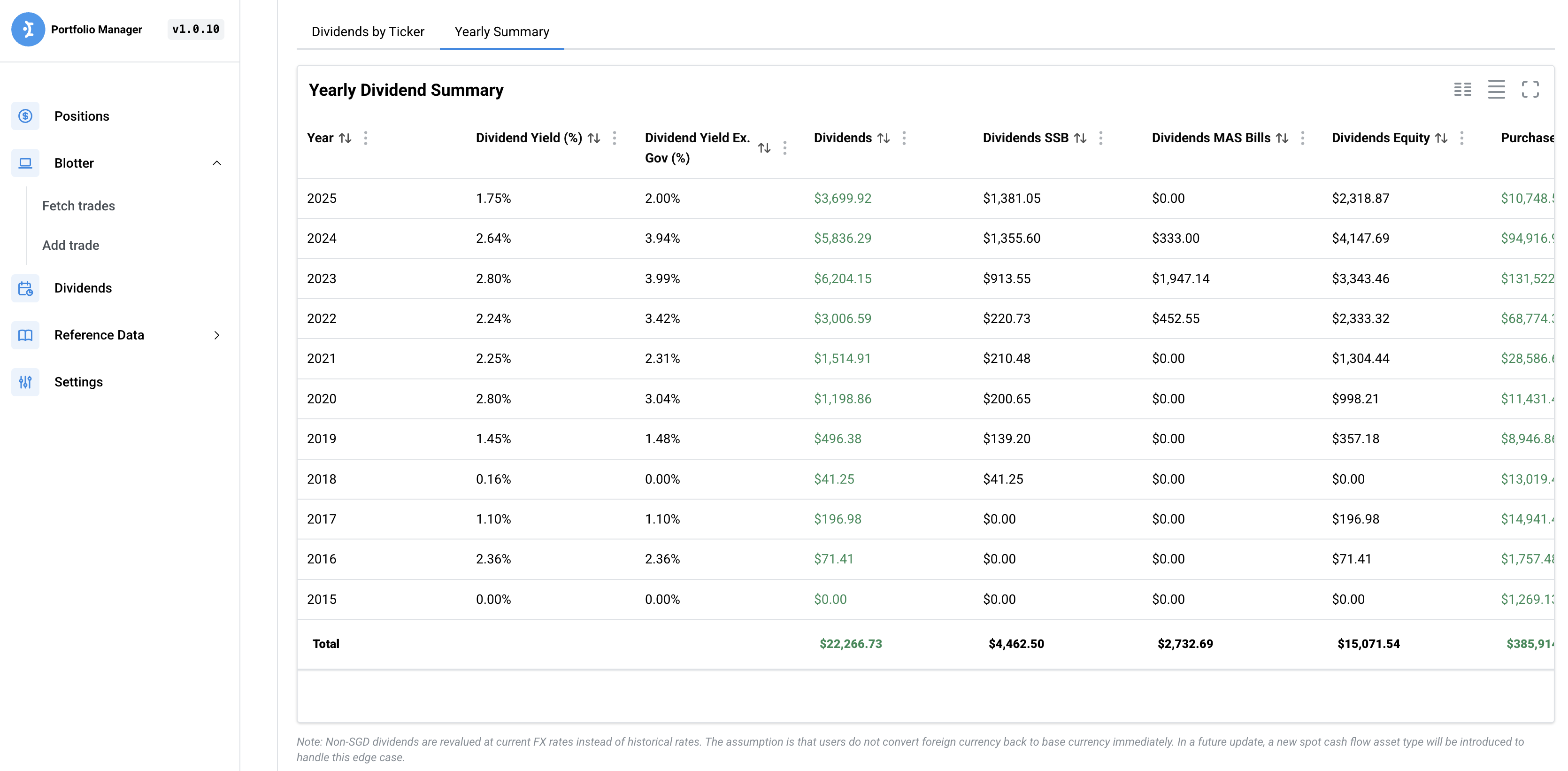
Dividends Summary
User can view aggregated dividends by year with more details such as dividend yield etc.
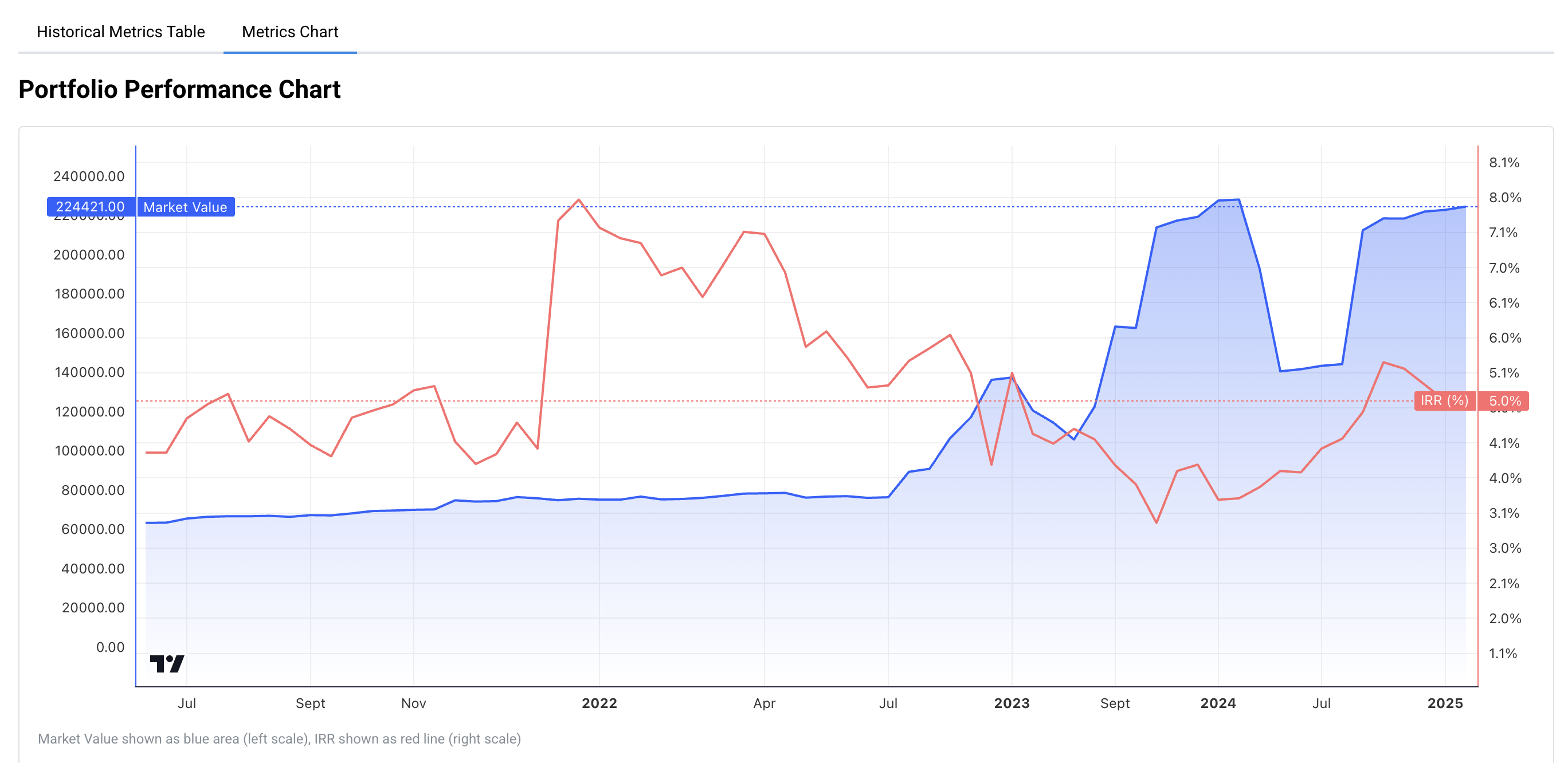
Metrics Chart
Users can visualize portfolio performance over time with both market value and IRR (Internal Rate of Return) plotted together.
Analytics Heat Map
Users can visualize the most commonly traded stocks using a heat map showing institutional net buy/sell values with customizable sorting methods and stock selection.
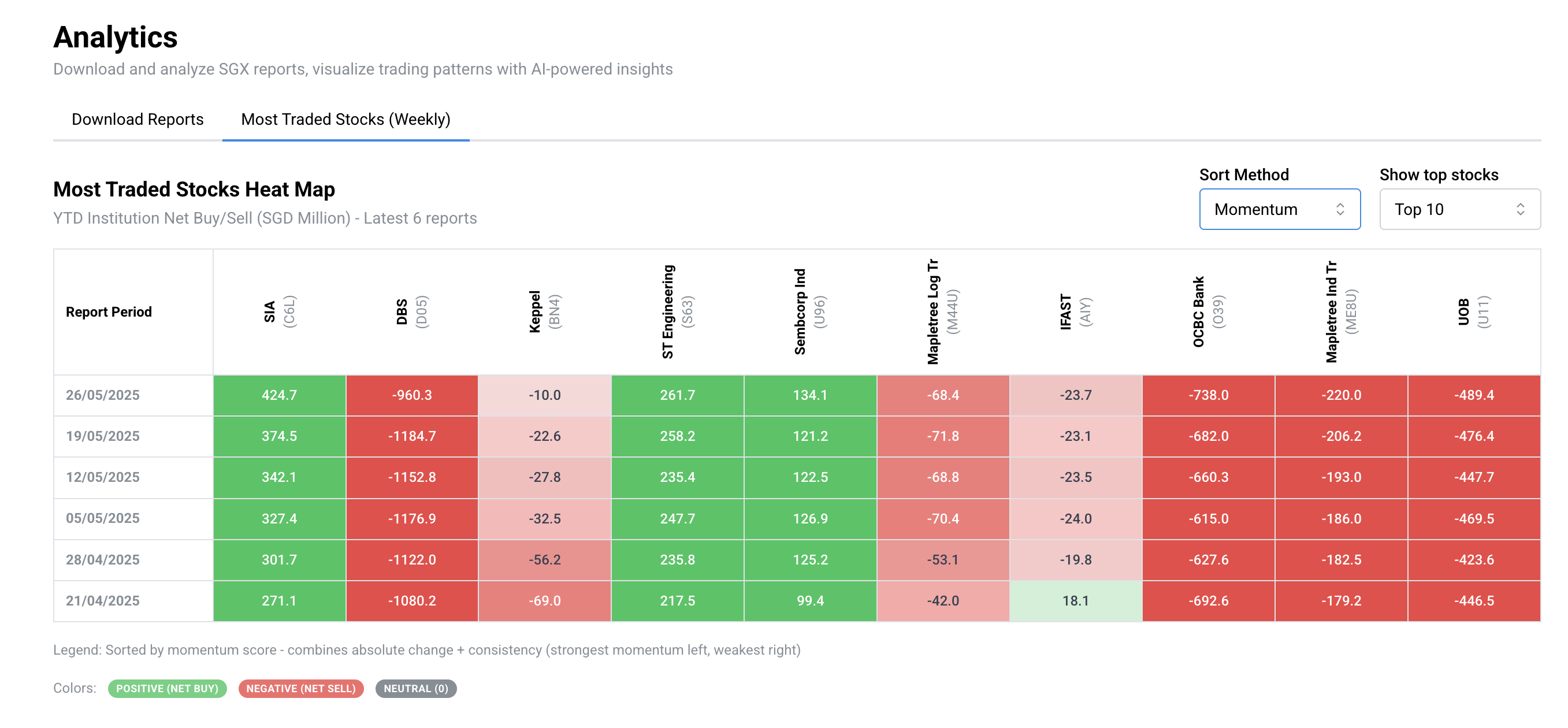 (DEPRECATED)
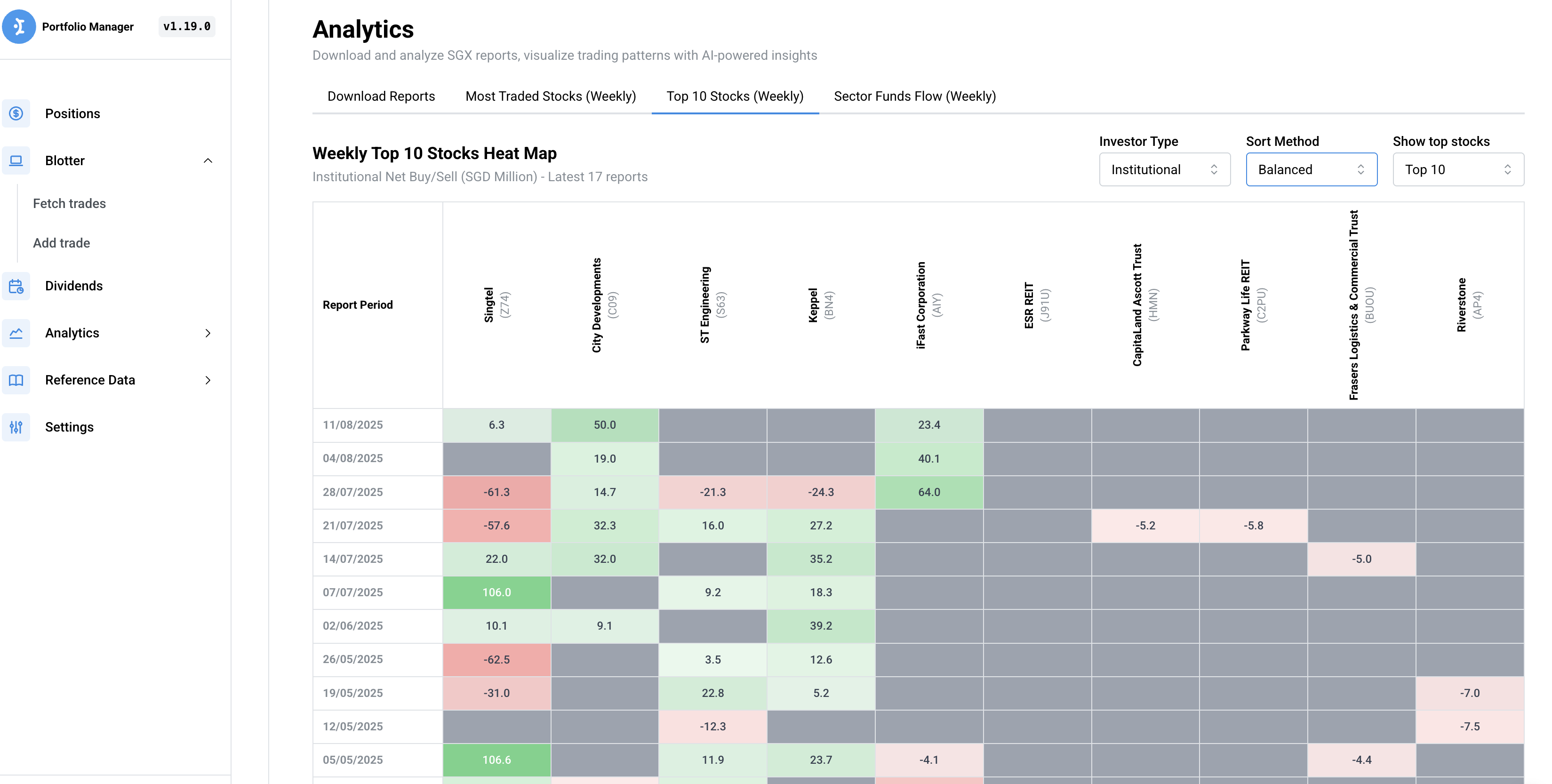
Sorting Methods
The heat map supports three different sorting methods:
-
Absolute: Sorts stocks by their absolute YTD institutional net buy/sell amounts (highest absolute values first)
-
Percentage: Sorts stocks by percentage change from the earliest to latest report period
-
Momentum: Sorts stocks by a momentum score that combines both absolute change and consistency
Momentum Calculation
The momentum score is calculated using the following formula:
Momentum Score = (Absolute Change × 0.7) + (Consistency Score × |Absolute Change| × 0.3)
Where:
- Absolute Change: Latest YTD value - Earliest YTD value
- Consistency Score: Ratio of periods showing positive trend (0 to 1)
- Calculated as: Number of periods with positive change ÷ Total periods
- A stock with consistent upward movement across all periods gets a score of 1.0
- A stock with no positive periods gets a score of 0.0
Example: If a stock has:
- Absolute change of +50M SGD
- Positive movement in 8 out of 10 periods (consistency = 0.8)
Then: Momentum Score = (50 × 0.7) + (0.8 × 50 × 0.3) = 35 + 12 = 47
This approach prioritizes stocks with both significant absolute changes and consistent directional movement, helping identify stocks with strong institutional buying/selling momentum rather than just one-time large movements.
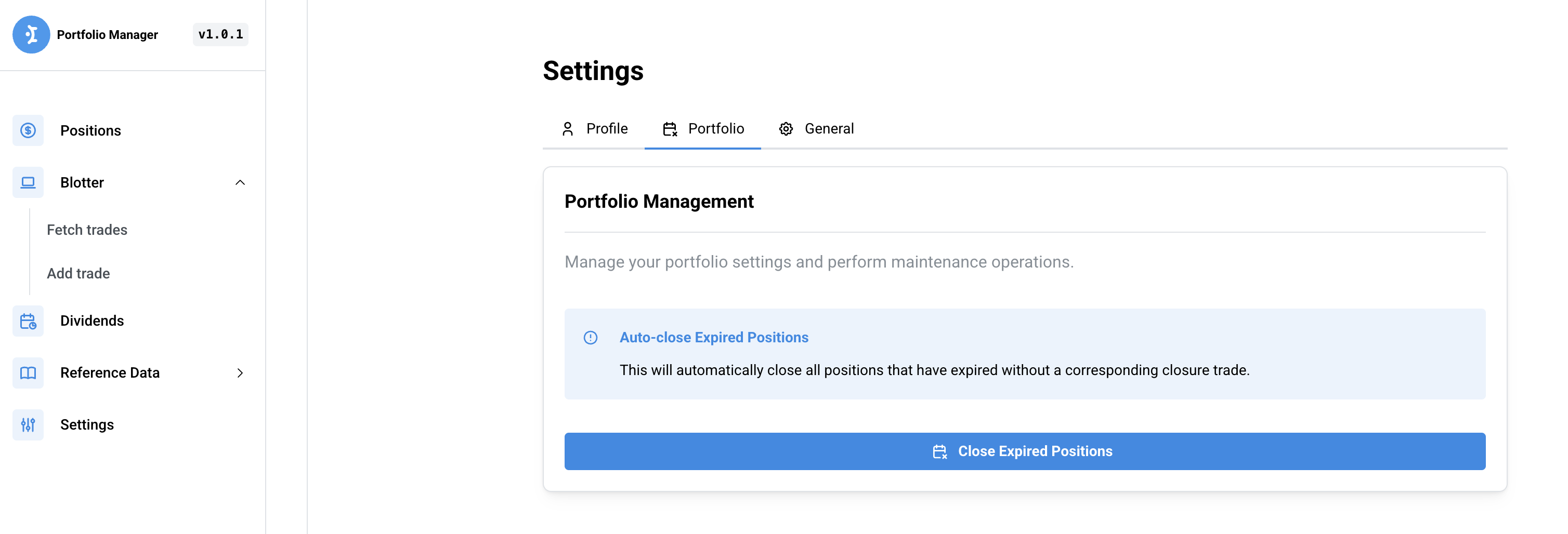
Settings
User can edit application wide settings, such as auto closing expired positions via the user interface
Backend API Examples
All API calls are documented (OAS) under http://localhost:8080/swagger/index.html
Get Blotter Trades
curl http://localhost:8080/api/v1/blotter/trades
Add Asset to Blotter
curl -X POST http://localhost:8080/api/v1/blotter/trade \
    -H "Content-Type: application/json" \
    -d '{
        "ticker": "AAPL",
        "side": "buy",
        "broker": "DBS",
        "book": "BookA",
        "account": "CDP",
    "status": "open",
        "quantity": 10,
        "price": 150.00,
        "fx": 1.33,
        "tradeDate": "2024-12-09T00:00:00Z"
    }'
Add Option Trade to Blotter
curl -X POST http://localhost:8080/api/v1/blotter/trade \
  -H "Content-Type: application/json" \
  -d '{
    "side": "buy",
    "broker": "DBS",
    "book": "BookA",
    "account": "CDP",
    "status": "open",
    "quantity": 1,
    "price": 12.50,
    "fx": 1.33,
    "tradeDate": "2024-12-09T00:00:00Z",
    "instrumentType": "option",
    "underlyingTicker": "AAPL",
    "expiryDate": "2025-06-20",
    "strikePrice": 200,
    "callPut": "call",
    "underlyingSpotRef": 189.5
  }'
For options, price is the booked option NPV per contract. The server derives the canonical option ticker from underlyingTicker, expiryDate, strikePrice, and callPut, and will auto-populate underlyingSpotRef from historical spot if it is omitted.
Update Asset in Blotter
curl -X PUT http://localhost:8080/api/v1/blotter/trade \
    -H "Content-Type: application/json" \
    -d '{
    "id": "61570b49-2adb-4b99-be20-d14001e761a9",
        "ticker": "AAPL",
        "side": "buy",
        "broker": "DBS",
        "book": "BookA",
        "account": "CDP",
    "status": "open",
        "quantity": 10,
        "price": 200.00,
        "fx": 1,
    "seqNum": 1,
        "tradeDate": "2024-12-09T00:00:00Z"
    }'
Delete Assets from Blotter
curl -X DELETE http://localhost:8080/api/v1/blotter/trade \
    -H "Content-Type: application/json" \
    -d '["61570b49-2adb-4b99-be20-d14001e761a9"]'
Delete all Assets from Blotter and Positions
curl -X DELETE http://localhost:8080/api/v1/blotter/trade/all
curl -X DELETE http://localhost:8080/api/v1/portfolio/positions
Import Trades from CSV (for migrating into portfolio-manager)
Note that FX rate here is always with respect to portfolio revaluation currency per foreign ccy, e.g. USD/SGD if SGD is portfolio revaluation currency
The CSV format now supports both outright and option trades. The additional option columns are InstrumentType, UnderlyingTicker, ExpiryDate, StrikePrice, CallPut, and UnderlyingSpotRef. Outright rows can leave those columns blank.
curl -X POST http://localhost:8080/api/v1/blotter/import \
  -F "file=@templates/blotter_import.csv"
Export Trades to a CSV (for migrating out of portfolio-manager)
curl -X GET http://localhost:8080/api/v1/blotter/export
Export Trades with Inferred FX Rates
Export trades with FX rates automatically inferred for trades where FX rate is missing. This amends the blotter in memory as well. Users should wipe all blotter trades and reimport the amended blotter if they want it to be persisted across restarts.
curl -X GET http://localhost:8080/api/v1/blotter/export-with-fx
Upload Trade Confirmation
Upload a confirmation file for a specific trade. Supported file types: PDF, PNG, JPEG. Maximum file size: 10 MB.
curl -X POST http://localhost:8080/api/v1/blotter/confirmation/{tradeId} \
  -F "file=@/path/to/confirmation.pdf"
Download Trade Confirmation
Download the confirmation file for a specific trade:
curl -X GET http://localhost:8080/api/v1/blotter/confirmation/{tradeId} \
  --output confirmation.pdf
Delete Trade Confirmation
Delete the confirmation file for a specific trade:
curl -X DELETE http://localhost:8080/api/v1/blotter/confirmation/{tradeId}
Get Trade Confirmation Metadata
Get metadata (filename, size, upload date) for a specific trade confirmation:
curl -X GET http://localhost:8080/api/v1/blotter/confirmation/{tradeId}/metadata
Get All Confirmations Metadata
Get metadata for all trade confirmations:
curl -X GET http://localhost:8080/api/v1/blotter/confirmations/metadata
Export Trade Confirmations
Export multiple trade confirmations as a tar archive. Provide an array of trade IDs:
curl -X POST http://localhost:8080/api/v1/blotter/confirmations/export \
  -H "Content-Type: application/json" \
  -d '["trade-id-1", "trade-id-2", "trade-id-3"]' \
  --output confirmations.tar
Get Portfolio Positions
curl http://localhost:8080/api/v1/portfolio/positions
Get Portfolio Positions (Lite)
Get positions without enrichment (no FX rates, dividends, or market values). Useful for UI components that only need ticker information and want faster response times.
curl http://localhost:8080/api/v1/portfolio/positions/lite
Delete Single Position
Delete a specific position by book and ticker:
curl -X DELETE "http://localhost:8080/api/v1/portfolio/position?book=Rodion&ticker=SBAUG24"
Get Current FX Rates for relevant currencies in our blotter
Get current FX rates for all currencies in the blotter. Returns a JSON mapping of currencies to their current exchange rates relative to the base currency.
curl -X GET http://localhost:8080/api/v1/blotter/fx
View Blotter Trades
curl -X GET http://localhost:8080/api/v1/blotter/trade
View Positions
curl -X GET http://localhost:8080/api/v1/portfolio/positions
Portfolio Metrics
Get portfolio metrics (IRR, Market Value, Price Paid) for the entire portfolio:
curl -X GET http://localhost:8080/api/v1/metrics
Get portfolio metrics filtered by a specific book:
curl -X GET "http://localhost:8080/api/v1/metrics?book_filter=tactical"
Benchmark portfolio performance against a user-specified benchmark:
curl -X POST http://localhost:8080/api/v1/metrics/benchmark \
  -H "Content-Type: application/json" \
  -d '{
    "book_filter": "tactical",
    "benchmark_cost": {"pct": 0.0012, "absolute": 10.00},
    "mode": "match_trades",
    "benchmark_tickers": [
      {"ticker": "ES3.SI", "weight": 1.0}
    ]
  }'
Benchmark portfolio performance against a two-ticker benchmark:
curl -X POST http://localhost:8080/api/v1/metrics/benchmark \
  -H "Content-Type: application/json" \
  -d '{
    "book_filter": "tactical",
    "benchmark_cost": {"pct": 0.002, "absolute": 3.00},
    "mode": "buy_at_start",
    "notional": 100000,
    "benchmark_tickers": [
      {"ticker": "SPY", "weight": 0.7},
      {"ticker": "AGG", "weight": 0.3}
    ]
  }'
Fetch Asset Prices
curl -X GET http://localhost:8080/api/v1/mdata/price/es3.si
curl -X GET http://localhost:8080/api/v1/mdata/price/temb
curl -X GET http://localhost:8080/api/v1/mdata/price/eth-usd
curl -X GET http://localhost:8080/api/v1/mdata/price/usd-sgd
Fetch Market Screening Data
Fetch TradingView overview data for all USA stock market industries:
curl -X GET http://localhost:8080/api/v1/mdata/screener/usa/industries/overview
Fetch performance across daily, weekly, monthly, YTD, and multi-year periods:
curl -X GET http://localhost:8080/api/v1/mdata/screener/usa/industries/performance
Drill down into the overview and performance tabs for individual stocks in an industry. The {industry} value is the TradingView URL slug:
curl -X GET http://localhost:8080/api/v1/mdata/screener/usa/industries/semiconductors/stocks/overview
curl -X GET http://localhost:8080/api/v1/mdata/screener/usa/industries/semiconductors/stocks/performance
Fetch TradingView USA stock market-mover overview screens:
curl -X GET http://localhost:8080/api/v1/mdata/screener/usa/market-movers/unusual-volume/overview
curl -X GET http://localhost:8080/api/v1/mdata/screener/usa/market-movers/pre-market-most-active/overview
Fetch the TradingView Overview, Performance, and Fund Flows tabs for the top 100 global ETFs ranked by inflows:
curl -X GET http://localhost:8080/api/v1/mdata/screener/etfs/largest-inflows/overview
curl -X GET http://localhost:8080/api/v1/mdata/screener/etfs/largest-inflows/performance
curl -X GET http://localhost:8080/api/v1/mdata/screener/etfs/largest-inflows/fund-flows
Fetch the equivalent tabs for ETFs ranked by outflows:
curl -X GET http://localhost:8080/api/v1/mdata/screener/etfs/largest-outflows/overview
curl -X GET http://localhost:8080/api/v1/mdata/screener/etfs/largest-outflows/performance
curl -X GET http://localhost:8080/api/v1/mdata/screener/etfs/largest-outflows/fund-flows
Fund-flow fields are signed monetary values in the currency declared on each ETF row: positive values represent inflows and negative values represent outflows. The ETF screens intentionally match TradingView's top-100 page limit.
Fetch the Overview, Performance, and Fund Flows tabs for global sector ETFs:
curl -X GET http://localhost:8080/api/v1/mdata/screener/etfs/sector-etfs/overview
curl -X GET http://localhost:8080/api/v1/mdata/screener/etfs/sector-etfs/performance
curl -X GET http://localhost:8080/api/v1/mdata/screener/etfs/sector-etfs/fund-flows
The endpoints return raw numeric values together with machine-readable percentage metadata. Percentage fields use percent units—for example, 5.26 means 5.26%, not 526%. Unavailable TradingView values are returned as null. Successful responses are cached independently for 1 hour; upstream failures are not cached.
Example response shape:
{
  "percentage_values": {
    "unit": "percent",
    "fields": ["change", "one_week", "one_month"],
    "note": "Values are percentages: 5.26 means 5.26%, not 526%."
  },
  "industries": [
    {
      "industry": "Semiconductors",
      "change": 5.267984169157815,
      "one_week": 11.787723632559361,
      "one_month": 19.41835383155964
    }
  ]
}
Price Equity Options
Price an American equity option using a Black-Scholes approximation. If rate is omitted, the backend interpolates the latest Fed H15 Treasury constant maturity curve for the option tenor and falls back to 0.0375 if the fetch fails. If volatility is omitted, the backend first tries to imply it from premium and otherwise estimates annualized volatility from recent underlying history. Historical volatility fallback supports 30, 60, 180, and 360 calendar-day lookbacks via volatilityLookbackDays.
curl -X POST http://localhost:8080/api/v1/options/price \
  -H "Content-Type: application/json" \
  -d '{
    "ticker": "AAPL",
    "optionType": "call",
    "spot": 210.50,
    "strike": 220,
    "expiry": "2026-12-18",
    "rate": 0.04,
    "dividendYield": 0.005,
    "volatility": 0.24
  }'
Example with backend volatility estimation:
curl -X POST http://localhost:8080/api/v1/options/price \
  -H "Content-Type: application/json" \
  -d '{
    "ticker": "MSFT",
    "optionType": "put",
    "spot": 415,
    "strike": 400,
    "expiry": "2026-09-18",
    "dividendYield": 0.0,
    "volatilityLookbackDays": 60
  }'
Example with premium-driven implied volatility:
curl -X POST http://localhost:8080/api/v1/options/price \
  -H "Content-Type: application/json" \
  -d '{
    "ticker": "AAPL",
    "optionType": "call",
    "spot": 210.50,
    "strike": 220,
    "expiry": "2026-12-18",
    "rate": 0.04,
    "dividendYield": 0.005,
    "premium": 12.35
  }'
Fetch Historical Price Data
# Get historical price data from January 1, 2024 to current date
curl -X GET "http://localhost:8080/api/v1/mdata/price/historical/AAPL?start=20240101"

# Get historical price data for a specific date range
curl -X GET "http://localhost:8080/api/v1/mdata/price/historical/ES3.SI?start=20240101&end=20240501"

# Get historical price data for a futures contract (Barcharts)
curl -X GET "http://localhost:8080/api/v1/mdata/price/historical/HEJ26?start=20240101&end=20251231"
Fetch Historical FX Rates
Get historical foreign exchange rates for currency pairs. This is particularly useful for retrieving FX rates for specific trade dates when adding blotter entries with foreign currency assets.
# Get USD-SGD FX rate for a specific date (YYYYMMDD format)
curl -X GET "http://localhost:8080/api/v1/mdata/price/historical/USD-SGD?start=20250602&end=20250602"

# Get JPY-SGD FX rate for the last month
curl -X GET "http://localhost:8080/api/v1/mdata/price/historical/JPY-SGD?start=20240401&end=20240430"
Calculate Historical Correlations
Calculate correlation matrix for a list of tickers over a specified date range.
date_method: "rolling", "expanding" or "in_sample" interval_frequency: Controls how often a new correlation matrix is emitted.
Notes:
- If
tickersis omitted/empty, the server uses all enabled tickers from historical configs (GET /api/v1/historical/config). - If
tois omitted, it defaults to today. - Set
resync: trueto sync stored historical data for the selected tickers before computing correlation.
curl -X POST http://localhost:8080/api/v1/historical/correlation \
  -H "Content-Type: application/json" \
  -d '{
    "tickers": ["D05.SI", "C09.SI"],
    "from": "2022-01-01",
    "to": "2026-01-01",
    "resync": false,
    "options": {
      "frequency": "D",
      "is_price_series": true,
      "date_method": "rolling",
      "rollyears": 1,
      "interval_frequency": "12M",
      "using_exponent": true,
      "ew_lookback": 100,
      "min_periods": 200,
      "floor_at_zero": true
    }
  }'
Compute correlation across all enabled historical configs (no explicit tickers; defaults to to today):
curl -X POST http://localhost:8080/api/v1/historical/correlation \
  -H "Content-Type: application/json" \
  -d '{
    "from": "2022-01-01",
    "resync": false,
    "options": {
      "frequency": "D",
      "is_price_series": true,
      "date_method": "rolling",
      "rollyears": 1,
      "interval_frequency": "12M",
      "using_exponent": true,
      "ew_lookback": 100,
      "min_periods": 200
    }
  }'
Fetch Dividends
# equity - refer to ticker reference for identifier
curl -X GET http://localhost:8080/api/v1/mdata/dividends/es3.si
curl -X GET http://localhost:8080/api/v1/mdata/dividends/aapl

# ssb - format SBMMMYY
curl -X GET http://localhost:8080/api/v1/mdata/dividends/sbjul24

# mas bill
curl -X GET http://localhost:8080/api/v1/mdata/dividends/bs24124z
Delete Dividends
# Delete custom dividends for AAPL
curl -X DELETE "http://localhost:8080/api/v1/mdata/dividends/AAPL?type=Custom"

# Delete official dividends
curl -X DELETE "http://localhost:8080/api/v1/mdata/dividends/C2PU.SI?type=Official"
Store Custom Dividends
Note that custom dividends are concatenated against official dividends. Custom dividends always take precedence over official dividends, in case official figures are wrong. If official date is wrong, we can always input a dividend with value of 0.
When uploading custom dividends, it is grouped by ticker. As long as the ticker is present in the csv, all dividends for that ticker will be replaced with the new set of dividends provided. Tickers which are not present in the upload will remain unchanged.
Also, we store some of the custom dividends that are wrong from dividends.sg in ./templates/*.csv for user reference.
curl -X POST http://localhost:8080/api/v1/mdata/dividends/AAPL \
  -H "Content-Type: application/json" \
  -d '[
    {
      "ExDate": "2024-11-10",
      "Amount": 120.00,
      "AmountPerShare": 0.24,
      "Qty": 500
    },
    {
      "ExDate": "2024-08-09",
      "Amount": 115.00,
      "AmountPerShare": 0.23,
      "Qty": 500
    }
  ]'
Fetch Portfolio Dividends
Single Ticker
curl -X GET http://localhost:8080/api/v1/dividends/cjlu.si
All Tickers
curl -X GET http://localhost:8080/api/v1/dividends
Reset Dividends Cache
curl -X POST http://localhost:8080/api/v1/dividends/cache/reset
Fetch Benchmark Interest Rates
Get default number of Singapore interest rates (250 records)
curl -X GET "http://localhost:8080/api/v1/mdata/interest-rates/SG"
Get specific number of records
curl -X GET "http://localhost:8080/api/v1/mdata/interest-rates/SG?points=5"
Fetch Reference Data
curl -X GET http://localhost:8080/api/v1/refdata
Import Reference Data (YAML)
You can import reference data from a YAML file using the following endpoint:
curl -X POST \
  -F "file=@seed/refdata.yaml" \
  http://localhost:8080/api/v1/refdata/import
- Replace
seed/refdata.yamlwith the path to your YAML file if different. - The response will indicate how many tickers were inserted or updated.
Historical Portfolio Metrics
Get all historical metrics:
curl -X GET http://localhost:8080/api/v1/historical/metrics
Export historical metrics as CSV: (takes in book_filter as an optional query parameter)
curl -X GET http://localhost:8080/api/v1/historical/metrics/export
Import historical metrics from CSV file:
curl -X POST http://localhost:8080/api/v1/historical/metrics/import \
  -F "file=@/path/to/historical_metrics_import.csv"
Insert or update a historical metric:
curl -X POST http://localhost:8080/api/v1/historical/metrics \
  -H "Content-Type: application/json" \
  -d '{
    "timestamp": "2024-05-15T00:00:00Z",
    "metrics": {
      "irr": 0.12,
      "pricePaid": 50000,
      "mv": 55000,
      "totalDividends": 1200
    }
  }'
Insert or update a historical metric for a specific book:
curl -X POST "http://localhost:8080/api/v1/historical/metrics?book_filter=tactical" \
  -H "Content-Type: application/json" \
  -d '{
    "timestamp": "2024-05-15T00:00:00Z",
    "metrics": {
      "irr": 0.12,
      "pricePaid": 50000,
      "mv": 55000,
      "totalDividends": 1200
    }
  }'
Delete historical metrics:
curl -X POST http://localhost:8080/api/v1/historical/metrics/delete \
  -H "Content-Type: application/json" \
  -d '{
    "timestamps": [
      "2024-05-15T00:00:00Z",
      "2024-06-15T00:00:00Z"
    ]
  }'
Fetch cached previous daily prices with latest metrics (batch tickers):
curl -X POST http://localhost:8080/api/v1/historical/prices/cached \
  -H "Content-Type: application/json" \
  -d '{
    "tickers": ["AAPL", "ES3.SI", "TSLA"]
  }'
Delete historical metrics for a specific book:
curl -X POST "http://localhost:8080/api/v1/historical/metrics/delete?book_filter=tactical" \
  -H "Content-Type: application/json" \
  -d '{
    "timestamps": [
      "2024-05-15T00:00:00Z",
      "2024-06-15T00:00:00Z"
    ]
  }'
Historical Metrics Jobs (Custom Scheduling)
Create a custom metrics collection job for a specific book, using the default schedule (Same as entire portfolio):
curl -X POST http://localhost:8080/api/v1/historical/metrics/jobs \
  -H "Content-Type: application/json" \
  -d '{
    "cronExpr": "",
    "bookFilter": "tactical"
  }'
List all custom metrics jobs:
curl -X GET http://localhost:8080/api/v1/historical/metrics/jobs
List all metrics jobs (including portfolio job for UI):
curl -X GET http://localhost:8080/api/v1/historical/metrics/jobs/all
Delete a custom metrics job:
curl -X DELETE http://localhost:8080/api/v1/historical/metrics/jobs/tactical
Manually trigger metrics collection for entire portfolio:
curl -X POST http://localhost:8080/api/v1/historical/metrics/trigger \
  -H "Content-Type: application/json" \
  -d '{
    "bookFilter": ""
  }'
Manually trigger metrics collection for a specific book:
curl -X POST http://localhost:8080/api/v1/historical/metrics/trigger \
  -H "Content-Type: application/json" \
  -d '{
    "bookFilter": "tactical"
  }'
Add Reference Data
curl -X POST http://localhost:8080/api/v1/refdata \
  -H "Content-Type: application/json" \
  -d '{
        "id": "ES3.SI",
        "name": "STI ETF",
        "underlying_ticker": "ES3.SI",
        "yahoo_ticker": "ES3.SI",
        "dividends_sg_ticker": "ES3",
        "asset_class": "eq",
        "asset_sub_class": "etf",
        "ccy": "SGD",
        "domicile": "SG"
      }'
Delete Reference Data
curl -X DELETE http://localhost:8080/api/v1/refdata \
    -H "Content-Type: application/json" \
    -d '["ES3.SI"]'
Export Reference Data
curl -X GET http://localhost:8080/api/v1/refdata/export
Force a compute of dividends for a ticker across the entire blotter
curl -X POST http://localhost:8080/api/v1/dividends -H "Content-Type: application/json" -d '{"ticker": "ES3.SI"}'
Autoclose expired positions
Tbills, SSB that has expired should have a corresponding "sell" blotter entry that can be infered automatically based on the reference data
curl -X POST http://localhost:8080/api/v1/portfolio/cleanup
Get Portfolio Metrics, e.g. IRR (Internal Rate of Return), Price Paid, MV, Total Dividends
Get portfolio metrics such as Internal Rate of Return (IRR) for the entire portfolio. Returns the calculated IRR and other metrics as a JSON object.
curl -X GET http://localhost:8080/api/v1/metrics
Fetch Historical Portfolio Metrics
Fetch all historical portfolio metrics (date-stamped portfolio metrics).
curl -X GET http://localhost:8080/api/v1/historical/metrics
Fetch historical portfolio metrics filtered by book:
curl -X GET "http://localhost:8080/api/v1/historical/metrics?book_filter=tactical"
Import Historical Portfolio Metrics from CSV
Import historical portfolio metrics (date-stamped portfolio metrics) from a CSV file. The CSV should have the following headers:
Date,IRR,PricePaid,MV,TotalDividends
Sample file: templates/historical_metrics_import.csv
curl -X POST http://localhost:8080/api/v1/historical/metrics/import \
  -F "file=@templates/historical_metrics_import.csv"
Export Historical Portfolio Metrics to CSV
Export all historical portfolio metrics as a CSV file.
curl -X GET http://localhost:8080/api/v1/historical/metrics/export -o historical_metrics_export.csv
Upsert (Insert/Update) a Single Historical Portfolio Metric
Insert or update a single historical portfolio metric (date-stamped portfolio metric) using POST or PUT. Update is keyed on timestamp date. The JSON should match the TimestampedMetrics structure:
{
  "timestamp": "2025-05-11T00:00:00Z",
  "metrics": {
    "irr": 0.2,
    "pricePaid": 10000,
    "mv": 12000,
    "totalDividends": 500
  }
}
Sample curl (insert or update):
curl -X POST http://localhost:8080/api/v1/historical/metrics \
  -H "Content-Type: application/json" \
  -d '{
    "timestamp": "2025-05-11T00:00:00Z",
    "metrics": {"irr": 0.2, "pricePaid": 10000, "mv": 12000, "totalDividends": 500}
  }'

curl -X PUT http://localhost:8080/api/v1/historical/metrics \
  -H "Content-Type: application/json" \
  -d '{
    "timestamp": "2025-05-11T00:00:00Z",
    "metrics": {"irr": 0.2, "pricePaid": 10000, "mv": 12000, "totalDividends": 500}
  }'
Sample curl (insert or update for a specific book):
curl -X POST "http://localhost:8080/api/v1/historical/metrics?book_filter=tactical" \
  -H "Content-Type: application/json" \
  -d '{
    "timestamp": "2025-05-11T00:00:00Z",
    "metrics": {"irr": 0.2, "pricePaid": 10000, "mv": 12000, "totalDividends": 500}
  }'

curl -X PUT "http://localhost:8080/api/v1/historical/metrics?book_filter=tactical" \
  -H "Content-Type: application/json" \
  -d '{
    "timestamp": "2025-05-11T00:00:00Z",
    "metrics": {"irr": 0.2, "pricePaid": 10000, "mv": 12000, "totalDividends": 500}
  }'
See also: Import/Export endpoints for batch operations.
Analytics - SGX Report Analysis
Fetch, download and analyze the latest SGX report of a specific type with AI Insight:
curl -X GET "http://localhost:8080/api/v1/analytics/latest?type=fund%20flow"
List all downloaded SGX reports
curl -X GET http://localhost:8080/api/v1/analytics/list_files
Analyze an existing file in the data directory:
curl -X POST http://localhost:8080/api/v1/analytics/analyze \
  -H "Content-Type: application/json" \
  -d '{
    "filePath": "./data/SGX_Fund_Flow_Weekly_Tracker_Week_of_26_May_2025.xlsx"
  }'
List all stored analysis results:
curl -X GET http://localhost:8080/api/v1/analytics/list_analysis
Download the latest N SGX reports:
curl -X GET "http://localhost:8080/api/v1/analytics/download?n=5"
Download the latest N SGX reports filtered by type:
curl -X GET "http://localhost:8080/api/v1/analytics/download?n=3&type=fund%20flow"
Analyze the latest N SGX reports filtered by type:
curl -X GET "http://localhost:8080/api/v1/analytics/analyze_latest?n=3&type=fund%20flow"
Analyze the latest N SGX reports with force reanalysis (This will use additional API limits unnecessarily):
curl -X GET "http://localhost:8080/api/v1/analytics/analyze_latest?n=3&type=fund%20flow&force=true"
Extract 100 Most Traded Stocks data from latest SGX Fund Flow Weekly Tracker reports:
# Get all available reports
curl -X GET http://localhost:8080/api/v1/analytics/most_traded_stocks # DEPRECATED
curl -X GET http://localhost:8080/api/v1/analytics/top10_stocks

# Get only the latest 2 reports
curl -X GET "http://localhost:8080/api/v1/analytics/most_traded_stocks?n=2"
curl -X GET http://localhost:8080/api/v1/analytics/top10_stocks?n=2
Extract Institutional sector funds flow data from latest SGX Fund Flow Weekly Tracker reports:
# Get all available sector funds flow reports
curl -X GET http://localhost:8080/api/v1/analytics/sector_funds_flow

# Get only the latest 3 reports
curl -X GET "http://localhost:8080/api/v1/analytics/sector_funds_flow?n=3"
Get User Profile
curl http://localhost:8080/api/v1/user/profile
Update User Profile
curl -X PUT http://localhost:8080/api/v1/user/profile \
    -H "Content-Type: application/json" \
    -d '{
        "username": "John Doe",
        "email": "john@example.com",
        "avatar": "https://example.com/avatar.png"
    }'
Health Check
curl http://localhost:8080/healthz
Historical Market Data
The application now supports persisting historical market data to reduce reliance on external APIs and improve performance.
Features
- Data Persistence: Configure tickers to sync and store data locally.
- Backfilling: Automatically fetching up to 30 years of historical data.
- Visualization: View historical price trends with paginated tables and date filtering.
How Backfilling Works
The application uses an efficient incremental sync strategy to maintain the historical database:
- Initial Sync: When a ticker is first added, the system uses the configured
lookback_years(defaulting to 5 years) to calculate the starting point and retrieves the full history up to the current date. - Incremental Updates: For subsequent syncs, the system retrieves only the "delta"—the data between the
last_synctimestamp and the current time. This minimizes API requests and processing load. - Data Filtering: During ingestion, records with missing or zero prices are automatically excluded to ensure high data quality.
- Full Cleanup: Deleting a configuration removes both the metadata and all associated historical price records from the LevelDB persistence.
API Endpoints
GET /api/v1/historical/config: List all configured assets.POST /api/v1/historical/config: Add or update an asset configuration.DELETE /api/v1/historical/config/{ticker}: Remove an asset configuration.POST /api/v1/historical/sync: Trigger an immediate sync for a ticker.GET /api/v1/historical/data/{ticker}: Retrieve historical data with pagination and date filtering usingfromandtoquery parameters (Unix timestamp).
Configurations
Sample configurations
verboseLogging: true
logFilePath: ./portfolio-manager.log
host: localhost
port: 8080
baseCcy: SGD
db: leveldb
dbPath: ./portfolio-manager.db
refDataSeedPath: "./seed/refdata.yaml"
mcp:
  enabled: false # Enable/disable MCP server
  port: 8081 # MCP server port
dividends:
  divWitholdingTaxSG: 0
  divWitholdingTaxUS: 0.3
  divWitholdingTaxHK: 0
  divWitholdingTaxIE: 0.15
metrics:
  schedule: "10 17 * * 1-5" # daily at 5:10pm, Mon-Fri (excludes weekends)
marketData:
  rateLimitMs: 750 # Minimum milliseconds between Yahoo Finance requests (increased from default 500ms to avoid rate limiting)
analytics:
  geminiApiKey: "" # Get from Google AI Studio - required for analytics features
  geminiModel: "gemini-2.0-flash-lite" # Gemini model to use (docs: https://ai.google.dev/gemini-api/docs/models)
  dataDir: "./data" # Directory to store downloaded SGX reports
  schedule: "0 17 * * 1" # Weekly on Mondays at 5:00 PM
Roadmap
See https://github.com/rodionlim/portfolio-manager-go/milestones
Contributing
Contributions are always welcome! If you have any suggestions or find a bug, please open an issue or submit a pull request.
License
This project is licensed under the MIT License - see the license file for details.