
Azure DevOps MCP Server
radholm/azure-devops-mcp
Integração Azure DevOps para agentes IA com suporte on-prem e cloud
Ver no GitHubServidor MCP que conecta agentes de IA ao Azure DevOps, tanto em instâncias cloud quanto on-premises. Fornece acesso direto a projetos, builds, repositórios, planos de teste, work items e wikis através de ferramentas simples e focadas.
Instalação
npx convez-ai radholm/azure-devops-mcp1 comando no terminal: detecta o formato do repositório (marketplace ou plugin avulso) e instala via Claude Code. Requer Node 18+ e o Claude Code instalado.
Métricas
Casos de uso
- Automatizar consultas a projetos e work items do Azure DevOps
- Criar e atualizar páginas wiki de forma programática
- Gerenciar builds, repositórios e planos de teste via agentes IA
- Integrar DevOps workflows com assistentes de IA
Veredito

MCP server bem estruturado para integração Azure DevOps, com suporte tanto cloud quanto on-premises. A abordagem de ferramentas simples e focadas facilita uso em agents, embora ainda tenha uma versão remota em preview que pode ser preferível a longo prazo.
README
A tradução para o português deste README ainda está na fila.
⭐ Azure DevOps MCP Server
[!IMPORTANT] The Azure DevOps Remote MCP Server is now available in public preview for all organizations. We recommend migrating to the Remote MCP Server going forward.
This project provides Azure DevOps MCP tooling for AI agents, with a remote-first onboarding experience and a local server option when you need it.
📄 Table of Contents
- 📺 Overview
- 🏆 Expectations
- 🚀 Remote MCP Server (Recommended)
- ⚙️ Supported Tools
- 🔌 Local MCP Server Installation (Optional)
- 🌏 Using Domains (local)
- 🐥 Project and Team Defaults (local)
- 🏢 On-Premises / Azure DevOps Server (local)
- 📝 Troubleshooting
- 🎩 Examples & Best Practices
- 🙋♀️ Frequently Asked Questions
- 📌 Contributing
📺 Overview
The Azure DevOps MCP Server brings Azure DevOps context to your agents. Try prompts like:
- "List my ADO projects"
- "List ADO Builds for 'Contoso'"
- "List ADO Repos for 'Contoso'"
- "List test plans for 'Contoso'"
- "List teams for project 'Contoso'"
- "List iterations for project 'Contoso'"
- "List my work items for project 'Contoso'"
- "List work items in current iteration for 'Contoso' project and 'Contoso Team'"
- "List all wikis in the 'Contoso' project"
- "Create a wiki page '/Architecture/Overview' with content about system design"
- "Update the wiki page '/Getting Started' with new onboarding instructions"
- "Get the content of the wiki page '/API/Authentication' from the Documentation wiki"
🏆 Expectations
The Azure DevOps MCP Server is built around tools that are concise, simple, focused, and easy to use, with each one designed for a specific scenario. We intentionally avoid creating complex tools that try to do too much. The goal is to provide a thin abstraction layer over the REST APIs that makes data access straightforward while allowing the language model to handle the more complex reasoning.
🚀 Remote MCP Server (Recommended)
The Azure DevOps Remote MCP Server is now available in public preview.
Over time, the Remote MCP Server will replace this local MCP Server. We will continue to support the local server for now, but future investments will primarily focus on the remote experience.
We encourage all users of the local MCP Server to begin migrating to the Remote MCP Server.
If you encounter issues with tools, need support, or have a feature request, you can report an issue using the Remote MCP Server issue template. During the preview period, we will track Remote MCP Server issues through this repository.
[!WARNING] Internal Microsoft users of the Remote MCP Server should not create issues in this repository. Please use the dedicated Teams channel instead.
For complete instructions, see the Remote MCP Server onboarding documentation.
Quick start with .vscode/mcp.json
Use this configuration to connect directly to the Azure DevOps-hosted endpoint using streamable HTTP transport:
{
  "servers": {
    "ado-remote-mcp": {
      "url": "https://mcp.dev.azure.com/{organization}",
      "type": "http"
    }
  },
  "inputs": []
}
See documentation for additional configuration options.
After saving .vscode/mcp.json, start the server from the MCP view in VS Code, then run a prompt like List ADO projects.
⚙️ Supported Tools
See the Available Tools documentation for the complete list of available remote tools.
For a comprehensive list of local tools, see TOOLSET.md.
🔌 Local MCP Server Installation (Optional)
[!IMPORTANT] Start with the Remote MCP Server first. Use the local MCP Server only if your scenario specifically requires a local
stdiosetup.
Use this section if you specifically need the local stdio server experience. For most users, start with the Remote MCP Server section above.
For the best experience, use Visual Studio Code and GitHub Copilot. See the getting started documentation to use our MCP Server with other tools such as Visual Studio 2022, Claude Code, Cursor, Opencode, and Kilocode.
Prerequisites
- Install VS Code or VS Code Insiders
- Install Node.js 20+
- Open VS Code in an empty folder
Installation
🧨 Install from Public Feed
This installation method is the easiest for all users of Visual Studio Code.
🎥 Watch this quick start video to get up and running in under two minutes!
Steps
In your project, add a .vscode\mcp.json file with the following content:
{
  "inputs": [
    {
      "id": "ado_org",
      "type": "promptString",
      "description": "Azure DevOps organization name  (e.g. 'contoso')"
    }
  ],
  "servers": {
    "ado": {
      "type": "stdio",
      "command": "npx",
      "args": ["-y", "@radholm/azure-devops-mcp", "${input:ado_org}"]
    }
  }
}
🔥 To stay up to date with the latest features, you can use our nightly builds. Simply update your mcp.json configuration to use @radholm/azure-devops-mcp@next. Here is an updated example:
{
  "inputs": [
    {
      "id": "ado_org",
      "type": "promptString",
      "description": "Azure DevOps organization name  (e.g. 'contoso')"
    }
  ],
  "servers": {
    "ado": {
      "type": "stdio",
      "command": "npx",
      "args": ["-y", "@radholm/azure-devops-mcp@next", "${input:ado_org}"]
    }
  }
}
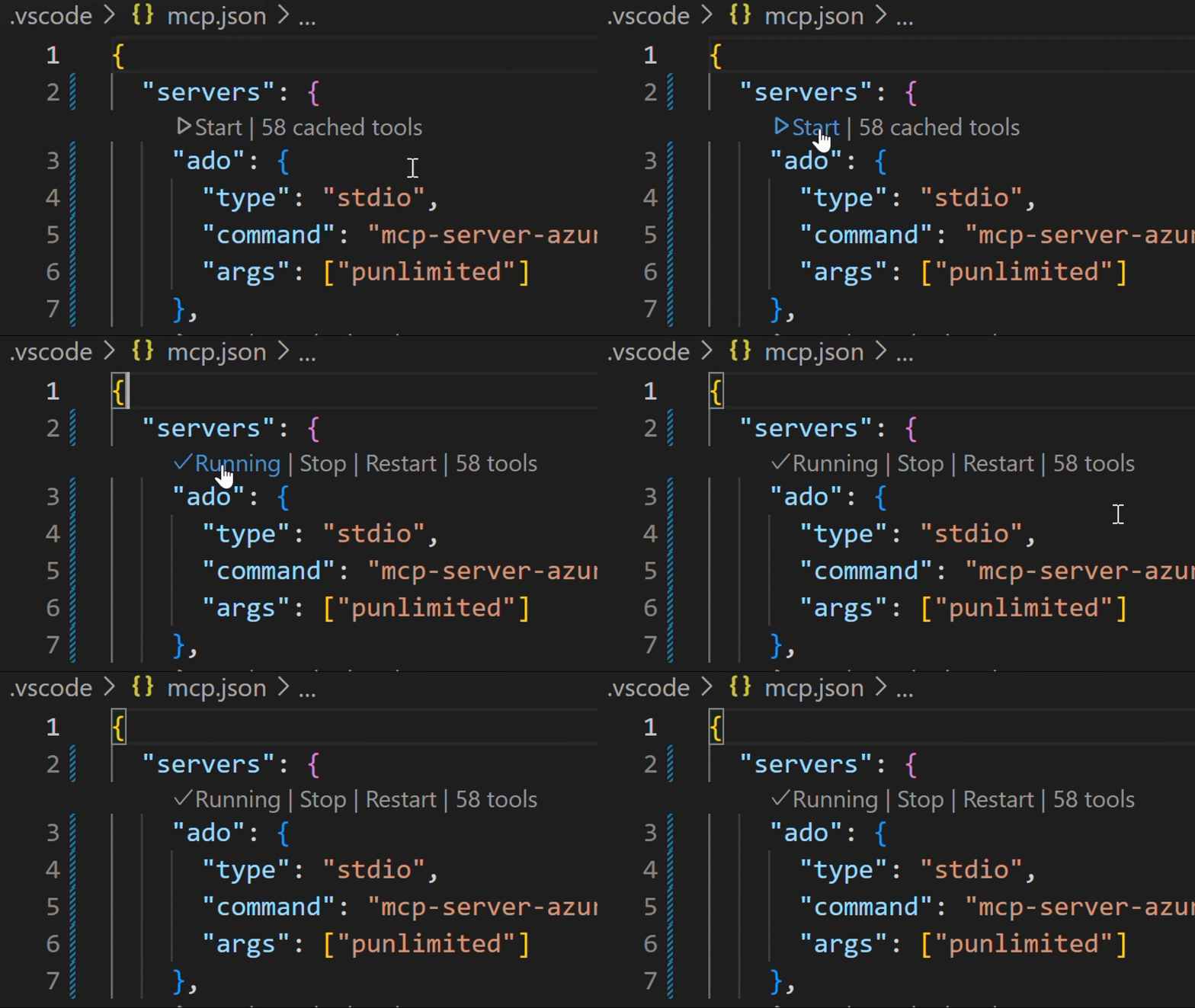
Save the file, then click 'Start'.
In chat, switch to Agent Mode.
Click "Select Tools" and choose the available tools.

Open GitHub Copilot Chat and try a prompt like List ADO projects. The first time an ADO tool is executed browser will open prompting to login with your Microsoft account. Please ensure you are using credentials matching selected Azure DevOps organization.
💥 We strongly recommend creating a
.github\copilot-instructions.mdin your project. This will enhance your experience using the Azure DevOps MCP Server with GitHub Copilot Chat. To start, just include "This project uses Azure DevOps. Always check to see if the Azure DevOps MCP server has a tool relevant to the user's request" in your copilot instructions file.
See the getting started documentation to use our MCP Server with other tools such as Visual Studio 2022, Claude Code, and Cursor.
🌏 Using Domains (local)
Azure DevOps exposes a large surface area. As a result, our Azure DevOps MCP Server includes many tools. To keep the toolset manageable, avoid confusing the model, and respect client limits on loaded tools, use Domains to load only the areas you need. Domains are named groups of related tools (for example: core, work, work-items, repositories, wiki). Add the -d argument and the domain names to the server args in your mcp.json to list the domains to enable.
For example, use "-d", "core", "work", "work-items" to load only Work Item related tools (see the example below).
{
  "inputs": [
    {
      "id": "ado_org",
      "type": "promptString",
      "description": "Azure DevOps organization name  (e.g. 'contoso')"
    }
  ],
  "servers": {
    "ado_with_filtered_domains": {
      "type": "stdio",
      "command": "npx",
      "args": ["-y", "@radholm/azure-devops-mcp", "${input:ado_org}", "-d", "core", "work", "work-items"]
    }
  }
}
Domains that are available are: core, work, work-items, search, test-plans, repositories, wiki, pipelines, advanced-security
We recommend that you always enable core tools so that you can fetch project level information.
By default all domains are loaded
🐥 Project and Team Defaults (local)
You can also configure default Azure DevOps project and team values from .vscode/mcp.json using project and team, so tools can skip selection prompts.
Example .vscode/mcp.json
{
  "servers": {
    "ado": {
      "type": "stdio",
      "command": "npx",
      "args": ["-y", "@radholm/azure-devops-mcp", "myorg", "--authentication", "azcli"],
      "env": {
        "ado_mcp_project": "Contoso",
        "ado_mcp_team": "Fabrikam Team"
      }
    }
  }
}
📝 Troubleshooting
See the Troubleshooting guide for help with common issues and logging.
🏢 On-Premises / Azure DevOps Server (local)
The local MCP server supports connecting to on-premises Azure DevOps Server (TFS) instances by specifying a custom base URL.
Configuration
Use the --base-url (or -b) option to point to your on-prem server, or set the AZURE_DEVOPS_BASE_URL environment variable. The organization positional argument is optional when --base-url is provided — the server will automatically derive the organization/collection name from the last path segment of the URL.
Note: Only
patandenvvarauthentication are supported for on-premises servers.
Authentication
Set PERSONAL_ACCESS_TOKEN to your raw Personal Access Token (the token string as generated by Azure DevOps). The server handles encoding internally.
Example .vscode/mcp.json
{
  "servers": {
    "ado-onprem": {
      "type": "stdio",
      "command": "npx",
      "args": ["-y", "@radholm/azure-devops-mcp", "--base-url", "https://azuredo.example.com/tfs/MyCollection", "--authentication", "pat"],
      "env": {
        "PERSONAL_ACCESS_TOKEN": "<your raw PAT>"
      }
    }
  }
}
You can still provide the organization explicitly if needed:
{
  "servers": {
    "ado-onprem": {
      "type": "stdio",
      "command": "npx",
      "args": ["-y", "@radholm/azure-devops-mcp", "MyCollection", "--base-url", "https://azuredo.example.com/tfs/MyCollection", "--authentication", "pat"],
      "env": {
        "PERSONAL_ACCESS_TOKEN": "<your raw PAT>"
      }
    }
  }
}
Alternatively, use the AZURE_DEVOPS_BASE_URL environment variable instead of --base-url:
{
  "servers": {
    "ado-onprem": {
      "type": "stdio",
      "command": "npx",
      "args": ["-y", "@radholm/azure-devops-mcp", "--authentication", "pat"],
      "env": {
        "AZURE_DEVOPS_BASE_URL": "https://azuredo.example.com/tfs/MyCollection",
        "PERSONAL_ACCESS_TOKEN": "<your raw PAT>"
      }
    }
  }
}
Self-Signed Certificates
If your on-prem server uses self-signed SSL certificates, you may need to set the NODE_TLS_REJECT_UNAUTHORIZED=0 environment variable (not recommended for production) or configure the NODE_EXTRA_CA_CERTS variable to point to your CA certificate file.
API Version Override
Azure DevOps Server on-premises may not support the latest API versions used by the cloud service. If you encounter 404 or version-related errors, set the AZURE_DEVOPS_API_VERSION environment variable to match your server version:
| Azure DevOps Server Version | Supported API Version |
|---|---|
| Azure DevOps Server 2022 | 7.1 |
| Azure DevOps Server 2020 | 6.0 |
| Azure DevOps Server 2019 | 5.1 |
Example:
{
  "servers": {
    "ado-onprem": {
      "type": "stdio",
      "command": "npx",
      "args": ["-y", "@radholm/azure-devops-mcp", "--base-url", "https://azuredo.example.com/tfs/MyCollection", "--authentication", "pat"],
      "env": {
        "PERSONAL_ACCESS_TOKEN": "<your raw PAT>",
        "AZURE_DEVOPS_API_VERSION": "7.1"
      }
    }
  }
}
🎩 Examples & Best Practices
Explore example prompts in our Examples documentation.
For best practices and tips to enhance your experience with the MCP Server, refer to the How-To guide.
🙋♀️ Frequently Asked Questions
For answers to common questions about the Azure DevOps MCP Server, see the Frequently Asked Questions.
📌 Contributing
We welcome contributions! During preview, please file issues for bugs, enhancements, or documentation improvements.
See our Contributions Guide for:
- 🛠️ Development setup
- ✨ Adding new tools
- 📝 Code style & testing
- 🔄 Pull request process
⚠️ Please read the Contributions Guide before creating a pull request.
🤝 Code of Conduct
This project follows the Microsoft Open Source Code of Conduct. For questions, see the FAQ or contact open@microsoft.com.
License
Licensed under the MIT License.
Trademarks: This project may include trademarks or logos for Microsoft or third parties. Use of Microsoft trademarks or logos must follow Microsoft’s Trademark & Brand Guidelines. Third-party trademarks are subject to their respective policies.