
Pharo Agentic Browser
mumez/pharo-agentic-browser
Navegador de sessões multi-agente IA nativo para Pharo Smalltalk
Ver no GitHubFerramenta nativa para gerenciar múltiplas sessões de agentes IA em paralelo dentro do Pharo Smalltalk. Permite orquestrar Claude Code, Gemini CLI e outros agentes compatíveis com ACP em um fluxo conversacional com aprovação humana integrada.
Instalação
npx convez-ai mumez/pharo-agentic-browser1 comando no terminal: detecta o formato do repositório (marketplace ou plugin avulso) e instala via Claude Code. Requer Node 18+ e o Claude Code instalado.
Métricas
Casos de uso
- Refatoração de código guiada por IA em paralelo
- Gerenciamento de múltiplas tarefas de desenvolvimento simultâneas
- Desenvolvimento com loop humano-no-controle em Smalltalk
Veredito

Solução especializada e madura para o ecossistema Pharo, com suporte robusto a fluxo conversacional e persistência de sessões. Exige conhecimento sólido de Smalltalk e infraestrutura ACP para aproveitar.
README
A tradução para o português deste README ainda está na fila.
pharo-agentic-browser
A Pharo-native UI tool for managing multiple AI coding agent sessions — Claude Code, Gemini CLI, OpenCode, and others — in parallel from inside your Pharo image. Each session is called a topic: you type a request, the agent works autonomously on your code, and pauses only when it needs your approval.
Presentation
Overview
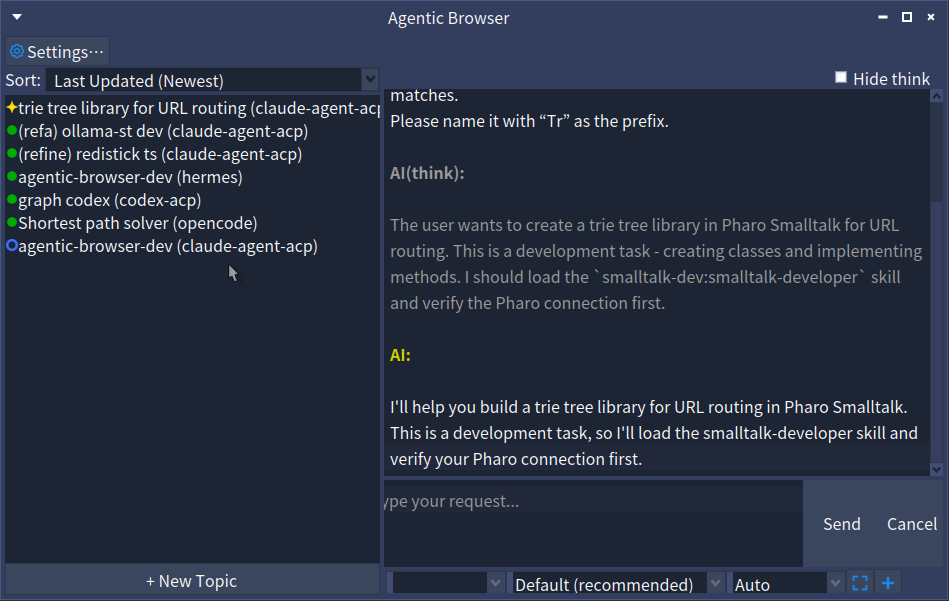
+---------------------+-------------------------------------------+
|   Topics            |  [Human] @QueryClass refactor this        |
|                     |                                           |
|                     +-------------------------------------------+
| ❇️DB Optimization  |  [AI] I'll refactor QueryClass. First,    |
|  UI Improvement     |       let me check the current code...    |
| ✓Fix Tests         |                                           |
|                     |  [System] UserList-Core was modified;     |
|  [+ New Topic]      |           .st files have been updated     |
|                     |  [AI] May I modify DBAdapter#connect?    |
|                     |  [Human] yes                              |
+---------------------+-------------------------------------------+
The core workflow:
- Create a topic and select an ACP-compatible agent (Gemini CLI, Claude Code, OpenCode, etc.)
- Type a request in the chat pane — mention code context with
@ClassNameor@ClassName>>method - The AI starts working (task decomposition, code changes, tests)
- When the AI needs human judgment, it pauses and asks in the chat
- Respond in plain text — the AI resumes
- Topic status is always visible in the sidebar
Features
- Multi-topic management — run multiple AI agent sessions in parallel
- Status tracking — per-topic state machine (
initial → working → waitingForHuman → endTurn → goalAchieved) - Human-in-the-loop — conversation-style approval flow (no modal dialogs)
- Agent-agnostic — works with any ACP-compatible agent
- Goal setting — set a completion condition; the AI works autonomously until the goal is achieved, then reports back
- Session persistence — topic list and state are saved to
ab-topics.fuelvia Fuel and survive image restarts - Code mentions — type
@ClassNameor@ClassName>>methodNamein chat to embed the Tonel source as ACP resources - MCP server support — configure MCP servers via
mcp.json; built-in Smalltalk MCP servers can be auto-merged - Working directory management — per-topic working directory for better context; custom paths for existing projects
- Multiple package prefixes — track multiple package families (e.g.
#('ACP-*' 'BaselineOfACP')) per topic - Image change watching —
AbTopicRelatedPackagesWatchermonitors image changes, inserts system messages into chat, and asks for confirmation before synching packages - Web UI — browser-based interface via WebSocket (docs/web-ui.md)
Requirements
- Pharo 12+
- pharo-acp
- SState
- PharoSmalltalkInteropServer
- At least one ACP-compatible agent installed (e.g.
claude-agent-acp,gemini --acp)
Installation
In a Pharo image, open a Playground and evaluate:
Metacello new
    baseline: 'AgenticBrowser';
    repository: 'github://mumez/pharo-agentic-browser:main/src';
    load.
To also load the test suite:
Metacello new
    baseline: 'AgenticBrowser';
    repository: 'github://mumez/pharo-agentic-browser:main/src';
    load: 'Tests'.
Web UI (optional)
Load the server-side package:
Metacello new
    baseline: 'AgenticBrowser';
    repository: 'github://mumez/pharo-agentic-browser:main/src';
    load: 'WebUI'.
For client setup and full usage, see docs/web-ui.md.
Usage
Open the browser window:
AgenticBrowser open.
- Click + New Topic
- Enter a title and select an agent
- (Optional) Enter an existing project directory
- Click Create — the topic appears in the left sidebar
- Right-click the topic and choose Set Target Packages... to configure which packages to watch
- Type a request and press Send — status changes to
❇️(working) - When the AI requests permission, the Send button changes to Confirm and Cancel to Deny, and status shows
? - Click Confirm to approve or Deny to reject
- The AI resumes; when finished, status changes to
●(endTurn)
You can also right-click a topic to Rename..., Delete, or Set Goal....
Note: The first message in each topic is automatically prefixed with
/st-buddyto activate the Smalltalk buddy agent mode.
Code Mentions
In the chat input, you can reference Pharo classes or methods by prefixing them with @:
@QueryClass @DBAdapter>>connect please refactor this
When you send the message, AgenticBrowser resolves each mention to its Tonel source and attaches it as an ACP text resource alongside the prompt. The AI agent receives the exact code without any copy-paste.
You can also drag and drop directly from Pharo tools into the input field:
- Drag a class from the System Browser class list → inserts
@ClassName - Drag a method from the System Browser method list → inserts
@ClassName>>methodName
Screen Captures
Click the [ ] button in the status bar to capture a screen area and attach it to your next message.
- Click the button — the cursor changes to a crosshair
- Drag to select the area you want to capture
- A mention like
@sc-20260528-001.pngis inserted into the input field - Send — the PNG is attached to the prompt as an image resource
The file is saved to <agenticBrowserRoot>/screenshots/sc-YYYYMMDD-NNN.png. You can also reference a previously captured file manually by typing @sc-YYYYMMDD-NNN.png in the input field.
Goal Setting
Right-click a topic and choose Set Goal... to enter a completion condition (e.g., all tests pass). AgenticBrowser sends a goal notification prompt to the AI:
Goal has been set: all tests pass. When the goal is achieved, summarize and
report in result-<topic-id>.md. Keep retrying until the goal is achieved.
The AI works autonomously. When it creates result-<topic-id>.md in the working directory, AgenticBrowser reads it, stores the result, and transitions the topic to ✓ (#goalAchieved). From that state, the topic can only be reset to initial (effectively archived).
Two hooks fire when a goal is achieved:
- Announcement —
AbTopicGoalAchievedis announced via the topic's own announcer, carrying thetopicandgoal(AbTopicGoal). Subscribe with:topic announcer when: AbTopicGoalAchieved do: [:ann | Transcript crShow: ann topic title , ' achieved: ' , ann goal result]. - Callback block — register an optional block on the topic with
whenGoalAchieved:. The block receives theAbTopicGoalas its argument (or takes zero arguments):topic whenGoalAchieved: [:goal | Transcript crShow: goal result].
Session Persistence
Topics are saved automatically to ab-topics.fuel in the AgenticBrowser root directory using Pharo's Fuel serializer. You can also save and restore manually:
AbTopicManager save.
AbTopicManager load.
MCP Servers
Place a mcp.json file in your AgenticBrowser root directory (default: <imageDir>/agentic-browser/mcp.json) to configure MCP servers passed to the agent on session start:
{
  "mcpServers": {
    "my-server": {
      "command": "uvx",
      "args": ["my-server-package"],
      "env": {"API_KEY": "value"}
    }
  }
}
When AbSettings >> useDefaultMcpServers is true (the default), the built-in smalltalk-interop and smalltalk-validator MCP servers are automatically merged with your mcp.json entries. User entries take precedence over the defaults. Set useDefaultMcpServers to false to use only your mcp.json.
Image Change Watching
Watching starts automatically when a topic first connects (on the first Send).
Supported Agents
Any ACP compatible coding agent can be used. The following agents are available as presets in the New Topic dialog:
| Agent | Arguments | Install |
|---|---|---|
| Claude Code | claude-agent-acp | npm install -g @agentclientprotocol/claude-agent-acp |
| Codex | codex-acp | npm install -g @agentclientprotocol/codex-acp |
| Gemini CLI | gemini --acp | ACP is built-in |
| OpenCode | opencode acp | ACP is built-in |
| GitHub Copilot CLI | copilot --acp --stdio | ACP is built-in |
| Cursor CLI | agent acp | ACP is built-in |
| Kilo Code | kilo acp | ACP is built-in |
| Kiro CLI | kiro-cli acp | ACP is built-in |
Strongly Recommended: Install the smalltalk-dev-plugin in your agent. It provides Smalltalk-aware skills and MCP servers that agents can use to work directly with Pharo inside the session.
Adding a Custom Agent
To add a custom agent, edit ab-settings.json directly in a text editor. Alternatively, from a Playground:
AbSettings default codingAgents: (AbSettings default codingAgents copyWith:
    {'name' -> 'my-agent'.
    'command' -> #('my-agent' '--acp')} asDictionary).
AbSettings save.
Package Structure
| Package | Contents |
|---|---|
AgenticBrowser-Core | Domain model: AbTopic, AbTopicSession, AbTopicManager, AbTopicGoal, AbMessage, AbWorkingDirectory, AbMcpServersLoader, AbCodeMentionParser, AbCodeMentionEmbedder, AbTopicRelatedPackagesWatcher, announcements |
AgenticBrowser-Handler | ACP callback bridge: AbTopicHandler |
AgenticBrowser-UI | Spec2 presenters: browser, topic list, chat, new-topic dialog, settings dialog, and other dialogs |
AgenticBrowser-Tests | SUnit tests for Core |
AgenticBrowser-WebUI | Ripple WebSocket server: AbTopicManagerRipple |
AgenticBrowser-WebUI-Tests | SUnit tests for WebUI |
BaselineOfAgenticBrowser | Metacello baseline |
Architecture
State Machine (SState)
Each topic has an FSM with five states:
#initial ──promptSent──▶ #working ──permissionRequested──▶ #waitingForHuman
                             ▲                                      │
                             └──────────humanResponded──────────────┘
                             │
                          turnEnded
                             ▼
                          #endTurn ──promptSent──▶ #working
                             │
                          goalReached
                             ▼
                          #goalAchieved ──reset──▶ #initial
Human-in-the-Loop Approval
When the AI requests permission, AbTopicHandler#requestPermission: puts the UI into approval mode (Send button becomes Confirm, Cancel becomes Deny). When the user clicks a button, the UI returns to normal mode.
Goal Setting (AbTopicGoal)
AbTopicGoal holds the goal description, result text (once achieved), and an optional callback block. It manages the result file path (result-<topicId>.md in the working directory). After each end_turn, AbTopic>>checkGoalAchievement checks whether the file exists; if so, the topic transitions to #goalAchieved and fires an AbTopicGoalAchieved announcement.
Code Mentions (AbCodeMentionParser / AbCodeMentionEmbedder)
AbCodeMentionParser scans raw chat input for @Foo and @Foo>>bar tokens and returns AbCodeMention value objects. AbCodeMentionEmbedder resolves each mention to its Tonel source using TonelWriter and produces URL→content associations. AbChatPresenter calls both before sending and passes the resolved resources to AbTopic>>sendPrompt:withResources:.
MCP Servers (AbMcpServersLoader)
AbMcpServersLoader reads mcp.json from AbSettings>>defaultAgenticBrowserRootDirectory, optionally merges built-in Smalltalk server definitions (controlled by AbSettings>>useDefaultMcpServers), and returns an OrderedCollection of ACPMcpServer. AbTopicSession calls it on every connect and passes the result to the ACP session params (newSessionBy:, resumeSessionBy:, loadSessionBy:).
Working Directory (AbWorkingDirectory)
Each topic has a working directory at <imageDir>/agentic-browser/<safe-topic-name>-<uuid8>/. The UUID suffix ensures stability even if the topic title changes.
You can also set a custom working directory path when creating a topic from an existing project directory.
Package Change Watcher (AbTopicRelatedPackagesWatcher)
AbTopicRelatedPackagesWatcher subscribes to SystemAnnouncer for MethodAnnouncement and ClassAnnouncement. When a method or class is saved:
- If the package matches any of the topic's
packagePrefixes, it inserts a message into the chat (e.g."AgenticBrowser-Core was modified; .st files have been updated") and confirms exporting the package - If the package does not match, it add the package to
updatedExternalPackageNames. They can be moved to tracked packages by 'Apply Updated External Packages' menu - Changes during import are suppressed to avoid re-export loops
Settings
Settings are managed by AbSettings and persisted as ab-settings.json in the AgenticBrowser root directory. There are two levels: global defaults and per-topic overrides.
Global Settings
Open the Settings dialog from the Settings… menu in the browser window's menu bar. The dialog covers timeout values, timeout options, and MCP server preferences.
| Key | Default | Description |
|---|---|---|
codingAgents | (built-in list) | Array of {name, command} dicts shown in the New Topic dialog |
useDefaultMcpServers | true | Merge built-in Smalltalk MCP servers into mcp.json |
aiPermissionWaitTimeoutSeconds | 1800 | Seconds to wait for human response to an AI permission request |
aiPermissionTimeoutOption | #reject_once | Auto-response on timeout: #allow_once, #allow_always, or #reject_once |
exportApprovalWaitTimeoutSeconds | 30 | Seconds to wait for human approval of a package export |
exportApprovalTimeoutOption | #reject_once | Auto-response on export timeout |
watcherMessageThrottleSeconds | 2 | Minimum seconds between watcher system messages for the same package |
Per-Topic Settings
Each topic starts with a copy of the global settings. Right-click a topic in the sidebar and choose Edit Settings... to open the settings dialog for that topic alone.
Per-topic settings are persisted with the topic via Fuel when AbTopicManager save is called.
Related Projects
- pharo-acp — ACP client library for Pharo
- SState — Simple state machine library for Pharo
- PharoSmalltalkInteropServer — HTTP API server for Pharo package import/export/test
- smalltalk-dev-plugin — AI agents plugin providing Smalltalk-aware skills and slash commands
License
MIT