
Enterprise Architect MCP para Windows ARM64
klesajos/enterprise-architect-mcp-arm64
Instale o MCP Server EA nativamente em Windows ARM64
Ver no GitHubReempacota o MCP Server oficial da Sparx Systems para Enterprise Architect como instalador MSI nativo para Windows em ARM64. Fornece apenas tooling de build (sem binários Sparx) — você traz seu próprio instalador oficial. Permite integrar Enterprise Architect com clientes MCP como Claude.
Instalação
npx convez-ai klesajos/enterprise-architect-mcp-arm641 comando no terminal: detecta o formato do repositório (marketplace ou plugin avulso) e instala via Claude Code. Requer Node 18+ e o Claude Code instalado.
Métricas
Casos de uso
- Integrar Enterprise Architect com Claude Desktop em máquinas ARM64
- Permitir IA acessar modelos UML/arquitetura via MCP
- Bridging entre clientes MCP e repositórios EA em Windows on ARM
Veredito

Solução técnica sofisticada e bem documentada para um caso de uso muito específico (ARM64 + EA + MCP). Requer conhecimento sólido de PowerShell, .NET e instaladores MSI; valioso apenas se você está nesse nicho exato.
README
A tradução para o português deste README ainda está na fila.
MCP Server for Enterprise Architect — native Windows ARM64 repackage






Build a native Windows on ARM64 installer for Sparx Systems' MCP Server for Enterprise Architect from the official x86/x64 release.
[!IMPORTANT] All credit for the actual product goes to Sparx Systems. This repository contains no Sparx binaries — only build tooling that re-targets the official installer you download yourself. The original MCP Server for Enterprise Architect is created and distributed by Sparx Systems Japan: https://www.sparxsystems.jp/en/MCP/
Quick start
Install/run needs Windows on ARM64 with the .NET 9 (Arm64) runtime. You can build on any Windows that has the .NET 9 SDK; WiX is restored automatically. Full details in Prerequisites.
# 1) Download the official Sparx installer (x64) — https://www.sparxsystems.jp/en/MCP/
#    e.g. to $HOME\Downloads\MCP_EA_x64.msi   (this repo ships no Sparx binaries)
#    Verify it's genuine — Sparx publishes no checksums, so the Authenticode signature is
#    the only integrity check (build.ps1 enforces this too; expect Status "Valid" and
#    signer "Sparx Systems Japan Co., Ltd."):
Get-AuthenticodeSignature "$HOME\Downloads\MCP_EA_x64.msi" | Format-List Status, SignerCertificate

# 2) Build the native ARM64 MSI
git clone https://github.com/klesajos/enterprise-architect-mcp-arm64.git
cd enterprise-architect-mcp-arm64
# (if PowerShell blocks scripts, prefix with:  powershell -ExecutionPolicy Bypass -File )
.\build.ps1 -SourceMsi "$HOME\Downloads\MCP_EA_x64.msi"      # -> dist\MCP_EA_arm64.msi

# 3) Install it   (uninstall later with:  msiexec /x dist\MCP_EA_arm64.msi )
msiexec /i dist\MCP_EA_arm64.msi
Then open Enterprise Architect (tick Load on Startup for MCPAddin) and point your MCP client
at C:\Program Files\Sparx Systems\EA\MCP_Server\MCP3.exe — see
Connect your MCP client. ⚠️ Keep only one EA instance running
(why).
How it works
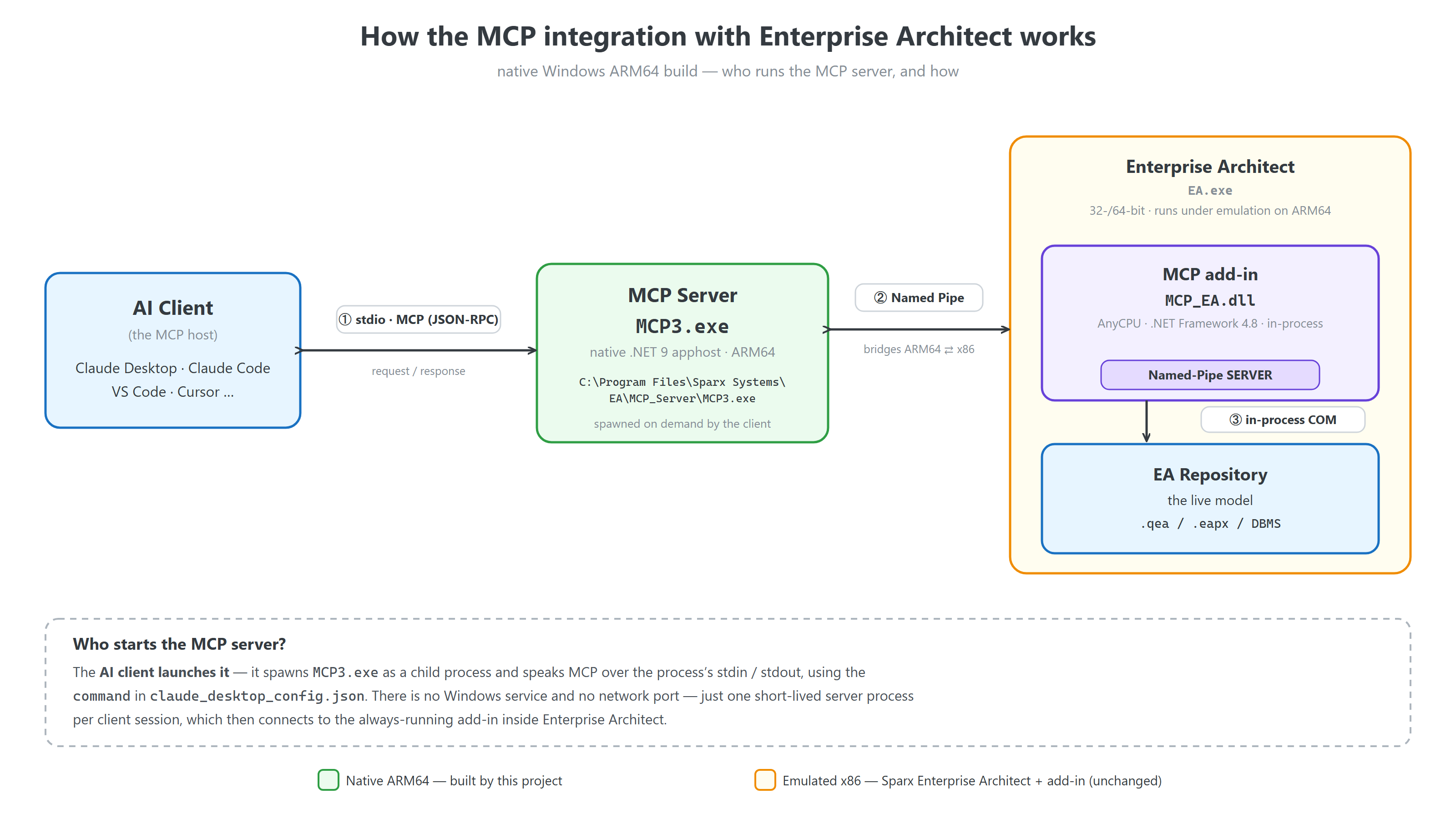
The AI client (Claude Desktop, Claude Code, …) starts the MCP server itself — it spawns
MCP3.exe as a child process and speaks MCP over stdio. The server then connects over a named
pipe to the MCP_EA.dll add-in running inside Enterprise Architect, which reaches the live model
through in-process COM. Because that bridge is a named pipe, the native ARM64 server works with
the (emulated x86) EA add-in unchanged.
Diagram sources:
docs/architecture.svg(canonical, hand-tuned) anddocs/architecture.excalidraw(editable sketch — open it at excalidraw.com). The PNG above is rendered from the SVG bytools/render-diagram.ps1— seedocs/README.mdfor what is generated from what.
Why this exists
Sparx ships the MCP server only as x86 (Intel) and x64 MSIs. On Windows on ARM neither
installs/runs natively:
- the MSI
Templateis hard-coded toIntel/x64, which Windows Installer uses to gate install eligibility; - the launcher
MCP3.exeis a native x86/x64 .NET apphost; - the installer's
.NET 9runtime check is a native x64 custom-action DLL that cannot load during an ARM64 install.
The good news from reverse-engineering the MSI: only the packaging is CPU-specific. The product is a framework-dependent .NET 9 app whose code is fully portable:
MCP3.dll(the server),MCP_EA.dll(the EA add-in) and all dependencies are AnyCPU/IL;- the server talks to AI clients over stdio and to Enterprise Architect over a named pipe — it never calls EA's COM directly — so a native ARM64 server happily drives an emulated x64/x86 EA add-in.
AI client ──stdio──► MCP3.exe (.NET 9 server) ──named pipe──► MCP_EA.dll add-in (inside EA) ──COM──► EA Repository
So the only thing that needs to change for native ARM64 is: a native arm64 apphost, an Arm64
MSI, fixed add-in registration, and dropping the native runtime-check. That is exactly what
build.ps1 does.
What the build produces / changes
| Official x64 MSI | This ARM64 MSI | |
|---|---|---|
MSI Template | x64 | Arm64 |
MCP3.exe | native x64 apphost | native arm64 apphost |
Managed payload (MCP3.dll, MCP_EA.dll, deps) | AnyCPU | reused byte-for-byte |
| EA add-in registration | EAAddins64 (64-bit view) | EAAddins + EAAddins64 in both 32- and 64-bit views |
| .NET runtime check | native x64 custom action | removed (the apphost prompts if the runtime is missing) |
| Install directory | follows EA's install path (registry search) + chooser dialog | follows EA's install path (registry search), no dialog — silent default-path install |
The add-in is registered for both 32-bit and 64-bit Enterprise Architect. EA reads its add-in
keys from the registry view matching its own architecture, so registering in both views means the
add-in shows up whether you run 32-bit EA (EA400) or 64-bit EA (EA64) under emulation.
Prerequisites
- Windows on ARM64 (to install/run the result; you can build on any Windows + .NET SDK).
- .NET SDK 9.0+ — https://dotnet.microsoft.com/download/dotnet/9.0 (the arm64 build also needs the .NET 9 arm64 runtime at install/run time; the apphost will prompt with a download link if it's missing).
- The official Sparx MSI — download it yourself from Sparx Systems (this repo ships none):
- Product page: https://www.sparxsystems.jp/en/MCP/ · release notes: https://www.sparxsystems.jp/en/MCP/releases.htm
- Direct downloads: x64 (recommended) https://www.sparxsystems.jp/en/MCP/bin/MCP_EA_x64.msi · x86 https://www.sparxsystems.jp/en/MCP/bin/MCP_EA_x86.msi
- Either works as the source — the managed payload is identical;
build.ps1only swaps the apphost. - Verify the download. Sparx publishes no checksums, so the MSI's Authenticode signature is the
only way to confirm an unaltered installer:
Get-AuthenticodeSignature <msi> | Format-List Status, SignerCertificatemust show StatusValidwith signerSparx Systems Japan Co., Ltd.(or Explorer ▸ Properties ▸ Digital Signatures).build.ps1checks this automatically and refuses unsigned/foreign MSIs —-SkipSignatureCheckoverrides if Sparx ever rotates its certificate before the tooling catches up.
- WiX is not a manual prerequisite — it's pinned as a local
dotnettool (.config/dotnet-tools.json) and restored automatically by the build.
Build
git clone https://github.com/klesajos/enterprise-architect-mcp-arm64.git
cd enterprise-architect-mcp-arm64
.\build.ps1 -SourceMsi "$HOME\Downloads\MCP_EA_x64.msi"
If PowerShell refuses with “running scripts is disabled on this system”, run it as
powershell -ExecutionPolicy Bypass -File .\build.ps1 -SourceMsi "$HOME\Downloads\MCP_EA_x64.msi"(orSet-ExecutionPolicy -Scope Process Bypassonce per session).
Optional parameters (full help: Get-Help .\build.ps1 -Detailed):
-OutDir <path>— where to write the MSI (default:.\dist).-KeepWork— keep the intermediate.\buildfolder for inspection; the natural first step when debugging a failed build.-SkipSignatureCheck— bypass the Authenticode check of the source MSI (only if Sparx rotates its code-signing certificate before the tooling catches up).-AllowFallbackDefaults— build even when version/ProgID/CLSID detection fails and hardcoded v2.7.1-era defaults are used (normally refused — it usually means Sparx restructured the installer).
Output: dist\MCP_EA_arm64.msi. The script auto-detects the product version, add-in ProgID, CLSID
and assembly identity from your MSI, so it should keep working for future Sparx releases — see
Updating (new Sparx release).
Install
msiexec /i dist\MCP_EA_arm64.msi
Then:
- Open Enterprise Architect with a project, go to Specialize ▸ Add-Ins ▸ Manage Add-Ins, and confirm MCPAddin appears. Tick Load on Startup.
- Point your MCP client at the installed server (see below).
EA must be running with the add-in loaded whenever you use the tools: the server connects to the add-in inside EA over a named pipe. The MCP client spawns the server for you — you never launch
MCP3.exemanually.
Updating (new Sparx release)
Download the new official MSI, rebuild, and install over the top — no uninstall needed:
.\build.ps1 -SourceMsi "$HOME\Downloads\MCP_EA_x64.msi"   # the NEW official MSI
msiexec /i dist\MCP_EA_arm64.msi
The MSI declares a major upgrade with a stable UpgradeCode (and AllowSameVersionUpgrades), so the
new build automatically replaces the previous install — even when the version number is unchanged.
Downgrades are blocked. Your MCP client config keeps working (the MCP3.exe path doesn't change).
Uninstall
Settings ▸ Apps ▸ Installed apps ▸ MCP Server for Enterprise Architect (Arm64) ▸ Uninstall, or
msiexec /x dist\MCP_EA_arm64.msi. Note the msiexec /x <file> form only works with the exact MSI
file that was installed — every rebuild gets a fresh ProductCode — so after a rebuild prefer
Settings ▸ Apps.
Run only ONE Enterprise Architect instance
[!WARNING] The MCP server connects to the first Enterprise Architect instance that was started, and it stays bound to that one. It does not follow your focus or the most recently opened window.
So if a second EA instance is running, the server will operate on the wrong one. The most common way this happens: you already have EA open, then you open another project in a way that launches a new EA process — now there are two. The server keeps talking to the first (possibly empty / different) instance, while you're looking at the project in the second one, and your tool calls seem to hit the "wrong" or an empty model.
To work correctly, keep exactly one EA instance running:
- Open additional projects inside the existing EA window (
File ▸ Open Project) instead of starting a new EA process.- Don't open
.qea/.eapxfiles by double-clicking if EA is already open and that would spawn a second instance — switch projects within the running instance instead.- Check Task Manager for more than one
EA.exeand close the extras.If it's already talking to the wrong instance: close all EA instances, then start a single EA with the project you want. (The server re-attaches on its next call; if needed, restart your MCP client so it re-spawns the server cleanly.)
Connect your MCP client
The server is a standard stdio MCP server, so every client uses the same command + args:
command:C:\Program Files\Sparx Systems\EA\MCP_Server\MCP3.exeargs(optional):-enableEdit(allow write/modify tools, not just read) and-setTimeout 60(per-operation timeout, seconds).
After any config change, fully restart the client so it re-spawns the server.
Claude Desktop
Edit %APPDATA%\Claude\claude_desktop_config.json (create it if missing), then fully quit and
reopen the app:
{
  "mcpServers": {
    "enterprise-architect": {
      "command": "C:\\Program Files\\Sparx Systems\\EA\\MCP_Server\\MCP3.exe",
      "args": ["-enableEdit", "-setTimeout", "60"]
    }
  }
}
Claude Code (CLI)
One command — pick the scope (user = all your projects, recommended; local = just this project,
private; project = shared via a committed file). Everything after -- is passed to MCP3.exe:
claude mcp add --transport stdio --scope user enterprise-architect -- "C:\Program Files\Sparx Systems\EA\MCP_Server\MCP3.exe" -enableEdit -setTimeout 60
Verify with claude mcp list (should show enterprise-architect ✓) or /mcp inside a session.
Claude Code — project-scoped (shared with a repo)
Put a file named .mcp.json in the root of your own project (the repo where you use Claude
Code — not this build repo) and commit it to share with the team. Note the extra "type": "stdio"
field that Claude Code expects:
{
  "mcpServers": {
    "enterprise-architect": {
      "type": "stdio",
      "command": "C:\\Program Files\\Sparx Systems\\EA\\MCP_Server\\MCP3.exe",
      "args": ["-enableEdit", "-setTimeout", "60"]
    }
  }
}
The first time you open Claude Code in that project it will ask you to approve the server from
.mcp.json (reset later with claude mcp reset-project-choices).
Sharing across machines: the
commandis an absolute Windows path. If teammates installed EA elsewhere (or aren't all on Windows), have each set an environment variable and reference it instead, e.g."command": "${MCP_EA_PATH}". Each client config (Claude Desktop vs Claude Code) is separate — they do not share MCP settings.
Troubleshooting
- The add-in doesn't appear in Manage Add-Ins. EA reads add-in registrations only at startup —
fully close and reopen EA after installing. This MSI registers for both 32-bit (
EA400) and 64-bit (EA64) EA, so a bitness mismatch shouldn't be the cause; confirmMCP_EA.dllexists inC:\Program Files\Sparx Systems\EA\MCP_Addin\. - Tools fail with “Failed to connect to Enterprise Architect” / time out. Almost always means
no project is open in EA (or EA isn't running). Open a repository first, then retry. For heavy
operations raise the timeout, e.g.
-setTimeout 600(EA runs under emulation, so it can be slow). - Tool calls hit the wrong / an empty model. You have more than one EA instance running — see Run only ONE Enterprise Architect instance.
- The client shows no server/tools. Fully restart the MCP client after editing its config (it
spawns the server at startup). Check
claude mcp list(Claude Code) or the client's MCP log, and verify thecommandpath exists. - “.NET runtime not found” when the server starts. Install the .NET 9 Desktop Runtime (Arm64): https://dotnet.microsoft.com/download/dotnet/9.0.
- SmartScreen / “unknown publisher” on install. Expected — the rebuilt MSI is unsigned (it can't carry Sparx's signature). Choose More info ▸ Run anyway, or self-sign it.
build.ps1won't run (“running scripts is disabled”). Usepowershell -ExecutionPolicy Bypass -File .\build.ps1 -SourceMsi <path-to-official-msi>.
Cheat sheets
Quick references for the EA MCP tools (what they do, common prompts, gotchas):
- 🇬🇧 English —
docs/EA-MCP-cheatsheet-en.md(PDF) - 🇨🇿 Čeština —
docs/EA-MCP-cheatsheet-cs.md(PDF)
How the build works
build.ps1:
- Administrative-extracts your Sparx MSI (
msiexec /a) — no system changes — to harvest the managed payload. - Mints a native arm64 apphost by building the tiny
apphost/MCP3.csprojwith-r win-arm64, keeping only the producedMCP3.exe. A framework-dependent apphost has no hash binding to its managed DLL, so this launcher drives Sparx's unmodifiedMCP3.dll. - Assembles the payload: Sparx's managed binaries + the arm64 apphost.
- Builds the MSI from
src/MCP_EA_arm64.wxswith WiX (-arch arm64), injecting the auto-detected version/ProgID/CLSID/assembly values.
The architecture image (docs/architecture.png) is rasterized from docs/architecture.svg by
tools/render-diagram.ps1 (headless Edge). Run it after editing the SVG —
or after re-exporting an SVG from docs/architecture.excalidraw — to keep the PNG in sync.
Repository layout
build.ps1                     # one-shot build script (start here)
src/MCP_EA_arm64.wxs          # WiX authoring for the ARM64 MSI
apphost/                      # throwaway project that mints the arm64 MCP3.exe apphost
tools/render-diagram.ps1      # regenerate docs/architecture.png from the SVG (headless Edge)
.config/dotnet-tools.json     # pins WiX as a local dotnet tool
docs/                         # architecture diagram (+ .excalidraw source) and cheat sheets
Notes & caveats
- The produced MSI is unsigned — it cannot carry Sparx's original signature. Windows SmartScreen may warn on first run. Build it yourself / use at your own discretion.
- The MSI you build contains Sparx's proprietary binaries, harvested from your copy of the official installer. It is for your own use — do not redistribute it unless Sparx's license terms permit it. The MIT license covers this repo's tooling only, never the build output.
- It shares its UpgradeCode with the official installer, so installing it replaces any existing
official x86/x64 install of the same product (and vice-versa) — the two cannot coexist. Uninstall
with
msiexec /x dist\MCP_EA_arm64.msior via Settings ▸ Apps. - Running EA in Wine / CrossOver (Linux, macOS)? Don't use this build — Wine presents an
x86/x64 Windows environment even on ARM64 hosts (Apple Silicon runs x64 code via Rosetta), so the
Arm64 MSI won't install and the arm64
MCP3.execan't run. Use the official Sparx x64/x86 MSI inside the same Wine prefix as EA instead. Note that Sparx supports EA itself under Wine/CrossOver but states the MCP Server is Windows-only ("Linux and macOS are not supported") — if you try it anyway, the MCP client must spawn the server throughwinein that same prefix (with the Windows .NET 9 Desktop Runtime installed in it); the named pipe between server and add-in does not cross the prefix boundary, so a host-native server cannot connect. - This is an independent, unofficial repackage for interoperability on ARM64. It is not affiliated with or endorsed by Sparx Systems. Please support Sparx and obtain the product from them: https://www.sparxsystems.jp/en/MCP/
- Trademarks (Sparx Systems, Enterprise Architect) belong to their respective owners.
License
Build tooling in this repo: MIT (see LICENSE). The MIT license covers only this tooling — not the Sparx product, which it neither contains nor relicenses, and therefore not the MSI you build, which does contain Sparx's binaries. See NOTICE for the exact scope and attribution.