
Google Finance API via Apify
johnisanerd/Apify-Google-Finance-API
Dados financeiros estruturados em JSON para dashboards e agents IA
Ver no GitHubMCP server que fornece dados financeiros em tempo real através da API Google Finance via Apify. Retorna cotações, histórico de preços, dados financeiros e notícias em JSON estruturado para símbolos de ações, índices, criptomoedas e forex.
Instalação
npx convez-ai johnisanerd/Apify-Google-Finance-API1 comando no terminal: detecta o formato do repositório (marketplace ou plugin avulso) e instala via Claude Code. Requer Node 18+ e o Claude Code instalado.
Métricas
Casos de uso
- Alimentar dashboards financeiros com cotações em tempo real
- Backtestar estratégias com histórico de preços estruturado
- Integrar dados de mercado em agents Claude para análise
- Monitorar múltiplos símbolos em batch com uma chamada
Veredito

Solução bem estruturada para acesso a dados financeiros reais via MCP. Útil para builders que precisam integrar informações de mercado em agentes, embora limitada ao ecossistema Apify que requer chave paga.
README
A tradução para o português deste README ainda está na fila.
📈 Google Finance API: Quotes, Price History, and Financials in Clean JSON
The efficient, reliable, and developer-friendly way to use the Google Finance API.
Actor page: apify.com/johnvc/google-finance-api Input schema: apify.com/johnvc/google-finance-api/input-schema
The Google Finance API returns real-time quotes, price history, market data, financials, and news for any symbol as clean, structured JSON. Pass a single symbol or a batch, choose a price-history window, and get back a summary quote, a full price-and-volume series, and related context. Built for dashboards, market research, backtesting datasets, and AI agent workflows. This is a data API; it returns market data, not investment advice.
Video Walkthrough
Quick Start
Prerequisites
- Python 3.11 or higher
- An Apify account and API key (get a free key here)
-
Clone the repository
git clone https://github.com/johnisanerd/Apify-Google-Finance-API.git cd Apify-Google-Finance-API -
Install dependencies with UV
# Install UV if you do not have it: curl -LsSf https://astral.sh/uv/install.sh | sh # Install project dependencies: uv sync -
Configure your API key
cp .env.example .env # Edit .env and add your Apify API key # Get your free API key at: https://apify.com?fpr=9n7kx3 -
Run the example
uv run python google-finance-api-example.py
Alternative: set the API key directly
export APIFY_API_TOKEN="your_api_key_here"
uv run python google-finance-api-example.py
Symbol Format
Symbols use Google Finance format, the ticker plus exchange. Plain company names like Google do not resolve.
| Asset | Example symbol |
|---|---|
| US stock | GOOGL:NASDAQ, AAPL:NASDAQ, MSFT:NASDAQ |
| Index | .DJI:INDEXDJX, .INX:INDEXSP |
| Crypto | BTC-USD, ETH-USD |
| Forex | EUR-USD, GBP-USD |
Why Use This Google Finance API?
One call, the whole picture. A summary quote, a full price-and-volume history series, plus market data, financials, and news where available, all in one structured response.
Real-time quotes. Current price, currency, and the up or down movement with its percentage and value.
Flexible history windows. Choose 1D, 5D, 1M, 6M, YTD, 1Y, 5Y, or MAX for the price graph.
Batch friendly. Pass a queries list to fetch many symbols in one run; you get one row per symbol.
Predictable, pay-per-use pricing. Billing is per symbol fetched, with a small per-run fee and no subscription.
Easy to automate. Call it from Python in a few lines, or load it as an MCP tool so assistants like Claude and Cursor can pull quotes for you on demand.
Features
Core Capabilities
- Real-time summary quote with price, currency, and movement
- Price-and-volume history across eight time windows
- Market data, financials, knowledge graph, and news when available
- Single-symbol or batch (
queries) input, one row per symbol - Language control for news and descriptions
Data Quality
- Stable, consistent field names across symbols
- Numeric
extracted_pricealongside the formattedprice - Per-point price, volume, and timestamp in the history series
- Search parameters echoed on every row
Usage Examples
Single quote
{
  "q": "AAPL:NASDAQ",
  "window": "1M"
}
Batch quotes
{
  "queries": ["GOOGL:NASDAQ", "AAPL:NASDAQ", "BTC-USD"],
  "window": "1D"
}
Input Parameters
| Parameter | Type | Required | Default | Description |
|---|---|---|---|---|
q | str | one of | - | A single symbol in ticker:exchange format, e.g. GOOGL:NASDAQ. |
queries | array | one of | - | A list of symbols for a batch run; takes precedence over q. |
hl | str | no | en | Language code for news and descriptions, e.g. en, de, fr. |
window | str | no | 1D | Price-history window: 1D, 5D, 1M, 6M, YTD, 1Y, 5Y, MAX. |
max_queries | int | no | 0 | Cap on symbols processed; 0 = process all in the list. |
output_file | str | no | - | Optional filename to save results. |
Output Format
A real result for GOOGL:NASDAQ (the graph series is trimmed to one point; markets, knowledge_graph, news_results, and financials are populated for many symbols).
{
  "search_parameters": { "q": "GOOGL:NASDAQ", "hl": "en", "window": "1D" },
  "summary": {
    "title": "Alphabet Inc Class A",
    "stock": "GOOGL",
    "exchange": "NASDAQ",
    "price": "USD380.34",
    "extracted_price": 380.34,
    "currency": "USD",
    "price_movement": { "percentage": 2.509422, "value": 9.790009, "movement": "Down" },
    "date": "May 29 2026, 08:30:00 PM UTC-04:00"
  },
  "graph": [
    { "price": 384.9, "currency": "USD", "date": "May 29 2026, 09:30 AM UTC-04:00", "volume": 11482 }
  ],
  "markets": null,
  "knowledge_graph": null,
  "news_results": null,
  "financials": null
}
The summary block holds the live quote and movement; graph is the full price-and-volume series for the chosen window. Depending on the symbol, the row may also include markets (related indices and movers), a knowledge_graph (company profile and key stats), news_results, and financials.
Use as an MCP tool
You can load the Google Finance API as an MCP tool so assistants call it for you. The MCP server URL preloads just this one Actor:
https://mcp.apify.com/?tools=actors,docs,johnvc/google-finance-api
Authenticate with OAuth in the browser when offered, or with your Apify API token (the same APIFY_API_TOKEN used by the Python example). Get a token at https://console.apify.com/settings/integrations and a free Apify account at https://apify.com?fpr=9n7kx3 .
Install in Claude Cowork Desktop
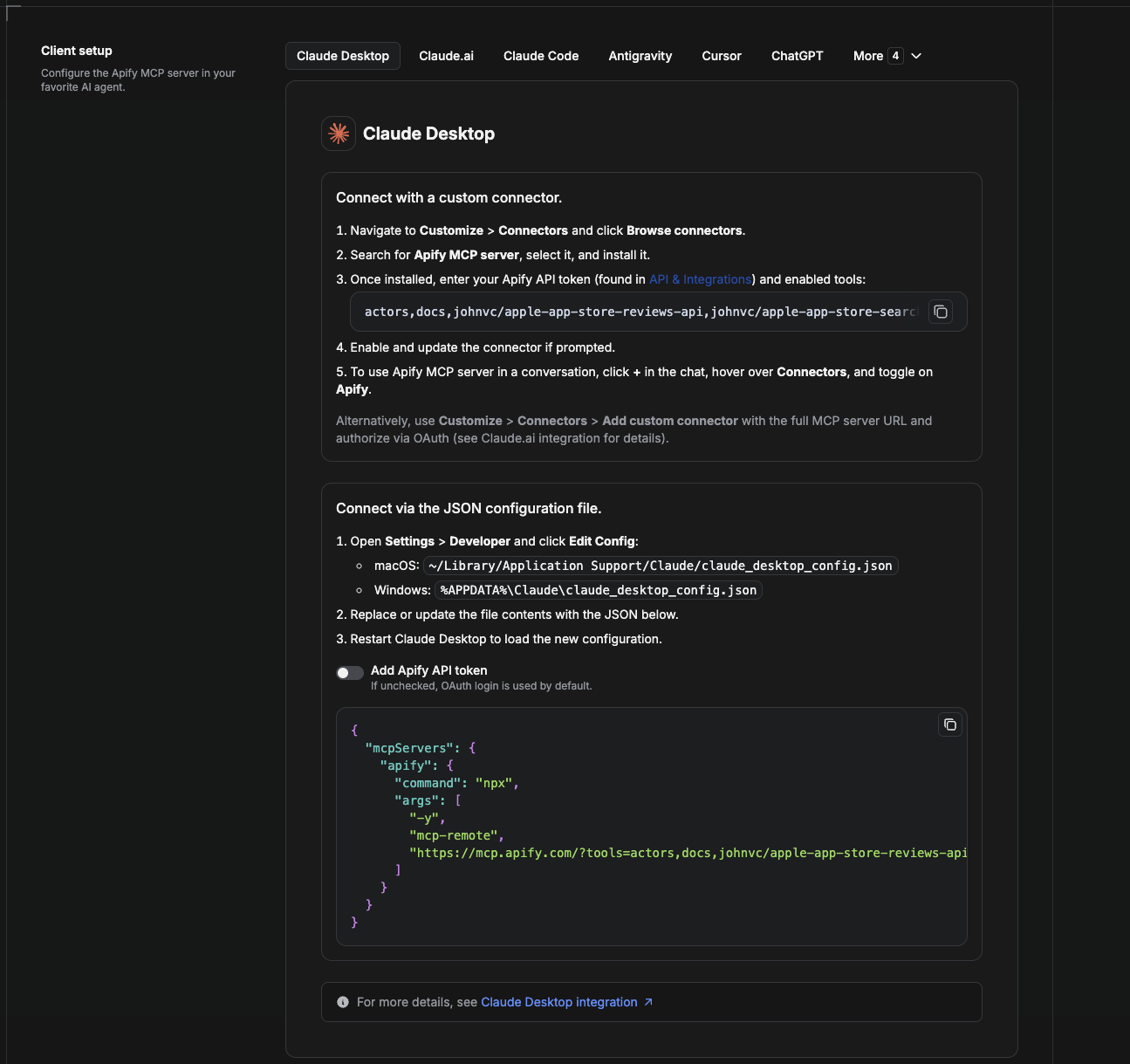
Cowork is the desktop app's automation mode. To give it the Google Finance API as a tool, add the Apify MCP server as a connector.
- Open the Claude desktop app and go to Settings → Connectors (or Settings → Developer → Edit Config to edit
claude_desktop_config.jsondirectly).- macOS:
~/Library/Application Support/Claude/claude_desktop_config.json - Windows:
%APPDATA%\Claude\claude_desktop_config.json
- macOS:
- Add the Apify MCP server, preloaded with only this Actor:
{
  "mcpServers": {
    "apify": {
      "command": "npx",
      "args": [
        "-y",
        "mcp-remote",
        "https://mcp.apify.com/?tools=actors,docs,johnvc/google-finance-api"
      ]
    }
  }
}
- Restart the app. When Cowork first calls the tool, complete the OAuth prompt in your browser, or add your Apify API token in the connector settings to skip OAuth.
- In a Cowork chat, confirm the tool is available and ask it to run the Google Finance API.
Download the desktop app and start a free trial: https://claude.ai/referral/uIlpa7nPLg More help: https://docs.apify.com/platform/integrations/claude-desktop
Install in Claude Code
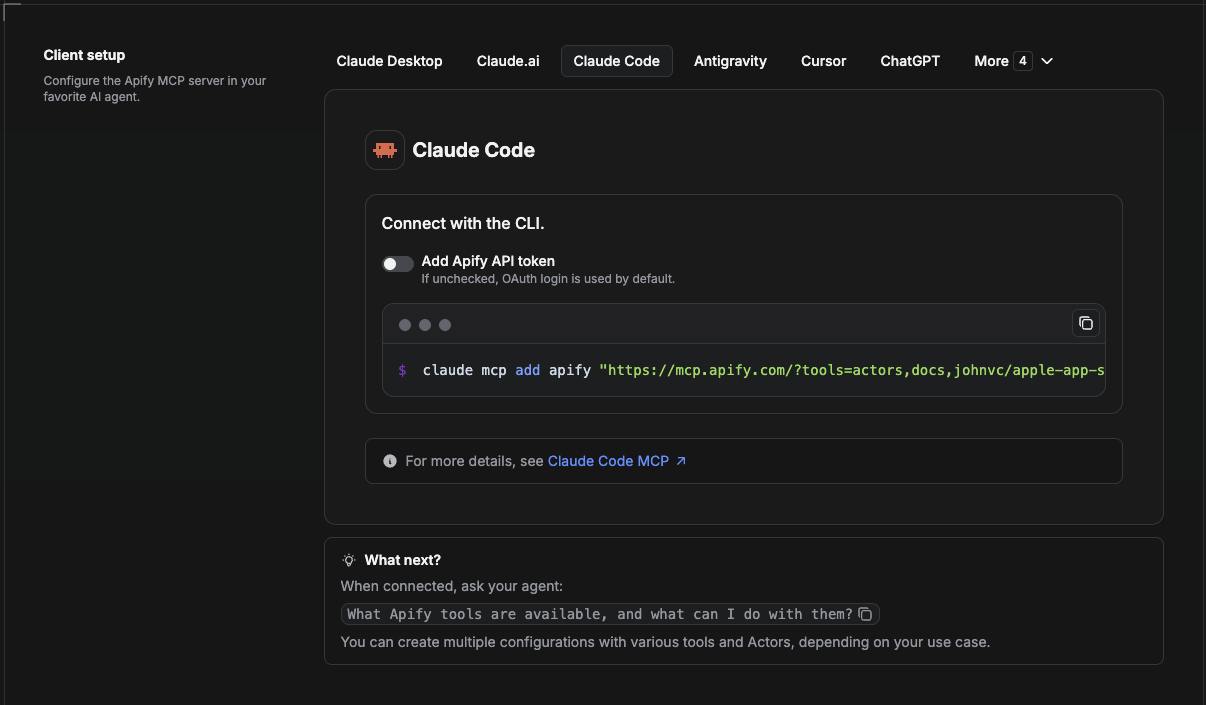
Claude Code is the command-line tool. Add the Actor's MCP server with one command:
claude mcp add --transport http apify \
  "https://mcp.apify.com/?tools=actors,docs,johnvc/google-finance-api"
To use a token instead of browser OAuth:
claude mcp add --transport http apify \
  "https://mcp.apify.com/?tools=actors,docs,johnvc/google-finance-api" \
  --header "Authorization: Bearer YOUR_APIFY_TOKEN"
Then verify with claude mcp list, or run /mcp inside a session. Ask Claude Code to call the Google Finance API.
Try Claude Code free: https://claude.ai/referral/uIlpa7nPLg Claude Code MCP docs: https://code.claude.com/docs/en/mcp
Install in Claude (website)
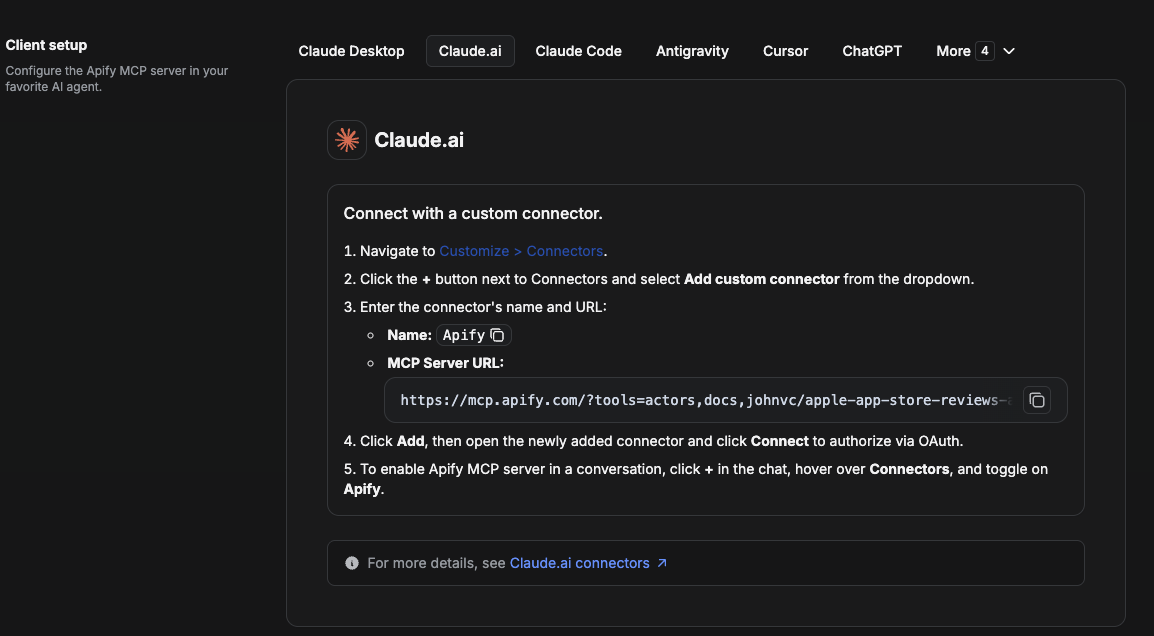
On claude.ai you add Apify as a connector, then enable just this Actor's tool.
- Go to Settings → Connectors → Browse connectors and search for Apify MCP server. Install it (enable or update if prompted).
- When connecting, authenticate with your Apify API token, and enable the tool
johnvc/google-finance-api. - In any chat, open + → Connectors and turn on Apify.
- Alternatively, choose Add custom connector and paste the full MCP URL
https://mcp.apify.com/?tools=actors,docs,johnvc/google-finance-api, using OAuth when prompted. - Ask Claude to run the Google Finance API.
Open Claude on the web: https://claude.ai/referral/uIlpa7nPLg
Install in Cursor
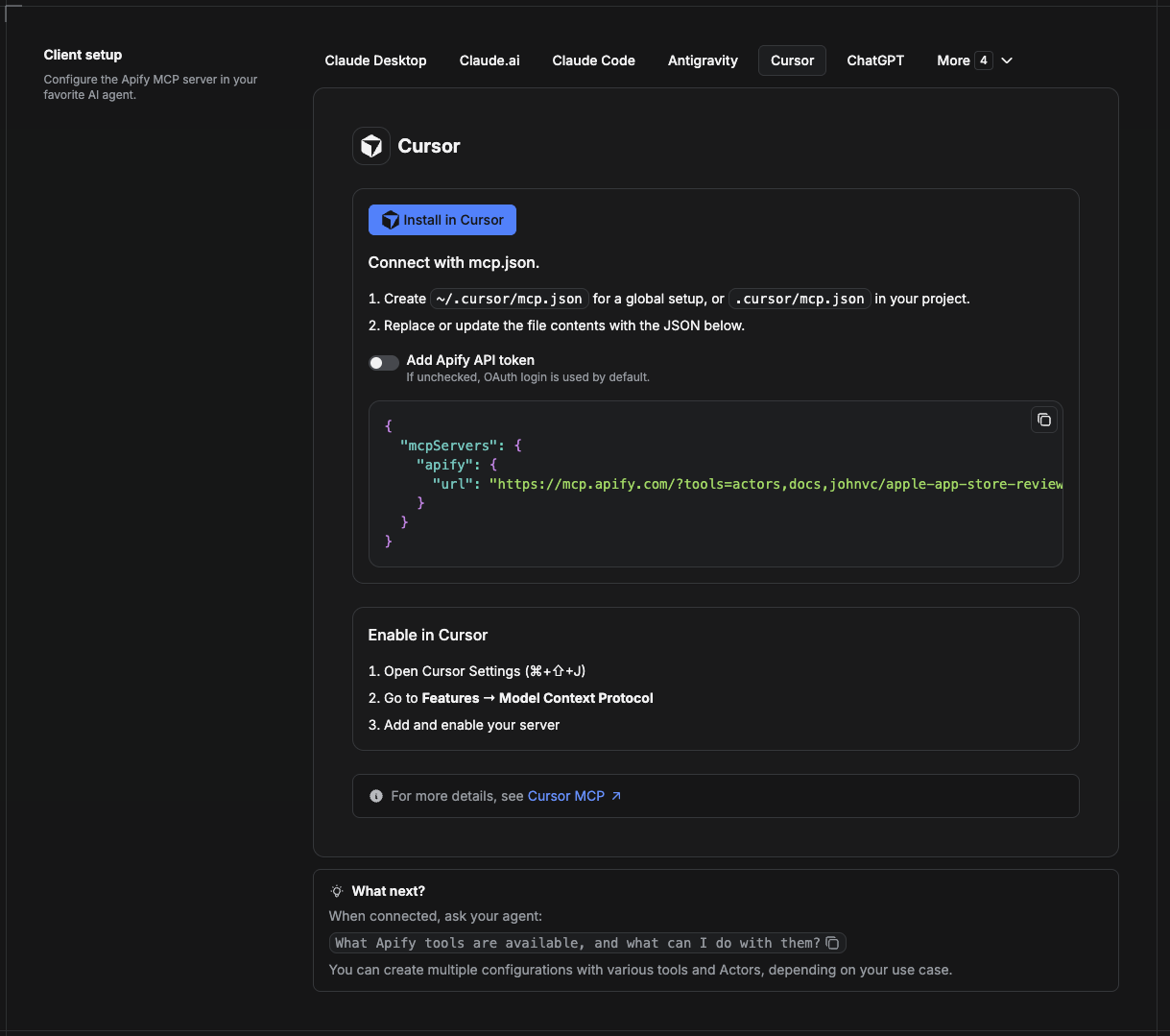
Cursor reads MCP servers from a project file at .cursor/mcp.json.
- In your project, create
.cursor/mcp.json:
{
  "mcpServers": {
    "apify": {
      "url": "https://mcp.apify.com/?tools=actors,docs,johnvc/google-finance-api"
    }
  }
}
- If you prefer token auth over browser OAuth, add a header:
{
  "mcpServers": {
    "apify": {
      "url": "https://mcp.apify.com/?tools=actors,docs,johnvc/google-finance-api",
      "headers": { "Authorization": "Bearer YOUR_APIFY_TOKEN" }
    }
  }
}
- Open Cursor → Settings → MCP and confirm the apify server is connected (green dot).
- In Composer or Chat, ask Cursor to call the Google Finance API.
New to Cursor? Get it here: https://cursor.com/referral?code=XQP4VBLI3NNX
Install in ChatGPT
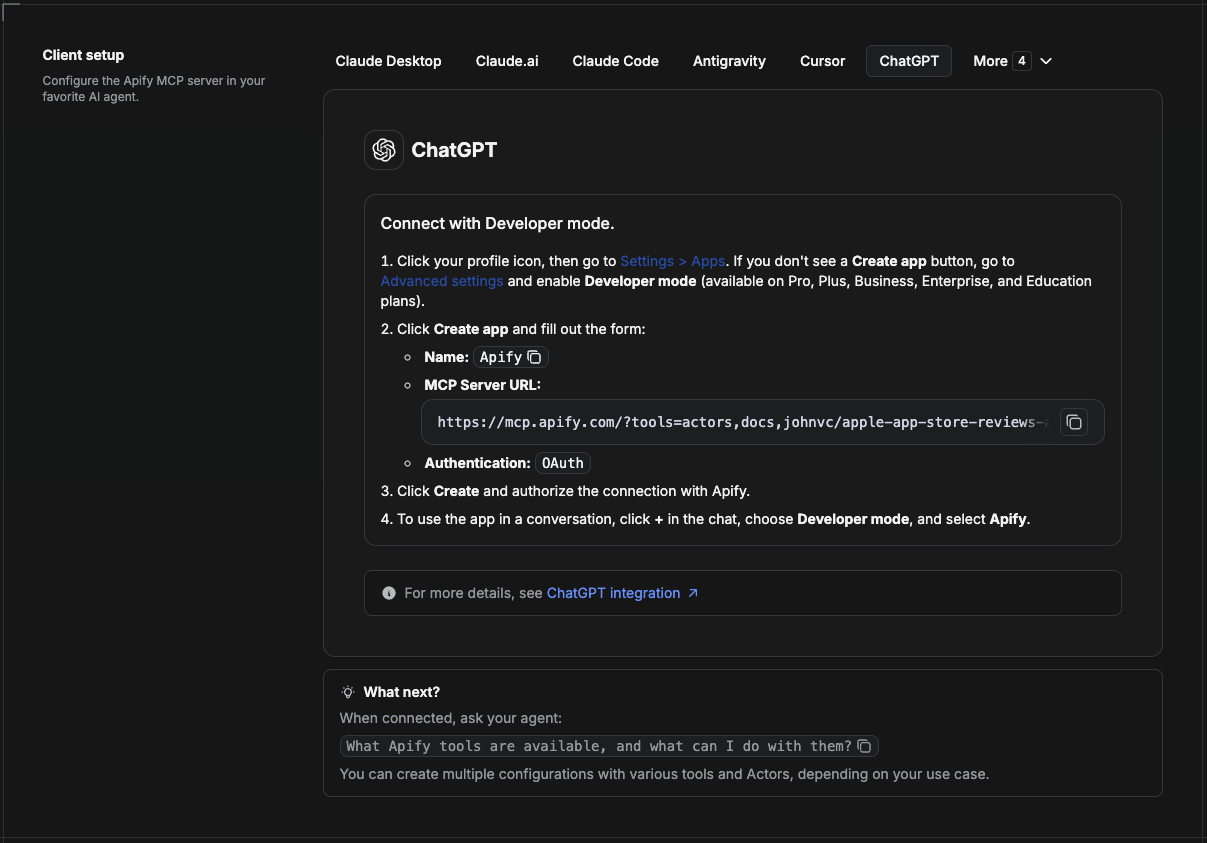
ChatGPT connects to the Apify MCP server through Developer mode (available on ChatGPT Pro, Plus, Business, Enterprise, and Education plans).
- Click your profile icon, then go to Settings > Apps. If you do not see a Create app button, open Advanced settings and enable Developer mode.
- Click Create app and fill out the form:
- Name: Apify
- MCP Server URL:
https://mcp.apify.com/?tools=actors,docs,johnvc/google-finance-api - Authentication: OAuth
- Click Create and authorize the connection with Apify.
- To use the app in a conversation, click + in the chat, choose Developer mode, and select Apify.
More help: https://docs.apify.com/platform/integrations/mcp
Use the Google Finance API to power dashboards, market research, and analytics with reliable, structured data.
🤖 Ask an AI assistant about this Actor
Open a ready-to-send prompt about the Google Finance API in the AI of your choice:
- 💬 ChatGPT
- 🧠 Claude
- 🔍 Perplexity
- 🅒 Copilot
Last Updated: 2026.11.15