
HAYA Pet
HAYASAKA7/HAYA-PET
Pet desktop portável para múltiplos clientes de IA em linha de comando
Ver no GitHubCompanheiro desktop local para clientes de IA em terminal, que traz pets do Codex para múltiplas ferramentas (Claude Code, Aider, Gemini CLI, etc). Funciona como overlay sempre visível que monitora sessões ativas de agentes IA, com animações e feedback visual sem interromper o fluxo do terminal.
Instalação
npx convez-ai HAYASAKA7/HAYA-PET1 comando no terminal: detecta o formato do repositório (marketplace ou plugin avulso) e instala via Claude Code. Requer Node 18+ e o Claude Code instalado.
Métricas
Casos de uso
- Monitorar múltiplas sessões de agentes IA simultaneamente
- Reutilizar pets do Codex Desktop em outras ferramentas de IA
- Adicionar feedback visual e engajamento a fluxos de desenvolvimento com IA
Veredito

Projeto criativo que resolve um problema real de portabilidade de assets do Codex Desktop. Bem arquitetado com suporte cross-platform, focado em manter o fluxo nativo do terminal sem sacrificar feedback visual — bom para desenvolvedores que usam múltiplos clientes de IA em paralelo.
README
A tradução para o português deste README ainda está na fila.
HAYA Pet
Let your Codex Desktop pets follow you into every AI terminal
HAYA Pet is a local desktop companion for Codex, Claude Code, Antigravity, Aider, Gemini CLI, and almost any command-line AI client. It was inspired by Codex Desktop pets, but fixes the part that hurts: pets generated for Codex Desktop should not be trapped inside Codex Desktop.
Drop in a Codex-compatible pet, wrap your AI CLI with haya-pet run, and the
same little character can watch all your agent sessions from one always-on-top
overlay.
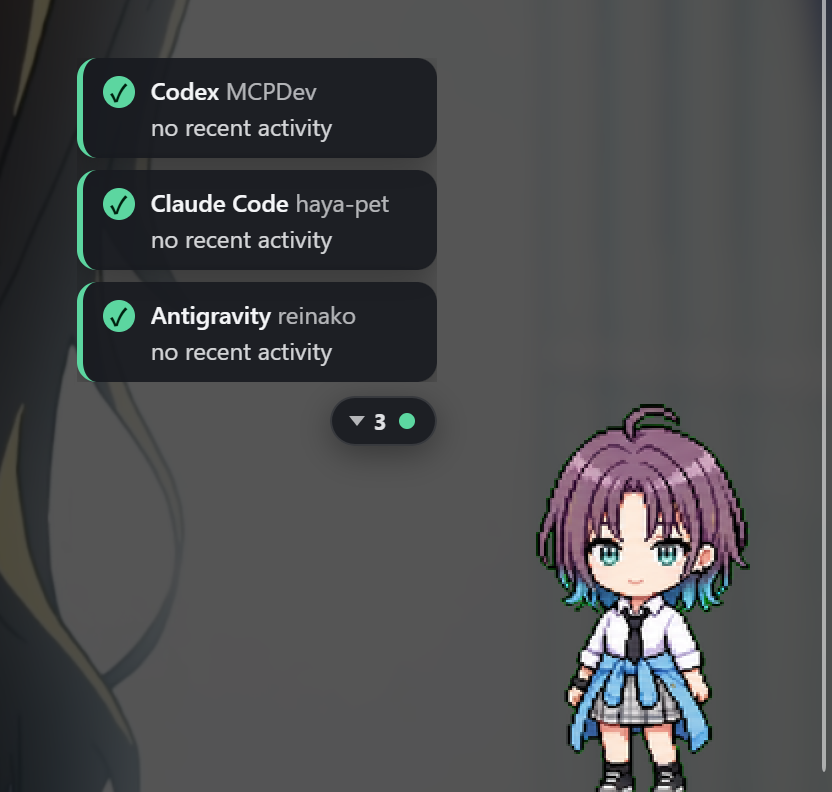
Why HAYA Pet Exists
Codex Desktop made AI pets feel personal. The problem is portability: once a pet is generated there, it is useful only there.
HAYA Pet turns those pet assets into a shared runtime for the AI tools you actually use day to day:
Codex CLI       -> backend work
Claude Code     -> frontend work
Antigravity     -> infra work
Aider / Gemini  -> docs, scripts, experiments
Any command     -> still gets a session bubble
Instead of one pet per app, you get one pet for your whole AI workspace. It reacts to the selected or most urgent session, while compact bubbles show what each running client is doing.
The Candy
- Bring your Codex Desktop pets with you. HAYA Pet scans
~/.codex/pets, so Codex-compatible pet folders can be reused without rebuilding the character. - Use one pet across many AI clients. Codex and Claude Code get richer live-status hooks; everything else can connect through the generic wrapper.
- See all active agents at a glance. Session bubbles show client, project, latest activity, and status: working, done, needs attention, or failed.
- Keep your terminal native. The default wrapper preserves normal terminal input. No broken Shift+Tab just to make the pet move.
- Stay local. HAYA Pet does not upload prompts, files, screenshots, or logs.
Quick Start
1. Install
From npm, when available:
npm install -g @hayasaka7/haya-pet
From source:
git clone <repo-url> haya-pet
cd haya-pet
npm install
npm link
Prefer not to link globally? Use the CLI directly:
node <repo>/apps/cli/src/haya-pet.js
2. Add A Pet
Put a Codex-compatible pet folder in ~/.codex/pets or ~/.haya-pet/pets.
On Windows, HAYA Pet also checks %USERPROFILE%\.codex\pets and
%LOCALAPPDATA%\haya-pet\pets.
~/.codex/pets/my-pet/
    pet.json
    spritesheet.webp
Minimal pet.json:
{
  "id": "my-pet",
  "name": "My Pet",
  "spritesheet": "spritesheet.webp"
}
The spritesheet format is the Codex-compatible atlas used by this project: 1536 x 1872 pixels, 8 columns x 9 rows, 192 x 208 per frame.
Choose the pet:
haya-pet pets
haya-pet pets use my-pet
You can also switch pets from the tray menu.
3. Run Your AI Client Through HAYA Pet
The first haya-pet run starts the overlay automatically.
haya-pet run --client codex
haya-pet run --client claude-code
haya-pet run --client antigravity

# Any other CLI:
haya-pet run --client generic -- aider
haya-pet run --client generic -- gemini
haya-pet run --client generic -- your-ai-command --with --args
A bubble appears for the session. When the command exits, the bubble shows success or failure briefly, then fades.
What You Get On Screen
| Surface | What it does |
|---|---|
| Global pet | Reacts to the highest-priority session and can be dragged anywhere. |
| Session bubbles | One bubble per running AI session, ordered by connect time. |
| Folder button | Folds the bubbles away when you want a cleaner desktop. |
| Tray menu | Show/hide, display mode, installed pets, reset position, and quit. |
| Resize grip | Hover the pet, drag the corner, and keep the size you like. |
Screenshots
The global pet - reacting to the highest-priority session.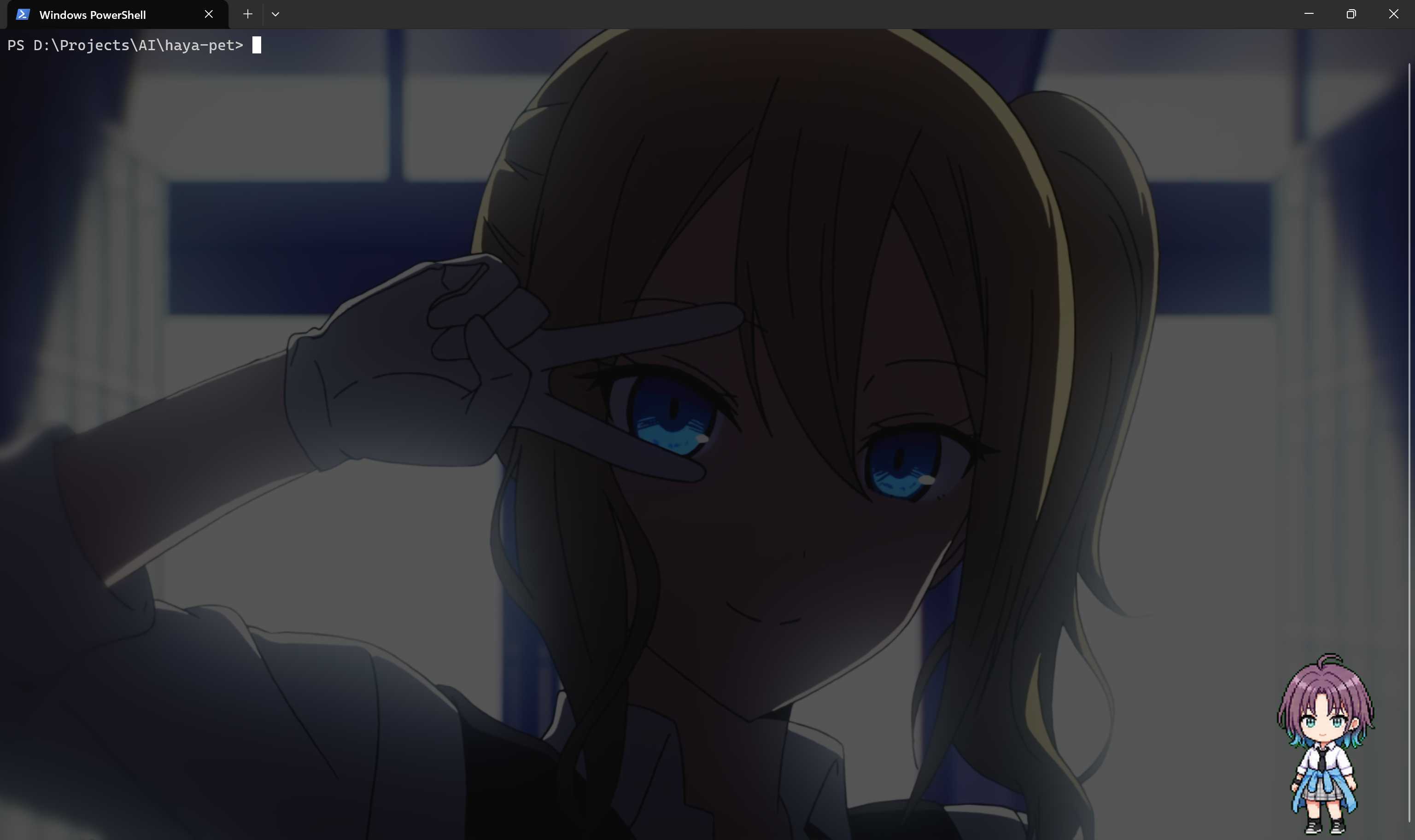 | Session bubbles - one per active session, with status icons.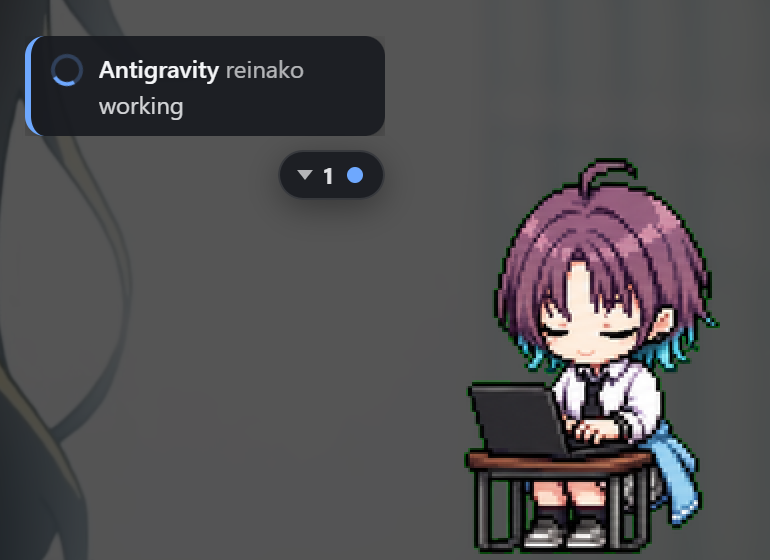 |
Folder collapsed - bubbles tucked away beside the pet.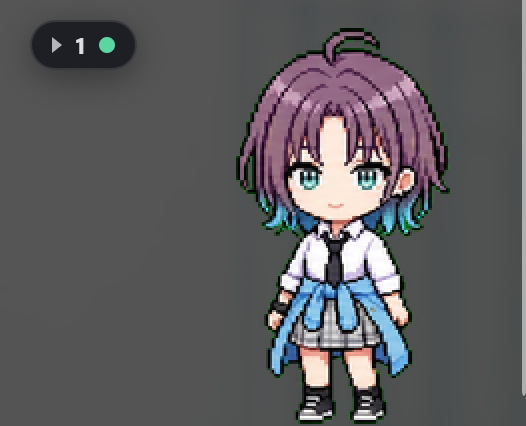 | Tray menu - show/hide, pets, reset position, quit.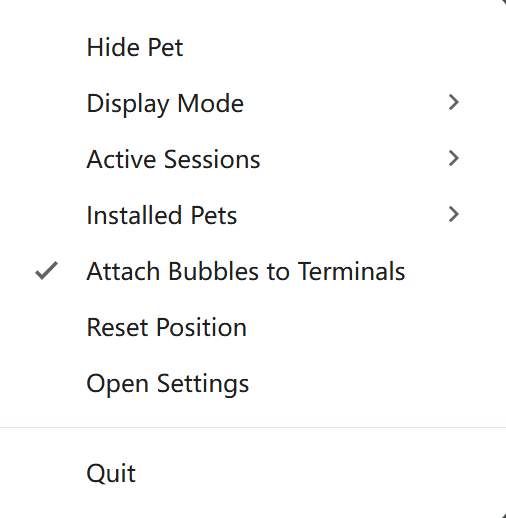 |
Supported Clients
HAYA Pet has two ideas of support:
- Connection support: the client can be wrapped and shown as a session.
- Live-status support: the pet can react to in-session states like thinking, editing files, running tools, or waiting for approval.
| Client | Works today | Best mode |
|---|---|---|
| Codex CLI | Yes | Wrapper + opt-in hooks, with transcript-based tool activity |
| Claude Code | Yes | Wrapper + opt-in hooks |
| Antigravity | Yes | Wrapper lifecycle |
| Aider | Yes | Generic wrapper |
| Gemini CLI | Yes | Generic wrapper |
| Any other command | Yes | Generic wrapper, optional --observe |
Default behavior is intentionally conservative: HAYA Pet shows lifecycle status without changing how the terminal behaves. Richer live status is opt-in.
Live Status
For Codex and Claude Code, enable hooks once:
haya-pet hooks on
haya-pet run --client codex
haya-pet run --client claude-code
Check or disable the setting:
haya-pet hooks status
haya-pet hooks off
Why opt in? Both clients show a one-time trust prompt when hooks are added. HAYA Pet lets you decide when to approve that instead of surprising you in the middle of work.
Codex live status combines three sources: hooks report thinking/idle and
approval requests, a transcript watcher reports tool/file activity, and a
guardian-review watcher tracks Codex's "Approve for me" auto-reviewer — the
pet shows reviewing while the guardian assesses a request and only shows
waiting for approval when Codex actually asks you ("Ask for approval" mode).
Per-tool PreToolUse hooks still depend on an upstream Codex gap
(openai/codex#16732); the
transcript watcher covers that in the meantime.
For any client, you can ask HAYA Pet to infer rough activity from terminal output:
haya-pet run --observe --client generic -- aider
Use --observe only when you accept the PTY tradeoff. On Windows, ConPTY can
break special input such as Shift+Tab, mouse scroll, and word-edit. The default
non-observe mode keeps terminal input native.
Pet Controls
| Action | Result |
|---|---|
| Single click | Wave and fold or unfold session bubbles. |
| Double click | Jump and expand session bubbles. |
| Drag | Move the pet; position is saved. |
| Drag corner grip | Resize from 0.5x to 2x; size is saved. |
| Double-click grip | Reset to normal size. |
| Tray icon | Open menu for display, sessions, pets, reset, and quit. |
Commands
haya-pet run --client codex              # launch Codex with a pet session
haya-pet run --client claude-code        # launch Claude Code with a pet session
haya-pet run --client generic -- aider   # wrap any other command

haya-pet pets                            # list installed pets
haya-pet pets use my-pet                 # select a pet

haya-pet hooks on                        # enable live-status hooks where supported
haya-pet hooks status
haya-pet hooks off

haya-pet start                           # start the overlay explicitly
haya-pet stop                            # stop the overlay
If the overlay cannot start, the wrapped command still runs and keeps its real
exit code. Disable auto-start with HAYA_PET_NO_AUTOSTART=1.
Requirements
| Requirement | Why |
|---|---|
| Node 18 or newer | Runtime and Electron companion. |
| npm | Install, link, and test scripts. |
| Electron | Installed as a runtime dependency. |
| node-pty | Optional; used only for --observe. |
Updates
HAYA Pet checks npm for a newer published version at most once a day (cached in
state.json). When one exists, the CLI prints a one-line notice after your
wrapped command exits, and the tray shows Update Available (x.y.z) — clicking
it opens the package page. Updating is always your action:
npm install -g @hayasaka7/haya-pet
The check is best-effort (3s timeout, silent on failure, never blocks a run),
skipped when output is piped, and fully disabled with
HAYA_PET_NO_UPDATE_CHECK=1.
Troubleshooting
| Symptom | Fix |
|---|---|
haya-pet: command not found | Install globally, or run npm link from this repo. |
| No pet appears for a session | Start the AI client through haya-pet run .... |
| Pet shows a placeholder | Add a pet folder with both pet.json and spritesheet.webp. |
| Pet is off-screen | Use tray menu -> Reset Position. |
| Overlay will not exit | Run haya-pet stop or tray menu -> Quit. |
More fixes are in docs/troubleshooting.md, including repairing a broken Electron install.
Privacy
HAYA Pet is local-only by default. It does not upload prompts, files,
screenshots, or session logs. The overlay stores only local state needed for
pet selection, position, size, and short derived status summaries. The single
outbound request it ever makes is the daily npm version check (a standard
HTTPS request to registry.npmjs.org that sends no session data); disable it
with HAYA_PET_NO_UPDATE_CHECK=1.
Documentation
| Doc | What it covers |
|---|---|
| docs/architecture.md | Runtime design, adapter tiers, platform matrix, roadmap. |
| docs/publishing.md | Release and npm publishing flow. |
| docs/troubleshooting.md | Common failures and repair steps. |
| docs/known-issues.md | Current limitations and upstream gaps. |
| docs/cross-os-qa.md | Cross-OS QA checklist. |
| apps/companion/README.md | Electron companion internals. |
| assets/fallback-pet/README.md | Bundled fallback pet details. |
| PROGRESS.md | Development log. |
Contributing
Run the full test suite:
npm test
The codebase is organized as one npm package with internal packages under
packages/ and apps under apps/. Start with
docs/architecture.md if you want to add a client adapter,
touch the overlay, or work on pet rendering.
License
MIT. See LICENSE.