
Azure Resource Graph MCP Server
hardik-id/azure-resource-graph-mcp-server
Consulte recursos Azure via MCP com queries Resource Graph
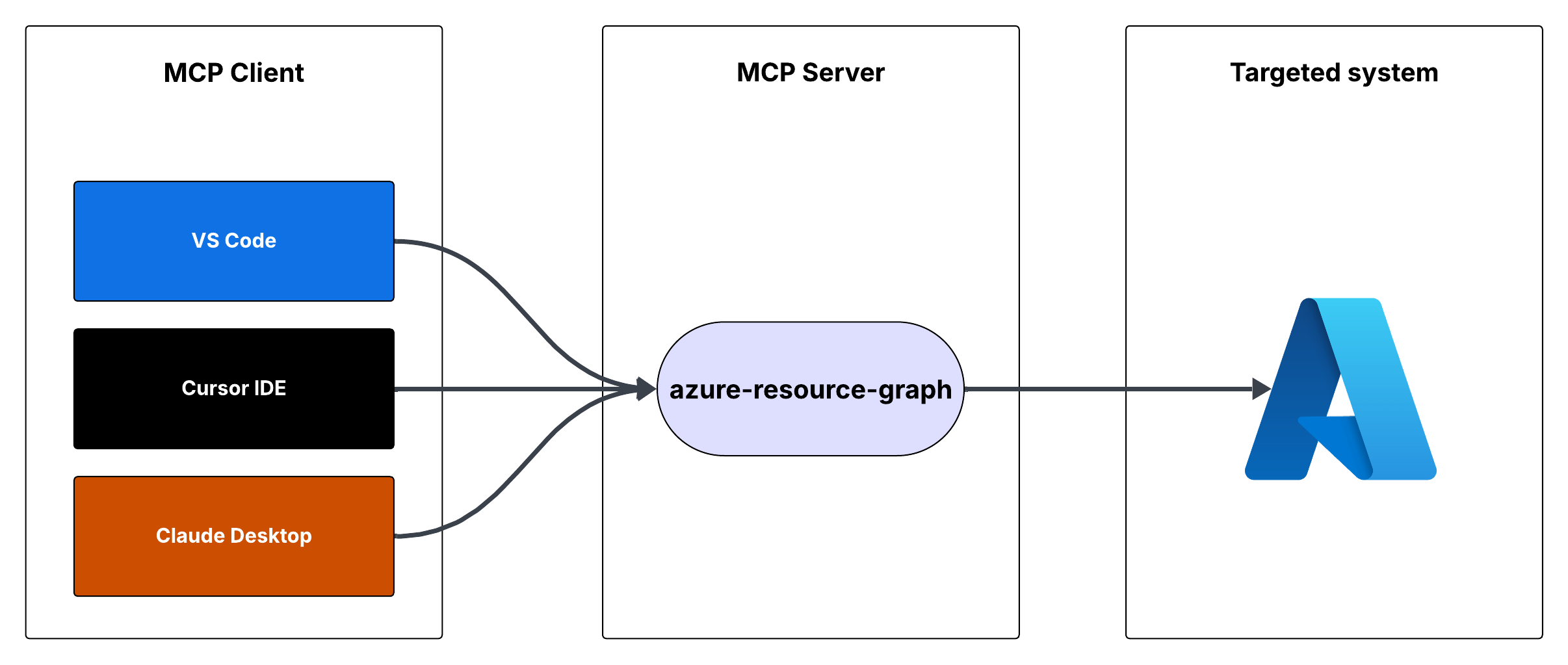
Ver no GitHubServidor MCP que fornece acesso ao Azure Resource Graph, permitindo consultar informações sobre recursos Azure em suas subscrições. Integra-se com Cursor IDE e VS Code para automação de consultas de infraestrutura.
Instalação
npx convez-ai hardik-id/azure-resource-graph-mcp-server1 comando no terminal: detecta o formato do repositório (marketplace ou plugin avulso) e instala via Claude Code. Requer Node 18+ e o Claude Code instalado.
Métricas
Casos de uso
- Auditar e inventariar recursos Azure em múltiplas subscrições
- Automação de consultas de infraestrutura em IDEs
- Integração com agentes Claude para análise de ambiente cloud
Veredito

Ferramenta sólida para DevOps/SRE que trabalham com Azure. Exige credenciais configuradas e conhecimento de Resource Graph queries, mas oferece integração pronta com editores populares.
README
A tradução para o português deste README ainda está na fila.
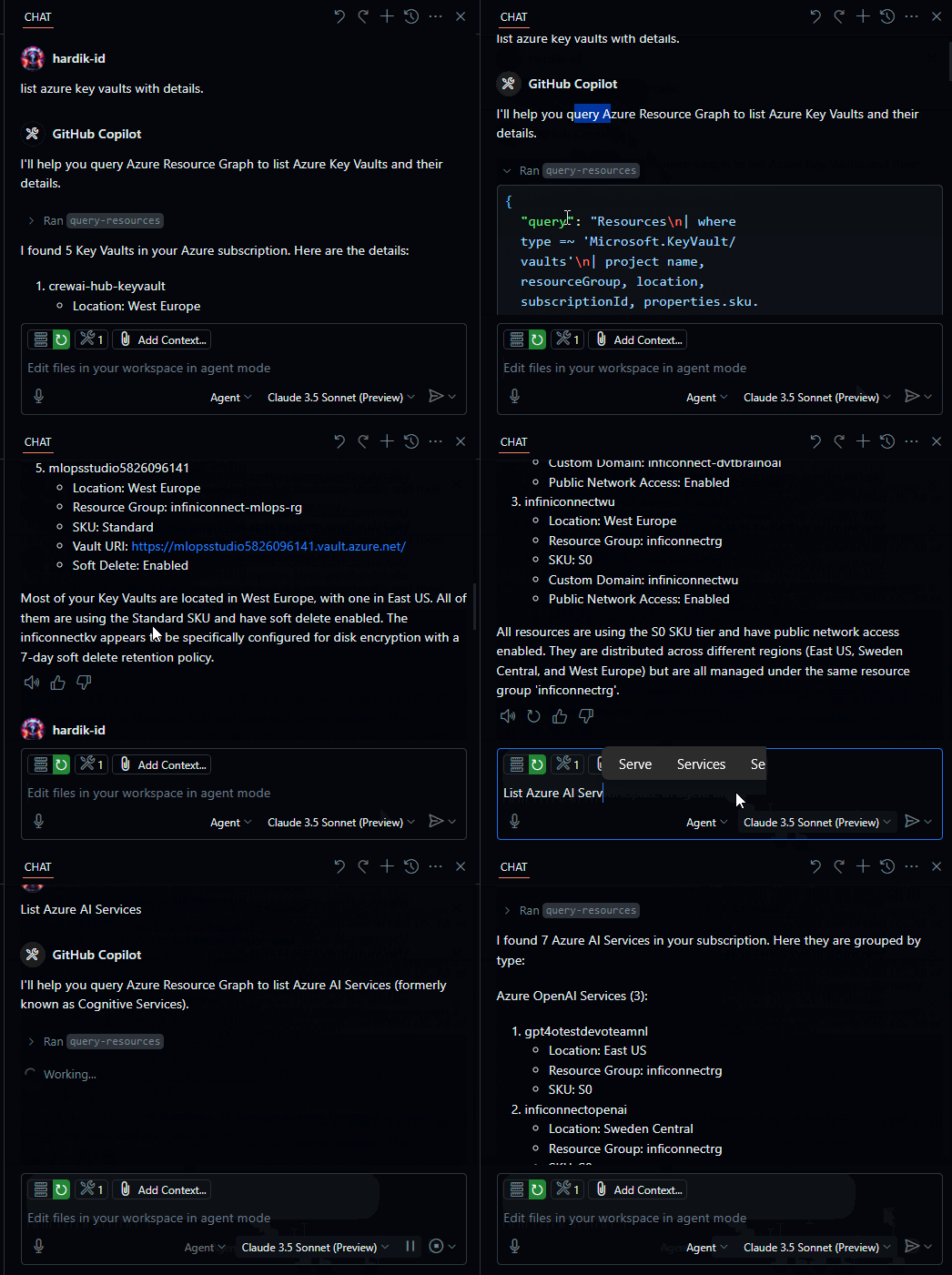
Demo
Flow
Azure Resource Graph MCP Server
This is a Model Context Protocol (MCP) server that provides access to Azure Resource Graph queries. It allows you to retrieve information about Azure resources across your subscriptions using Resource Graph queries.

Features
- Query Azure resources using Resource Graph queries
- Default query returns resource ID, name, type, and location
- Supports custom Resource Graph queries
- Uses Azure DefaultAzureCredential for authentication
Prerequisites
- Node.js installed
- Azure subscription
- Azure CLI installed and logged in, or other Azure credentials configured
Running the MCP Server
You can run the MCP server using either Cursor IDE or Visual Studio Code.
Option 1: Cursor IDE Integration
To integrate the MCP server with Cursor IDE:
- Clone this repository to your local machine (e.g.,
C:\YOUR_WORKSPACE\azure-resource-graph-mcp-server) - Build the project:
npm install
npm run build
- Open Cursor Settings (JSON) and add the following configuration:
{
  "mcpServers": {
    "azure-resource-graph-mcp-server": {
      "command": "node",
      "args": [
        "C:\\YOUR_WORKSPACE\\azure-resource-graph-mcp-server\\build\\index.js"
      ],
      "env": {
        "SUBSCRIPTION_ID": "xxxxxx-xx-xx-xx-xxxxxx"
      },
    }
  }
}
Note: Make sure to update the path to match your local repository location.
- Restart Cursor IDE to apply the changes
Option 2: VS Code Integration
To integrate the MCP server with Visual Studio Code:
- Clone this repository to your local machine
- Build the project:
npm install
npm run build
- Open VS Code Settings (JSON) by pressing
Ctrl+Shift+P, type "Settings (JSON)" and select "Preferences: Open User Settings (JSON)" - Add the following configuration:
{
    "mcp": {
        "servers": {
            "azure-resource-graph": {
                "type": "stdio",
                "command": "node",
                "args": [
                    "C:\\YOUR_WORKSPACE\\azure-resource-graph-mcp-server\\build\\index.js"
                ],
                "env": {
                  "SUBSCRIPTION_ID": "xxxxxx-xx-xx-xx-xxxxxx"
                },
            }
        }
    }
}
Note: Make sure to update the path to match your local repository location.
- Save the settings.json file
- Restart VS Code to apply the changes
The MCP server will now be available to use within VS Code with cursor integration.
Usage
The server provides the following tool:
query-resources
Retrieves resources and their details from Azure Resource Graph.
Parameters:
subscriptionId(optional): Azure subscription ID (defaults to configured ID)query(optional): Custom Resource Graph query (defaults to "Resources | project id, name, type, location")
Environment Setup
-
First, make sure you're logged in to Azure CLI by running:
az loginThis step is crucial for local development as the DefaultAzureCredential will automatically use your Azure CLI credentials.
-
Set up your environment variables:
- Copy
.env.exampleto.env - Update
AZURE_SUBSCRIPTION_IDin.envwith your actual subscription ID - Other variables (
AZURE_TENANT_ID,AZURE_CLIENT_ID,AZURE_CLIENT_SECRET) are optional when using Azure CLI authentication
- Copy
-
Make sure you have proper Azure credentials configured. The server uses DefaultAzureCredential which supports:
- Azure CLI
- Managed Identity
- Visual Studio Code credentials
- Environment variables
-
If using environment variables, set up:
- AZURE_SUBSCRIPTION_ID
- AZURE_TENANT_ID
- AZURE_CLIENT_ID
- AZURE_CLIENT_SECRET
Error Handling
The server includes robust error handling for:
- Azure client initialization failures
- Query execution errors
- Invalid queries or parameters
Development
To work on this project:
- Make changes in the
srcdirectory - Build using
npm run build - Test your changes by running the server
License
This project is licensed under the MIT License. See the LICENSE file for details.