
Deepline GTM Skills
getaero-io/deepline-plugins
Skills de GTM e CLI Deepline integrados ao Claude para automação de vendas
Ver no GitHubSkill que integra ferramentas de Go-To-Market (GTM) ao Claude Cowork e Claude Code, permitindo construir listas de prospects, enriquecer CSVs, pesquisar contas e executar workflows de outbound diretamente no Claude. Funciona como CLI Python com autenticação persistente em workspace.
Instalação
npx convez-ai getaero-io/deepline-plugins1 comando no terminal: detecta o formato do repositório (marketplace ou plugin avulso) e instala via Claude Code. Requer Node 18+ e o Claude Code instalado.
Métricas
Casos de uso
- Construir e qualificar listas de prospects automaticamente
- Enriquecer dados de contatos em CSVs com inteligência de conta
- Pesquisar informações detalhadas sobre contas-alvo
- Gerar e executar sequências de outbound a partir do Claude
- Rodar workflows GTM complexos sem sair do editor de código
Veredito

Plugin robusto que democratiza acesso a ferramentas de GTM via interface conversacional. Excelente para times de vendas que usam Claude, com instalação clara em Cowork/Code e autenticação persistente bem pensada. Requer internet habilitada e setup inicial, mas entrega valor real em automação de prospecção.
README
A tradução para o português deste README ainda está na fila.
Deepline Plugin
Deepline adds GTM skills and the deepline CLI to Claude Cowork and Claude Code.
Use it to build prospect lists, enrich CSVs, research accounts, write outbound, and run Deepline workflows from Claude.
Install In Claude Cowork
In Cowork, add Deepline as a personal plugin:
- Open Claude Desktop and switch to Cowork.
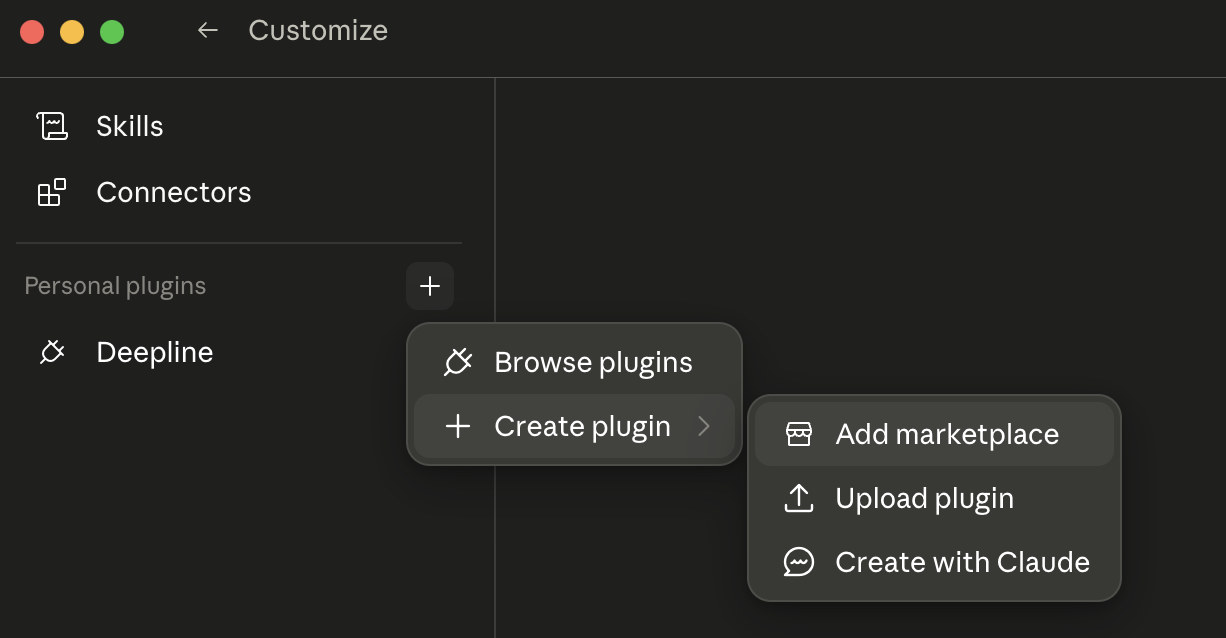
- Open Customize in the left sidebar.
- Click the + next to Personal plugins.
- Open Create plugin, then choose Add marketplace.
-
Add a personal/custom plugin from this GitHub repository:
https://github.com/getaero-io/deepline-plugins -
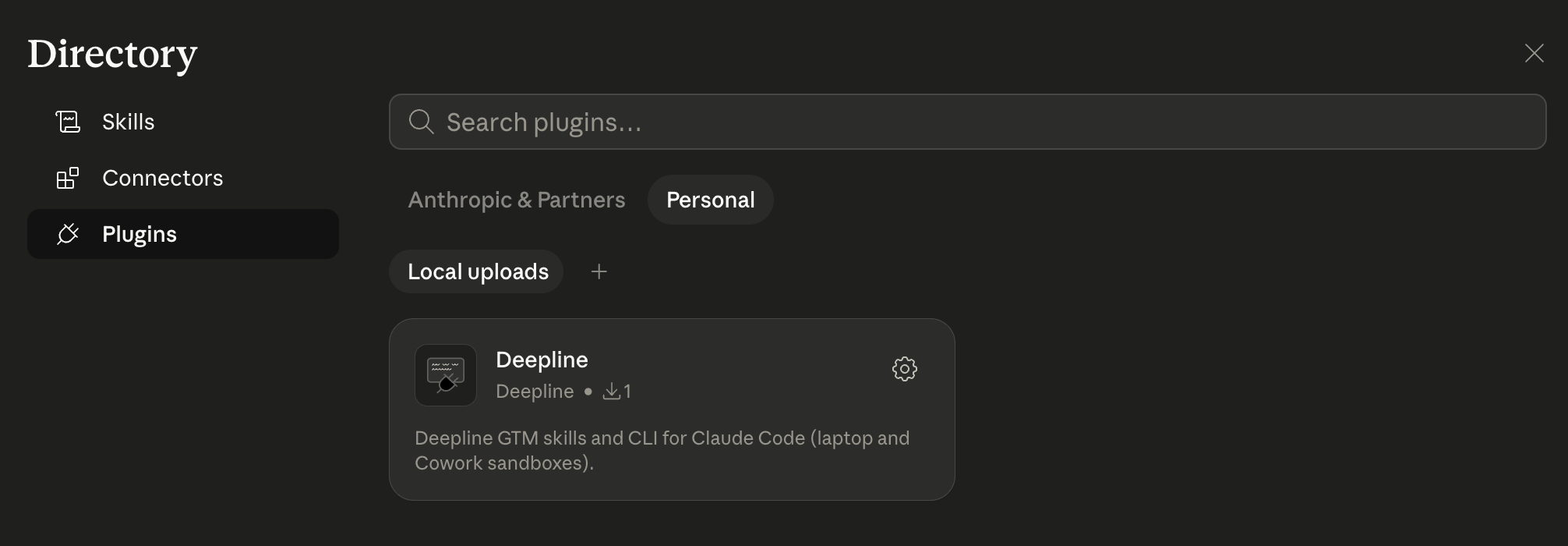
Install one of the Deepline plugins:
deeplinefor the current GTM skills and legacy CLIdeepline-playsfor V2 Plays and GTM workflows as code
- Enable internet access for all domains in the Cowork session settings.
- Start a Cowork session and select a project folder.
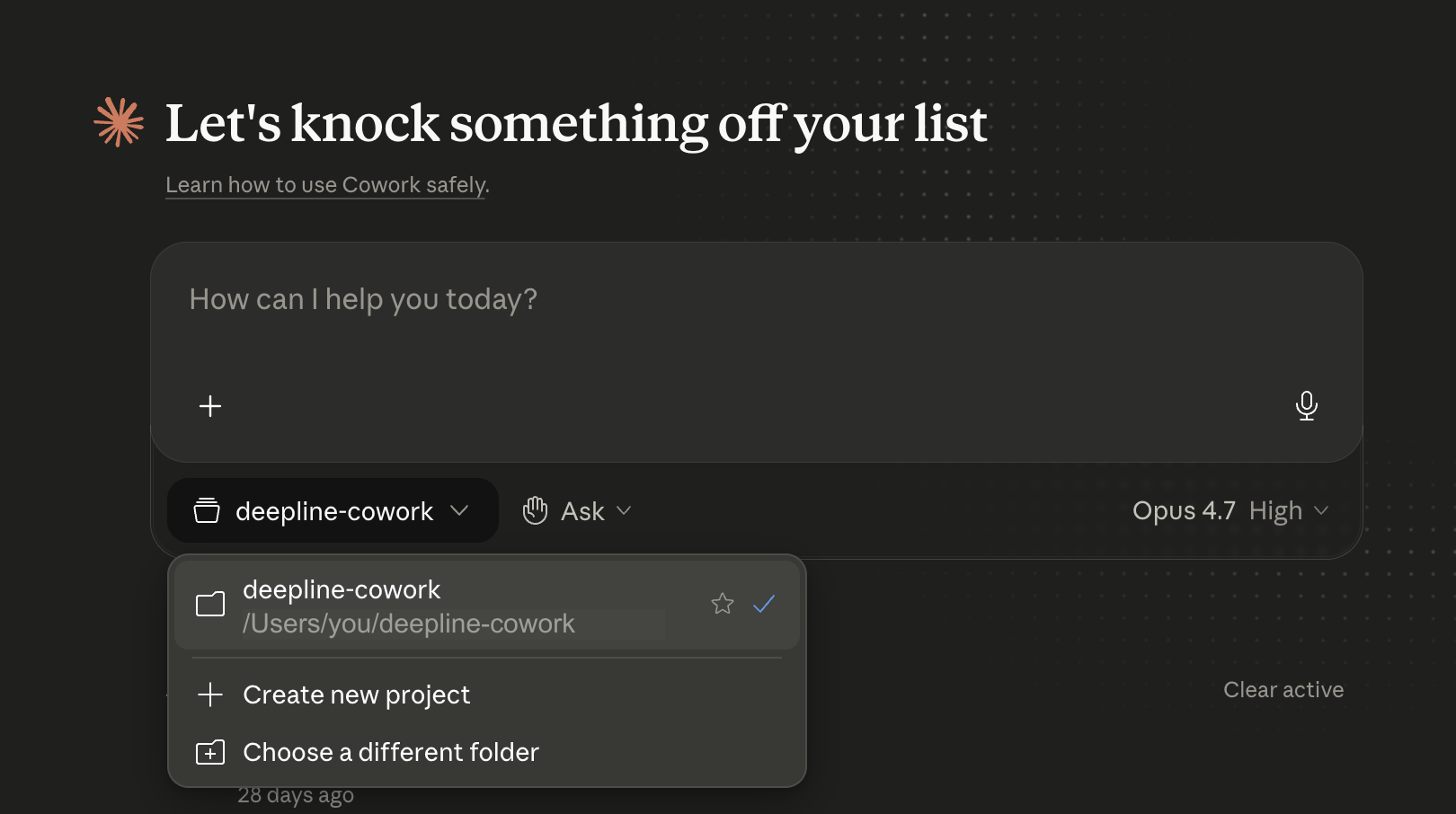
Selecting a folder lets Deepline persist auth in that workspace, so future Cowork sessions opened on the same folder can reuse the login.
-
Run:
/deepline-quickstart
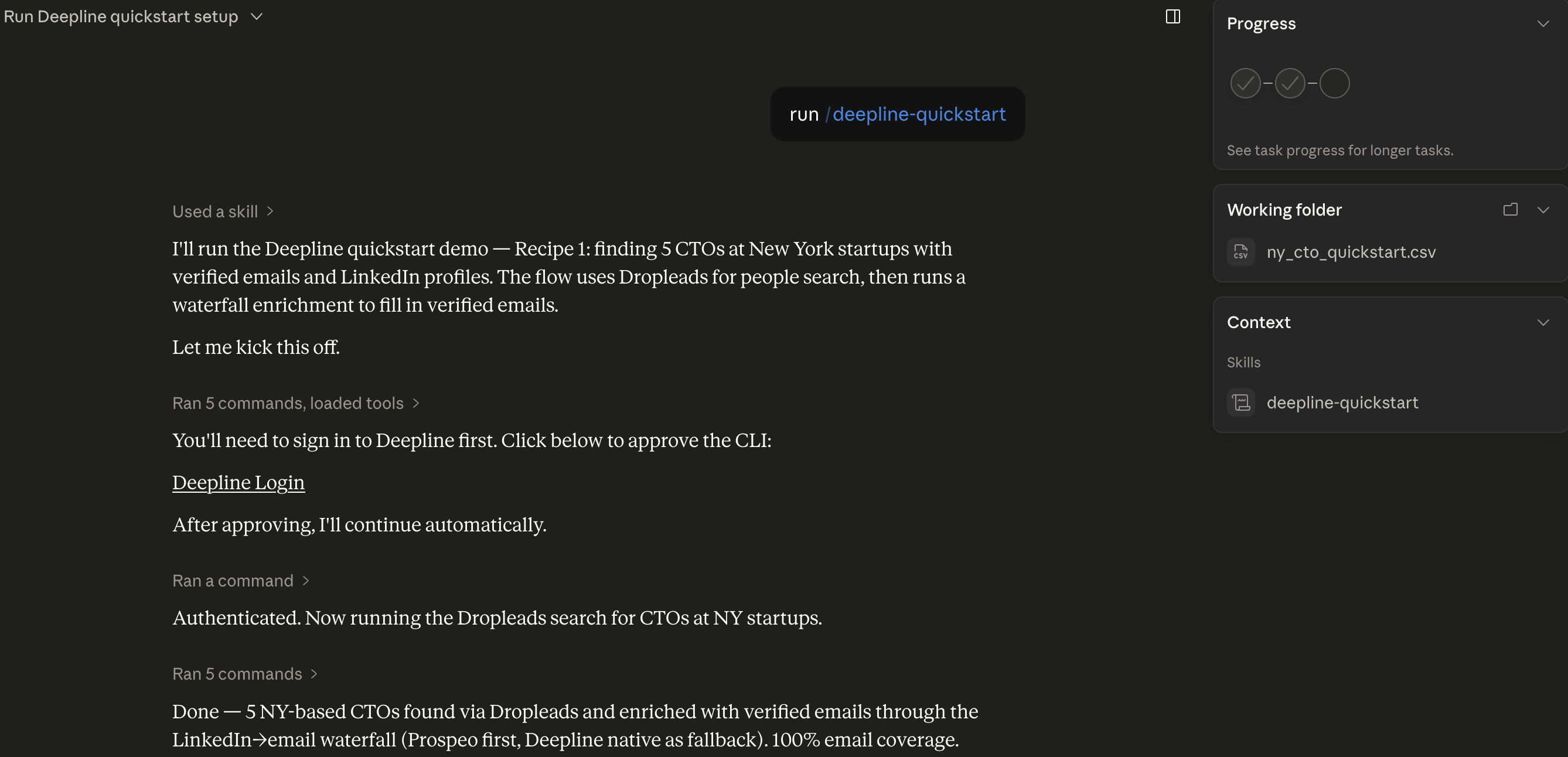
The first Deepline command may install the canonical Deepline CLI inside the Cowork sandbox. That is expected.
Team and Enterprise plans: your organization owner may need to enable Cowork for the workspace. They may also need to allow internet access for all domains, or add the domains you use, in Cowork's network settings. See Use Claude Cowork on Team and Enterprise plans.
Install In Claude Code
Inside Claude Code, run:
/plugin marketplace add getaero-io/deepline-plugins
/plugin install deepline@deepline
/reload-plugins
For V2 Plays:
/plugin marketplace add getaero-io/deepline-plugins
/plugin install deepline-plays@deepline
/reload-plugins
Then try:
/deepline-quickstart
Auth
If Deepline asks you to authenticate:
deepline auth register --no-wait
Open the printed approval URL, approve it, then run:
deepline auth wait --timeout 120
deepline auth status
Verify
Ask Claude to run:
command -v deepline
deepline --version
deepline auth status
References
License
MIT