
NudgeAI
ddesilva/NudgeAI
Capture e instrua agentes de IA com visual direto da sua tela
Ver no GitHubApp de menu-bar para macOS que permite capturar regiões da tela, adicionar instruções via voz ou texto, e exportar um prompt pronto para colar em agentes de código como Claude Code ou Codex. Acelera feedback visual para LLMs com atalhos de teclado e interface minimalista.
Instalação
npx convez-ai ddesilva/NudgeAI1 comando no terminal: detecta o formato do repositório (marketplace ou plugin avulso) e instala via Claude Code. Requer Node 18+ e o Claude Code instalado.
Métricas
Casos de uso
- Dar feedback visual a agentes de código sobre mudanças de UI
- Automatizar instruções para múltiplas regiões de tela em uma sessão
- Acelerar iterações de desenvolvimento com screenshots contextualizados
Veredito

Ferramenta prática que reduz fricção ao trabalhar com agentes de IA em tarefas visuais. Implementação sólida em Swift para macOS com fluxo bem pensado, ideal para devs que precisam fazer iterações rápidas com feedback visual.
README
A tradução para o português deste README ainda está na fila.
Nudge AI
The fastest way to give your LLM feedback. You can use voice or type. Keyboard Shortcuts make it lightning fast.
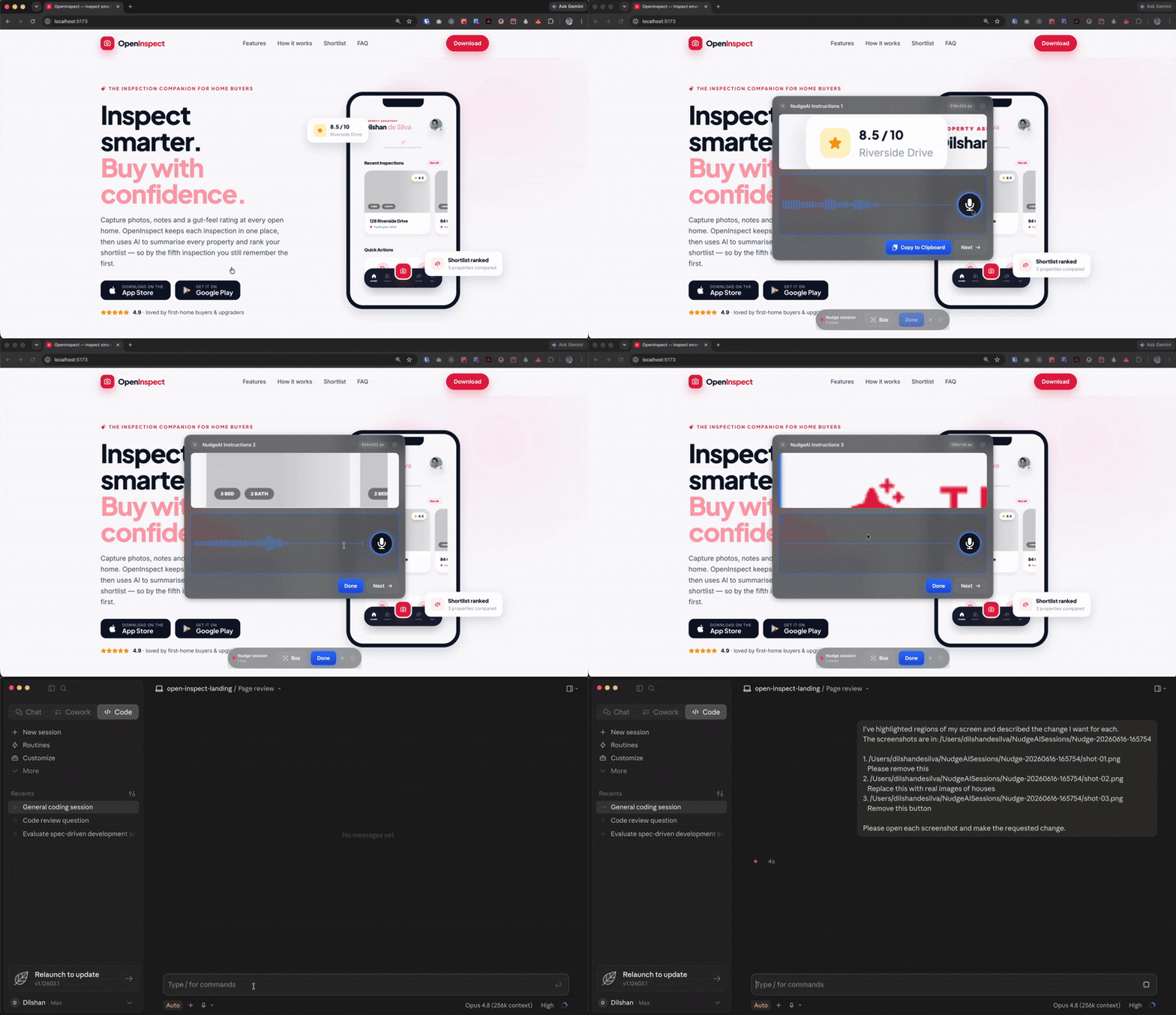
NudgeAI is menu-bar macOS app that helps you easily create a visual change list all in one go to paste into your llm.
Install
Download the latest signed + notarized .dmg from
Releases, open it, and drag
Nudge AI to your Applications folder.
On first capture, macOS will ask for Screen Recording permission — grant it under System Settings ▸ Privacy & Security ▸ Screen Recording, then quit and reopen the app. Nudge AI is a menu-bar app with no Dock icon — look for the viewfinder icon in the menu bar (top-right of the screen).
Quick start
- Press ⌘⇧N (or click the viewfinder icon in the menu bar).
- Drag a box around the region you want to change.
- Type what you want changed in the panel that pops up.
- Hit ⏎ to save and auto-rearm for the next region, or ⌘⏎ to save and finish the session.
- When you're done, the Review window opens — reorder/edit/delete instructions, then click Export & Copy Prompt.
- The session folder is written to
~/NudgeAISessions/Nudge-<timestamp>/and a paste-ready prompt is on your clipboard. Paste it into Claude Code / Codex and they'll read the screenshots straight from disk.
Keyboard shortcuts
Global
| Shortcut | Action |
|---|---|
| ⌘⇧N | Start (or end) a Nudge session. Configurable in Settings; can be disabled. |
While a session is open
| Shortcut | Action | Where |
|---|---|---|
| drag | Select a region | Selection overlay |
| esc | Cancel the current selection / instruction; end the session if nothing is captured | Selection overlay, instruction panel |
| ⏎ | Save the instruction and auto-rearm for the next region | Instruction panel |
| ⌘⏎ | Save the instruction and finish the session (skipping Review if there's only one box) | Instruction panel |
| shift+⏎ | Insert a newline in the instruction | Instruction panel |
| click × | Cancel this instruction and go back to selection | Instruction panel |
Settings
Open via the menu bar ▸ Settings… (or ⌘,).
- Global hotkey — change which key combination starts a session, or disable it entirely. Click the shortcut button, then press your desired combination (must include ⌘, ⇧, ⌥, or ⌃).
- Keep saved sessions for — auto-purge session folders older than N days (1–365, default 7). The purge runs at launch, every 6 hours, and whenever you change the setting.
- Save sessions to — pick a custom folder for new session captures. Defaults
to
~/NudgeAISessions. Existing sessions in the previous location stay where they are; only new sessions write to the new path. Reveal in Finder and Reset buttons let you jump to it or revert to the default.
What a session produces
A timestamped folder under your configured storage location (default
~/NudgeAISessions/), e.g. Nudge-20260605-114523/:
shot-01.png,shot-02.png, … — the captured regions (Retina-resolution)instructions.md— each screenshot paired with its instructionnudge.json— machine-readable manifest (files, instructions, pixel sizes)prompt.txt— the paste-ready prompt that gets copied to your clipboard
On export, the prompt (referencing absolute image paths) is copied to your clipboard — ideal for terminal agents like Claude Code / Codex, which read the image files from disk.
Why not "everything on the clipboard"?
macOS can't reliably paste N images + matching text in one go: terminals can't accept pasted images at all, and chat apps take only one image per paste. So the session folder is the real artifact — point your agent at it (or paste the copied prompt). The Review window is your visual preview before exporting.
Browsing past sessions
Menu bar ▸ Browse Sessions… (or ⌘B) opens a library window with every session under your storage folder, newest first. Click a session to see its captures and instructions, or re-export and re-copy its prompt without re-capturing anything.