
CTFriend
ctfriend2026/CTFriend
Assistente agentico com MCP para competições CTF
Ver no GitHubFramework agentico que usa servidores MCP para assistir participantes de CTF (Capture The Flag). Funciona como assistente de IA baseado em chat, fornecendo acesso a modelos de linguagem e base de conhecimento do domínio, sem ser um solucionador automático. Inclui logging detalhado para análise de interação humano-IA.
Instalação
npx convez-ai ctfriend2026/CTFriend1 comando no terminal: detecta o formato do repositório (marketplace ou plugin avulso) e instala via Claude Code. Requer Node 18+ e o Claude Code instalado.
Métricas
Casos de uso
- Suporte em tempo real durante competições de segurança CTF
- Análise e explicação de desafios de criptografia e exploração
- Logging e insights sobre padrões de resolução de problemas
Veredito

Projeto sólido focado em nicho específico (CTF), com stack adequada (FastMCP, Docker, Grafana). A abordagem de assistente em vez de solucionador automático é responsável e bem documentada, mas o escopo limitado reduz aplicabilidade geral.
README
A tradução para o português deste README ainda está na fila.
About CTFriend
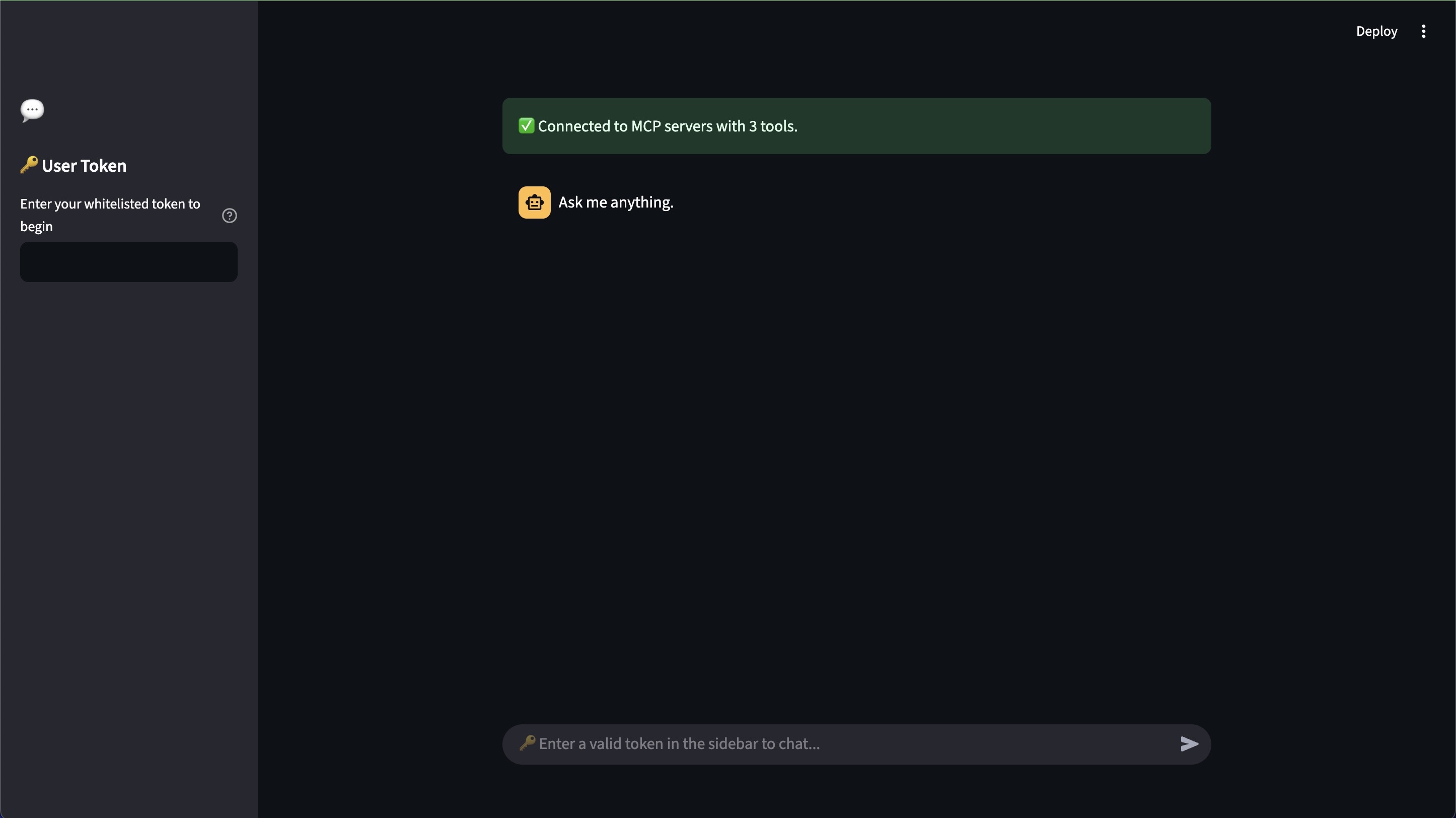
CTFriend is an agentic framework that leverages MCP servers to provide an external chat-based server to aid CTF participants. Importantly, CTFriend is not intended to operate as an automatic CTF solver, but rather as an AI assistant, supporting participants in challenge solving by providing access to LLMs and the domain knowledge base. Additionally, CTFriend provides logging to gain insights into human-AI interaction.
Built With
- Python
- FastMCP
- Docker
- Postgres
- Grafana
Getting Started
Setting up CTFriend, setup has been wrapped into Docker containers controlled with Docker Compose. While, bare-metal installation is possible, for networking ease of use. Deployment should be done with Docker.
Prerequisites
The only required prerequisite is Docker and Docker Compose. For installation of Docker Compose, follow this tutorial from Docker.
System Requirements
Minimum system requirements:
-
A system capable of running Docker compose (Windows/Linux/Mac).
-
At least 4 GB of Ram
-
At least 15GB of storage
Installation
-
Clone the repo
git clone git@github.com:ctfriend2026/CTFriend.git -
Setup environment variables
cd CTFriend

cp .env.example .env

# replace POSTGRES_PASSWORD, TOKEN_SECRET_KEY, and ANTHROPIC_API_KEY
nano . env
NOTE: POSTGRES_PASSWORD and TOKEN_SECRET_KEY only need to be changed in live deployment. For testing, the defaults are fine.
-
Install Docker containers
Insure docker is running
docker-compose up --build
Generating User Tokens
CTFriend works on whitelisting tokens, where each user has their own individual token to ID them and their chats within the system. To create this token, use the following instructions.
Login into the ctfriend container. The image opens interactive shells in the app source directory:
create a new terminal window, and run:
docker exec -it ctfriend bash
Then run:
cd app

python3 token_manager.py whitelist [email]
NOTE: Any email here can do. It is not tied to anything. For testing purposes feel free to use (test@test.com)
Grafana Setup
Configure Grafana:
Open your web browser and go to http://localhost:3000.
Log in with the:
- username: admin
- password: admin.
Prometheus Setup
Add the Prometheus Data Source:
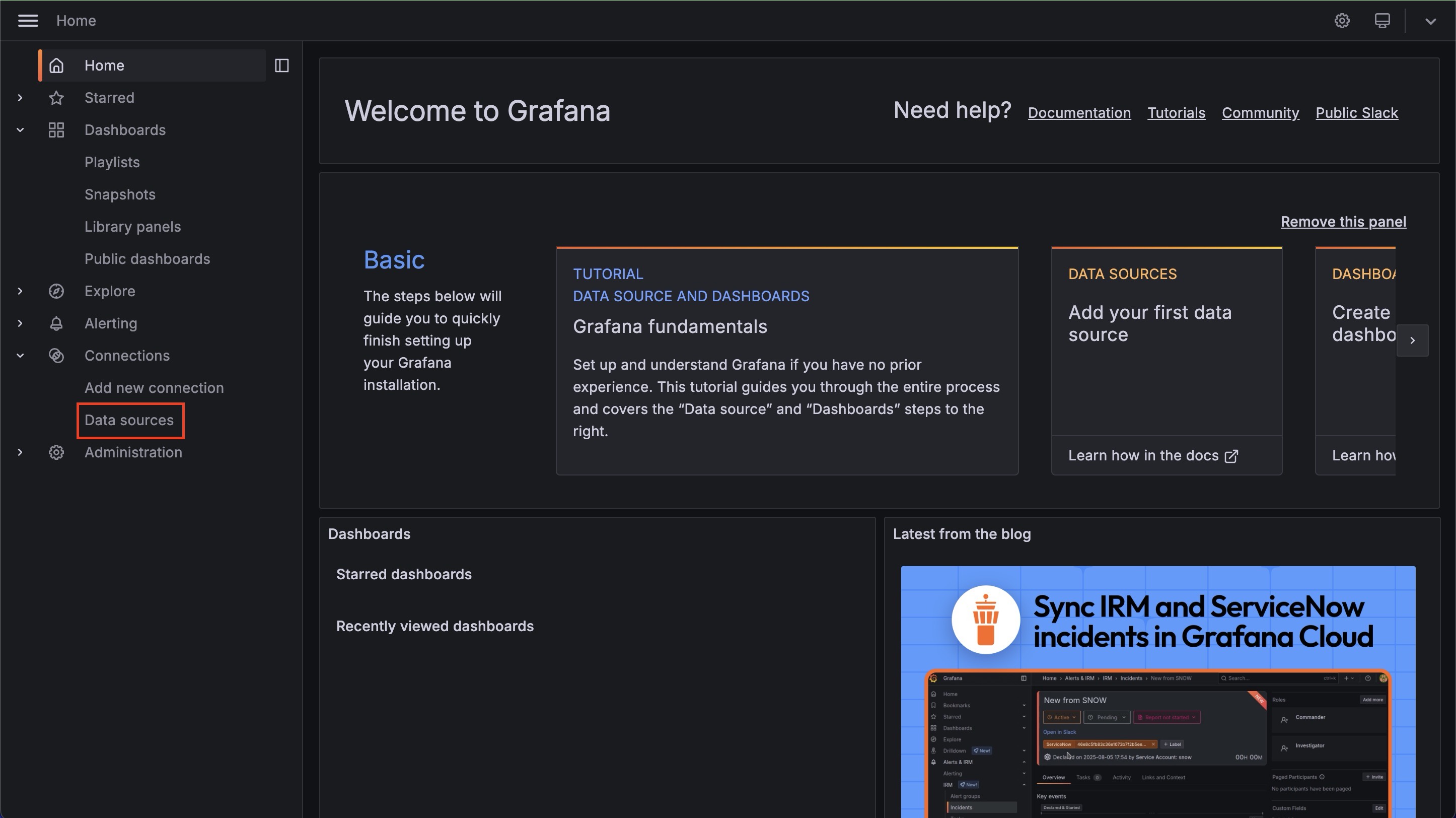
Go to "Connections" -> "Data Sources" -> "Add new data source".
Select "Prometheus".
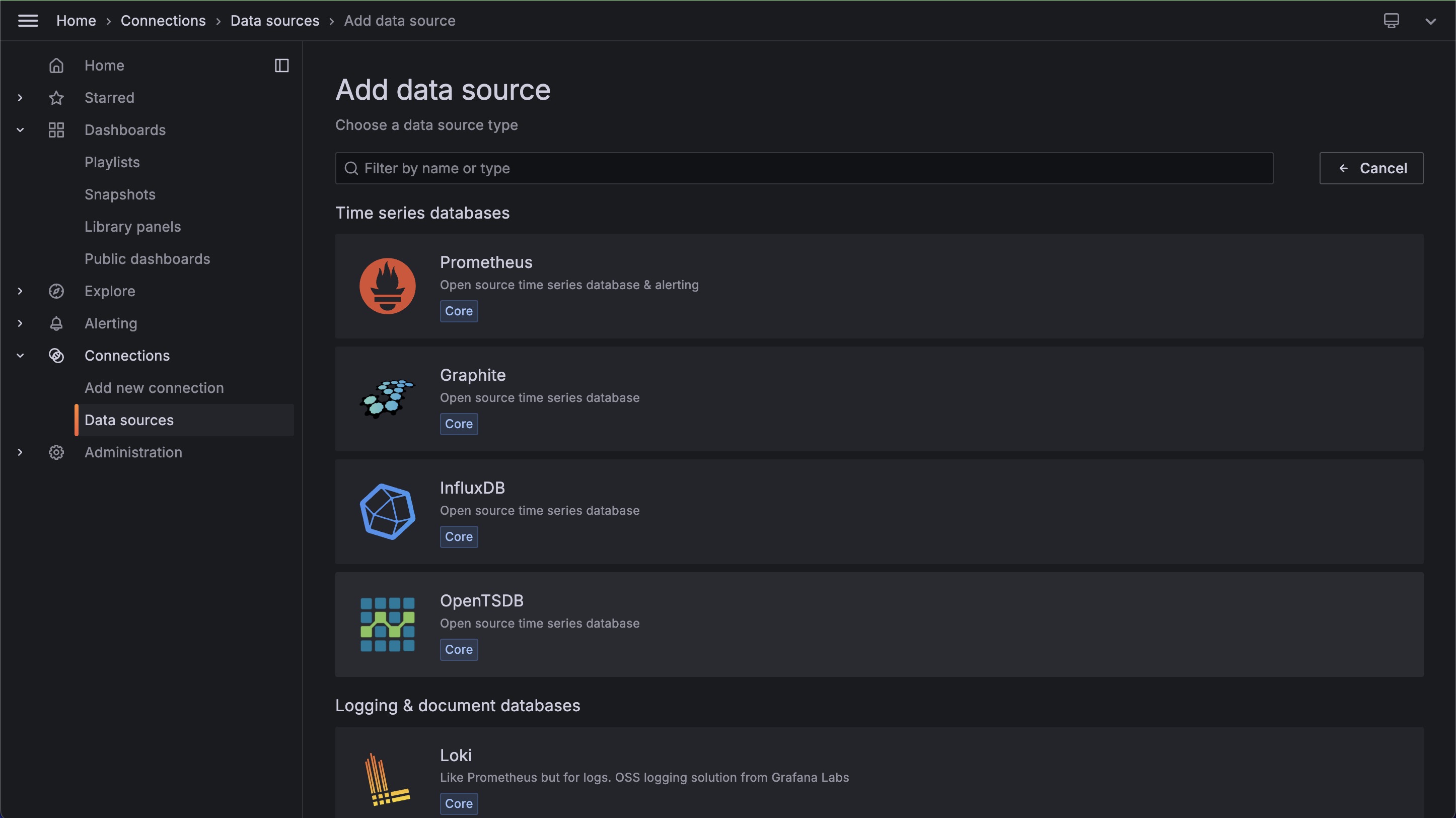
For the "Prometheus server URL", enter http://prometheus:9090.
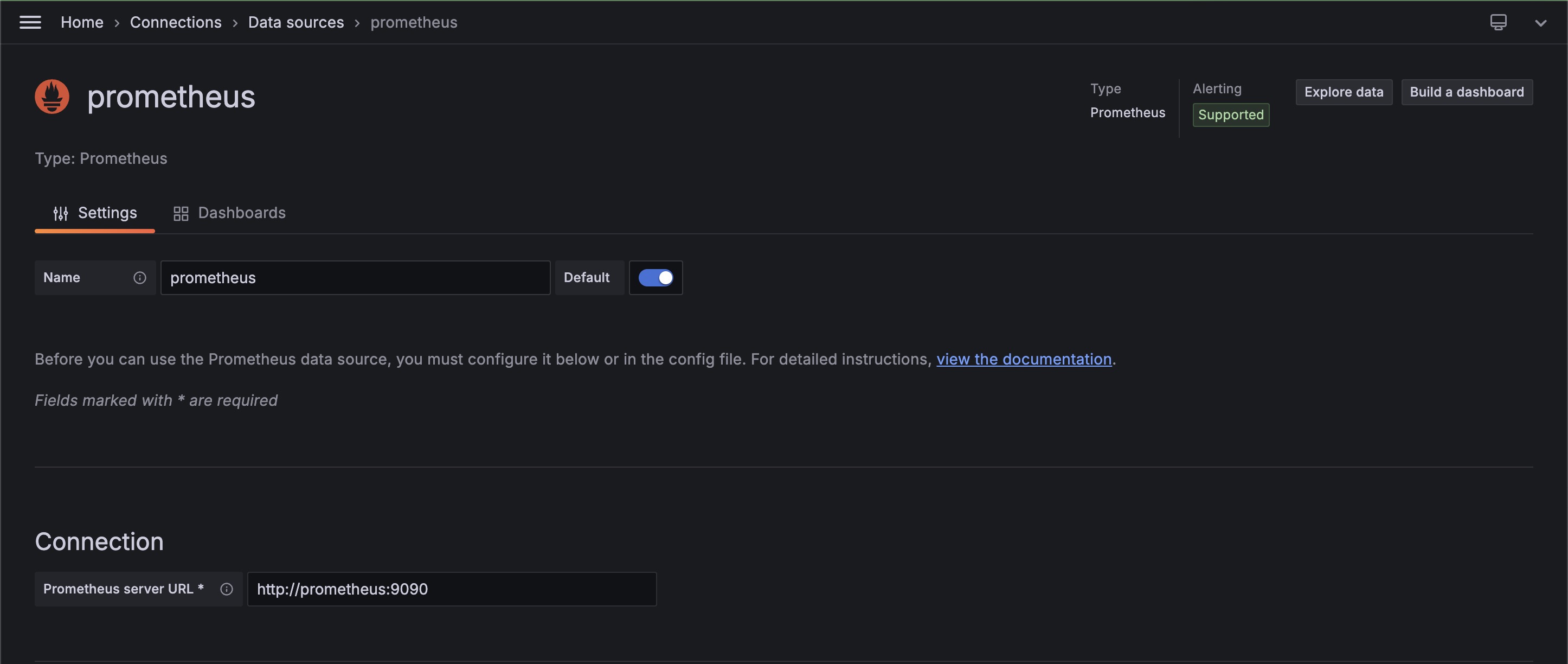
Click "Save & Test".
PostgreSQL Setup
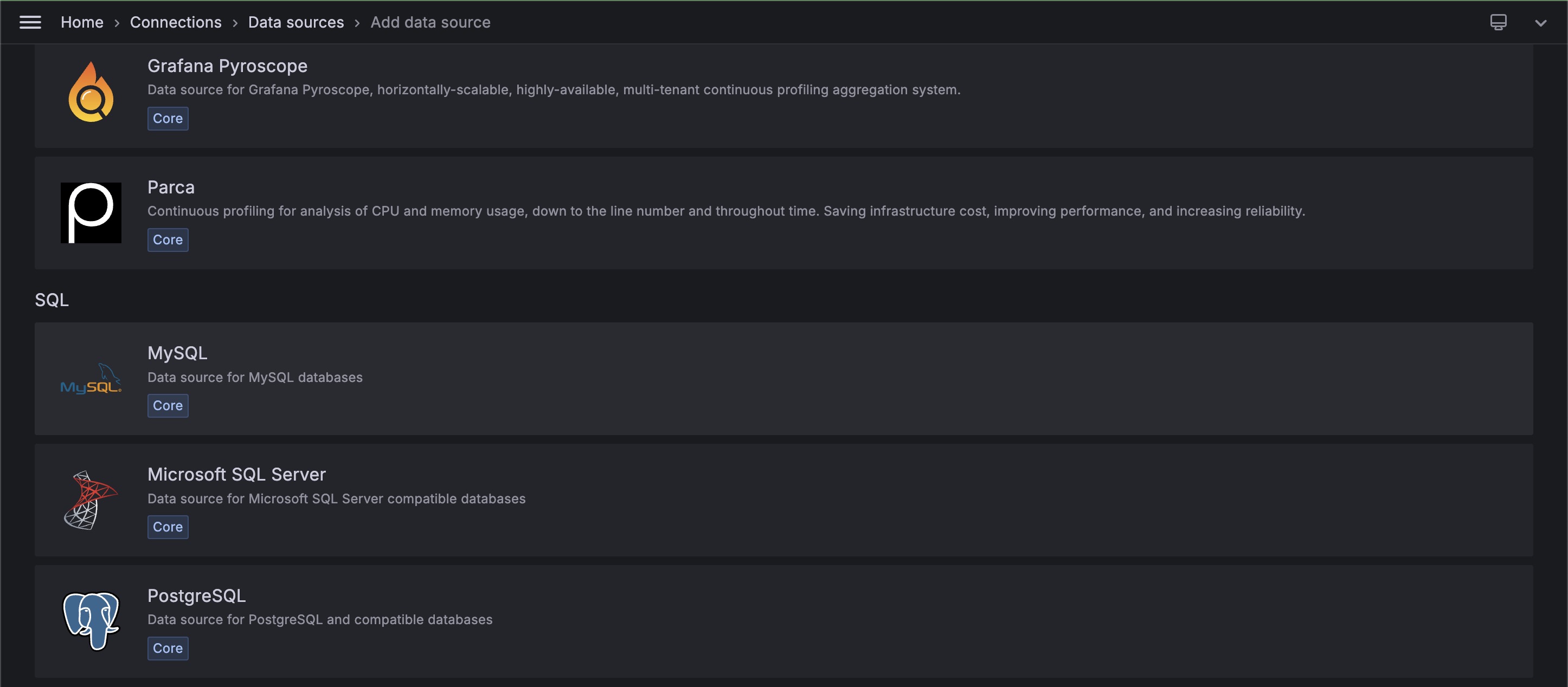
Add the PostgreSQL Data Source:
Go to "Connections" -> "Data Sources" -> "Add new data source".
Select "PostgreSQL".
Use the following connection details:
-
Name: postgres_db
-
Host: db:5432
-
Database: metrics
-
User: postgres
-
Password:
change-me-to-a-secure-passwordor thepasswordyou set in Installation part -
TLS/SSL Mode: disable
-
Version: 15
-
Timescale DB: True
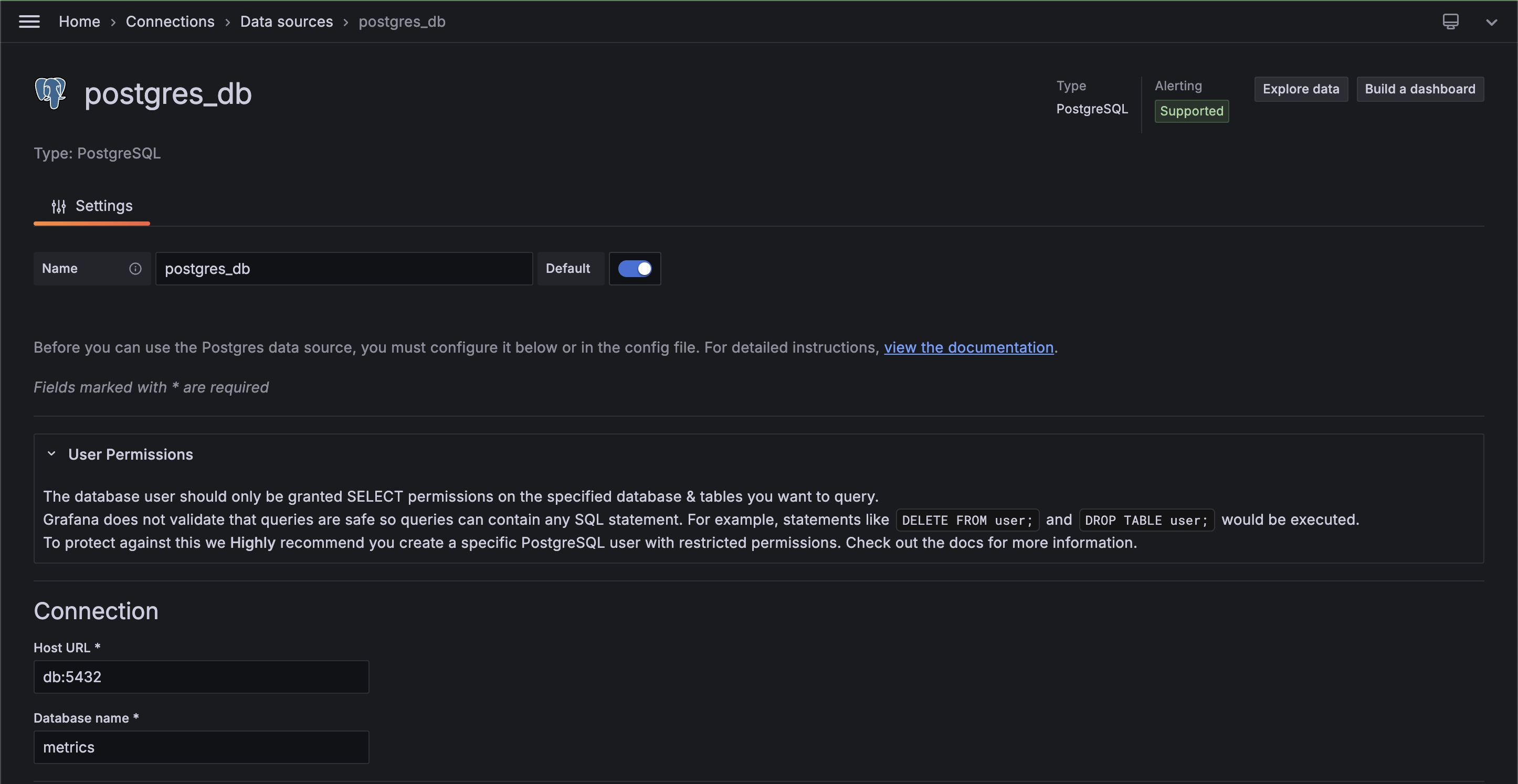
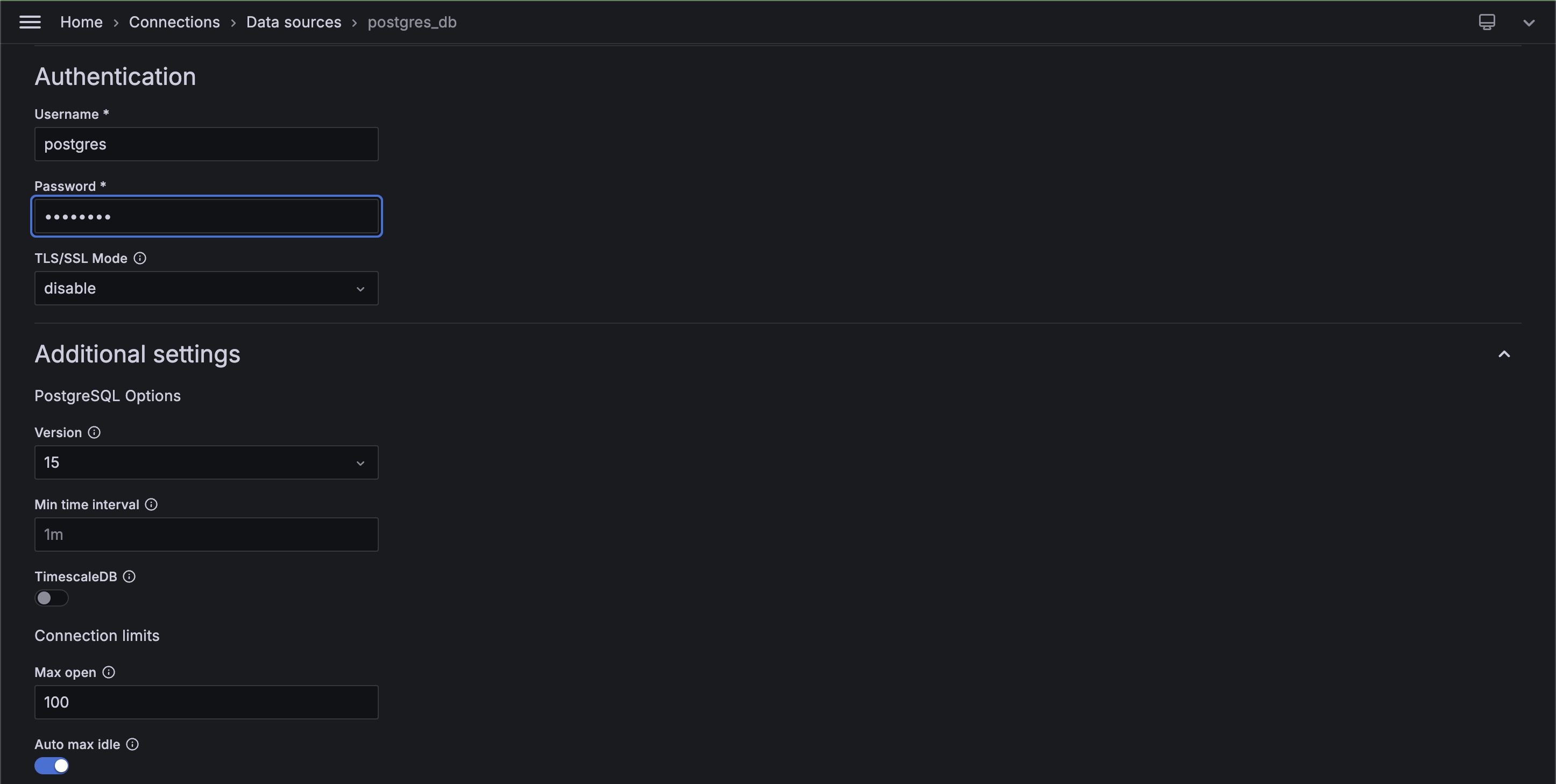
Click "Save & Test". You might need to give Grafana's data source a specific UID like postgres_db if you want it to automatically link with the chat data dashboard.
Setup Dashboards
Import the Dashboards:
Go to "Dashboards" -> "New" -> "Import".
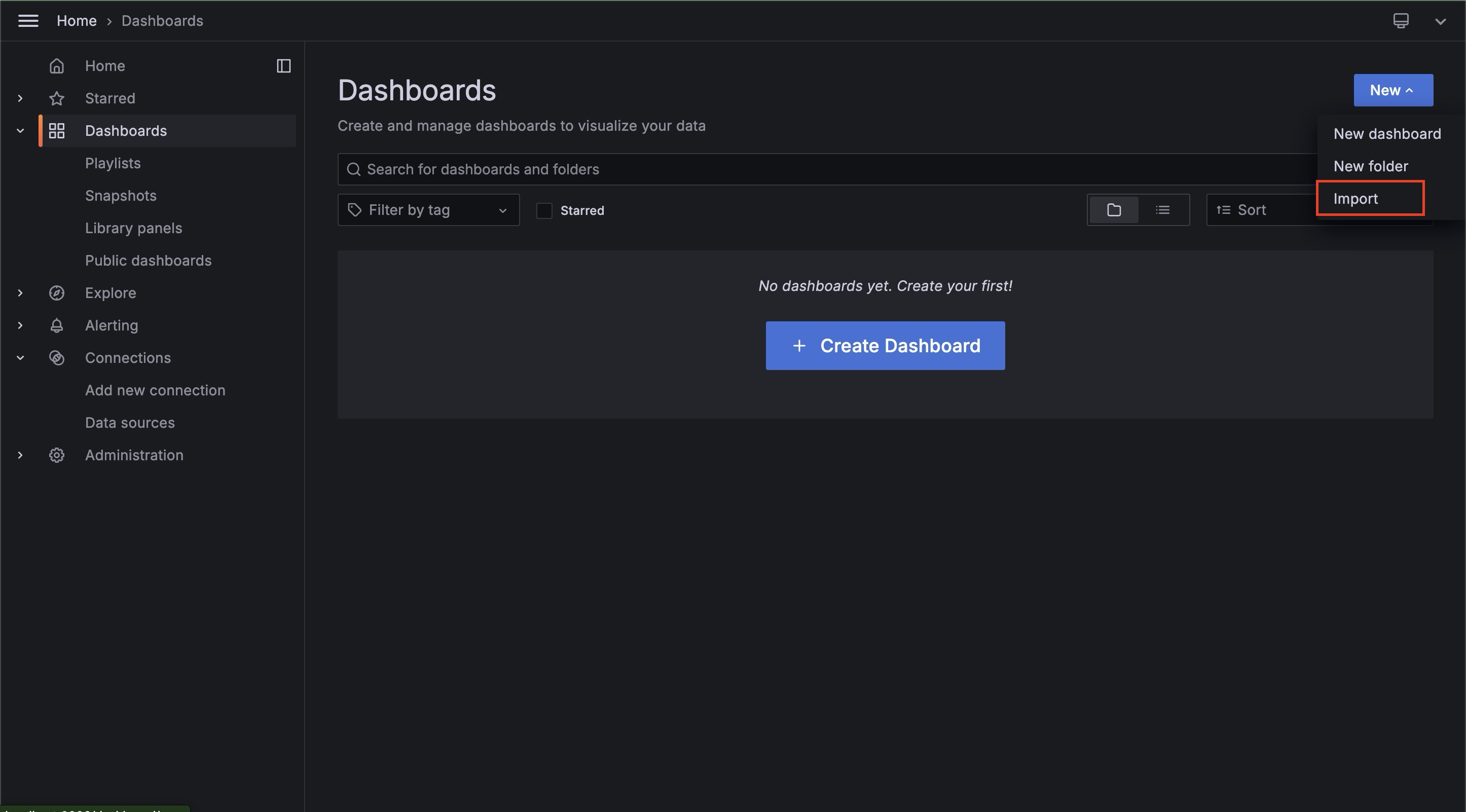
Upload the system_monitoring_dashboard.json file. Select the "Prometheus" data source when prompted.
Repeat the process for the chat_data_dashboard.json file, selecting the "PostgreSQL" data source.
Start CTFriend
Go to http://localhost:8501/ctfriend.
Input your specific login token generated above.
Select Anthropic as provider and claude-opus-4-1-20250805 as model.
Now CTfriend is ready.
Roadmap
- UI Framework setup
- API Key support
- Multi-LLM Support
- Gemini
- Claude
- MCP Support
- CyberChef
- RAG Knowledge Base
Backups (Optional)
# view/manage cron jobs
crontab -l

# edit a cron job
crontab -e

# job for backing up CTFriend
*/5 * * * * "/home/ctfadmin/CTFriend/backup.sh" >> "/home/ctfadmin/CTFriend/crontab.out" 2>&1