
Code Colorize Project
collagerai/claude-code-colorize-project
Colorize janelas VS Code por projeto para reconhecimento visual instantâneo
Ver no GitHubSkill para Claude Code que coloriza o chrome da janela do VS Code por projeto, permitindo distinguir rapidamente entre múltiplos workspaces abertos. Mantém o editor e conteúdo neutros, aplicando cores apenas na barra de título, activity bar, status bar e abas. Oferece 20 paletas pré-definidas ou cores hex customizadas.
Instalação
npx convez-ai collagerai/claude-code-colorize-project1 comando no terminal: detecta o formato do repositório (marketplace ou plugin avulso) e instala via Claude Code. Requer Node 18+ e o Claude Code instalado.
Métricas
Casos de uso
- Identificar rapidamente qual projeto está aberto em Alt+Tab com múltiplas janelas VS Code
- Reduzir erros de digitação em janela errada durante trabalho paralelo em vários projetos
- Otimizar fluxo de trabalho com Claude Code em ambientes multi-projeto
Veredito

Solução pragmática e bem-executada para um problema concreto de produtividade. PowerShell + detecção automática de workspace files + 20 paletas testadas tornam a instalação pronta para uso.
README
A tradução para o português deste README ainda está na fila.
claude-code-colorize-project
Tint your VS Code window chrome per project so you can tell parallel Claude Code sessions apart at a glance.


A Claude Code skill that paints VS Code window chrome (title bar, activity bar, status bar, tabs, user-message bubbles) in a chosen color, leaving the editor and chat content neutral gray. Twenty hand-picked dark presets, or any custom hex.
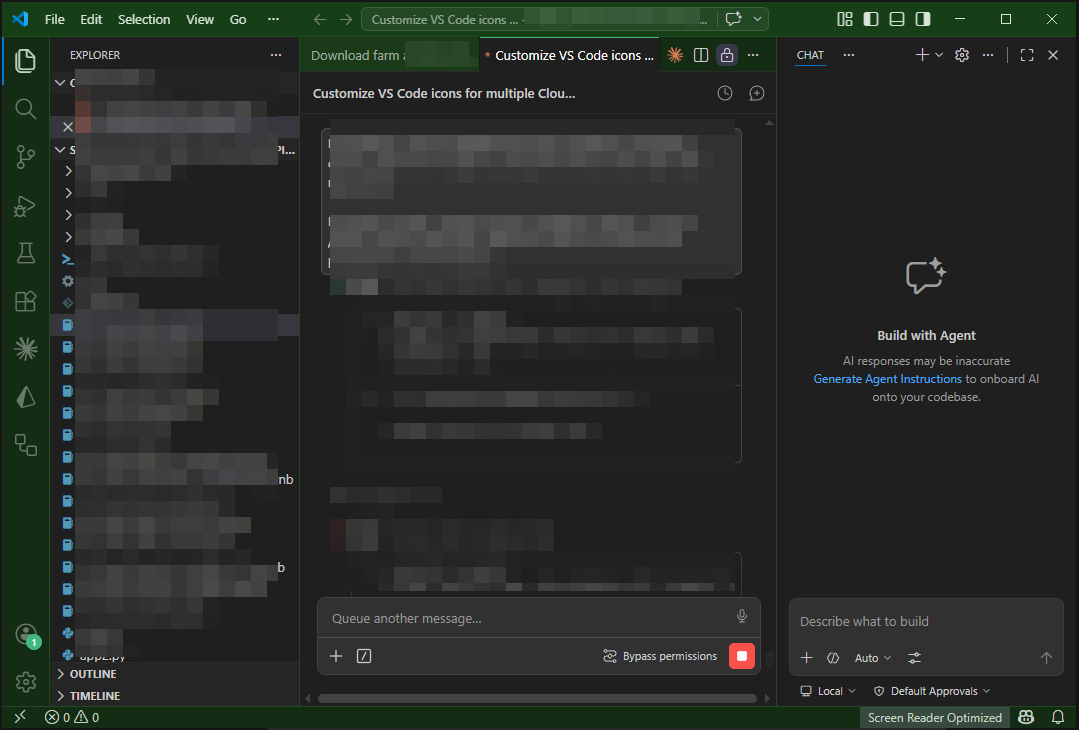 Forest preset on a Claude API tutorial workspace.
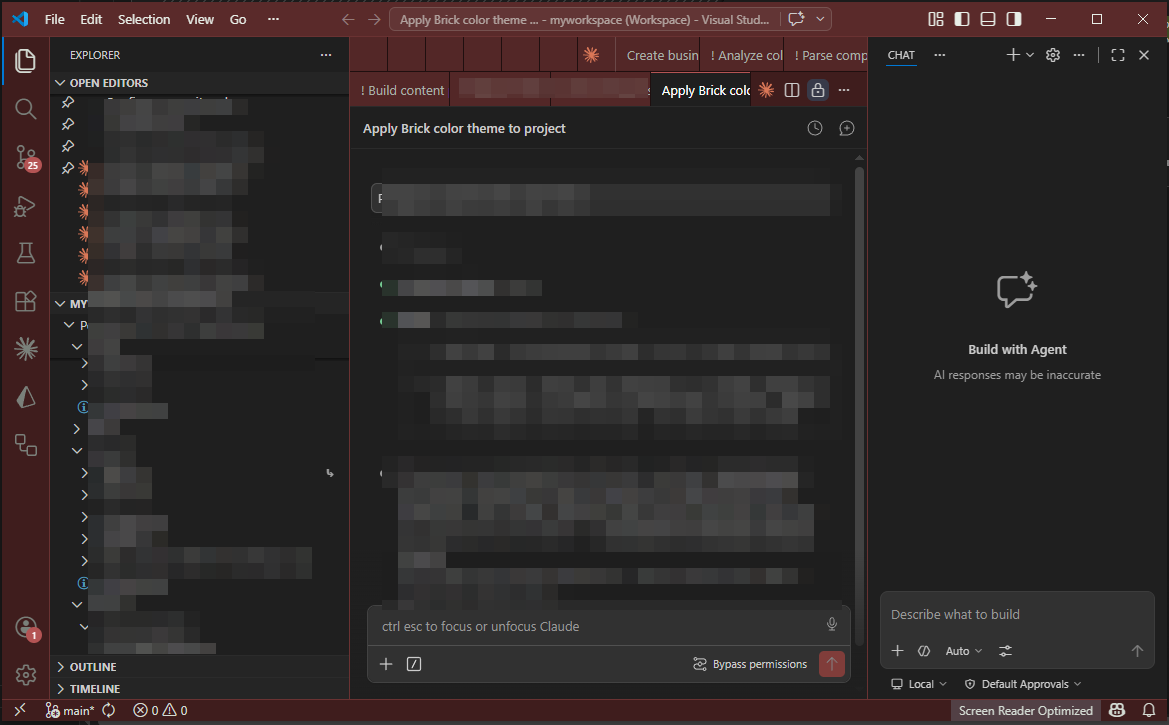 Brick preset on a multi-root portfolio workspace. Note the
(Workspace) indicator in the title — the skill handles both folder mode and .code-workspace mode.
The pain this solves
When you use Claude Code to work on several projects in parallel, you end up with four, five, eight VS Code windows open at once. They all share the same VS Code icon in the taskbar. Alt+Tab previews look identical. Hovering over the taskbar shows you the title text — which you have to read, and that breaks flow.
You waste seconds every time you switch. Worse, you sometimes type the wrong thing into the wrong window before you notice.
A colored frame fixes this without occupying any real estate inside the window. Your brain quickly learns "brick-red = client portal, forest-green = API tutorial, royal-blue = mobile app". Alt+Tab becomes muscle memory. Taskbar previews give instant recognition. The same skill, applied to a new project, gives you a fresh color you'll associate with it from day one.
The interior — editor, notebooks, Claude chat content — stays untouched. Only the frame is tinted. Code reads the same, syntax highlighting is unaffected.
What it does
When you ask Claude Code «раскрась проект» / colorize this project / /colorize-project, the skill:
- Asks you to pick a color from a palette of 20 dark presets via
AskUserQuestion(or accepts a custom hex you supply). - Algorithmically derives 10 shades from the base color (title, frame, accent, etc.).
- Writes ~50 VS Code color tokens to
.vscode/settings.jsonin the current workspace folder. - Auto-detects
.code-workspacefiles in the folder and updates their"settings"block too — so the colors work whether you open the project as a folder or via the multi-root workspace file.
VS Code applies the changes on the fly — no reload required in most cases.
Palette
20 dark, distinguishable colors (pass the name as -Color):
| Name | Hex | Name | Hex |
|---|---|---|---|
forest | #163f17 | crimson | #5a142a |
royal-blue | #1a3a6a | steel-blue | #2a3a4a |
royal-purple | #3f1a55 | navy | #14275a |
burgundy | #5a1a1a | rust | #5a2a14 |
amber | #5a3a14 | plum | #3a1a3a |
teal | #144a4a | pine | #144a3a |
deep-cyan | #144d5a | slate-purple | #2a1a3a |
indigo | #2a1a55 | brick | #5a2a2a |
dark-magenta | #4a154a | dark-pine | #1a3a2a |
olive | #3a3a14 | charcoal-blue | #1a2a3a |
Or pass any custom hex: #2a4f3c.
Installation
Clone into your Claude Code skills directory.
Windows (PowerShell):
git clone https://github.com/collagerai/claude-code-colorize-project.git "$env:USERPROFILE\.claude\skills\colorize-project"
macOS / Linux (bash):
git clone https://github.com/collagerai/claude-code-colorize-project.git ~/.claude/skills/colorize-project
chmod +x ~/.claude/skills/colorize-project/scripts/apply-colors.sh
Claude Code picks the skill up automatically the next time you start a session. Verify by asking "what skills are available" in a session, or check ~/.claude/skills/colorize-project/ exists.
Requirements
- Windows: PowerShell (preinstalled)
- macOS: bash +
python3(preinstalled since macOS 12.3+; if missing,brew install python3) - Linux: bash +
python3(preinstalled on most distros;apt install python3/dnf install python3otherwise)
Usage
In any Claude Code session:
| You say | What happens |
|---|---|
раскрась проект / colorize this project | Claude shows the palette via AskUserQuestion, applies your pick |
раскрась этот проект в navy / make this navy | Applies navy directly |
/colorize-project royal-blue | Applies royal-blue |
/colorize-project #2a4f3c | Applies your custom hex |
покажи цвета / show palette | Claude lists the palette with hex codes |
You can also call the script directly without Claude.
Windows (PowerShell):
# Folder mode (auto-detects .code-workspace files inside)
powershell -ExecutionPolicy Bypass `
  -File "$env:USERPROFILE\.claude\skills\colorize-project\scripts\apply-colors.ps1" `
  -Color royal-blue `
  -WorkspacePath "C:\path\to\your\project"

# Workspace-file mode
powershell -ExecutionPolicy Bypass `
  -File "$env:USERPROFILE\.claude\skills\colorize-project\scripts\apply-colors.ps1" `
  -Color burgundy `
  -WorkspaceFile "C:\path\to\your\project\my.code-workspace"
macOS / Linux (bash):
# Folder mode
~/.claude/skills/colorize-project/scripts/apply-colors.sh \
  --color royal-blue \
  --workspace-path ~/path/to/your/project

# Workspace-file mode
~/.claude/skills/colorize-project/scripts/apply-colors.sh \
  --color burgundy \
  --workspace-file ~/path/to/your/project/my.code-workspace
Pass both parameters at once to update both targets.
What gets colored / what stays neutral
Colored (in shades of the chosen color):
- Title bar
- Menu bar (selection highlight)
- Activity bar (left icon strip) and its badge
- Auxiliary bar (right Claude panel chrome)
- Status bar
- Tab strip background
- Inactive tabs
- Top accent stripe on the active tab
- User-message bubbles in the chat (
chat.requestBackground)
Untouched (stays default Dark Modern #1f1f1f gray):
- The editor itself
- Notebook cells
- Claude chat content area
- Active tab body (only the top stripe is colored)
- Terminal
- Bottom panel (Debug Console, Output)
- Side bar / Explorer (intentional — see below)
Design notes
Why sideBar.background stays neutral
Claude Code's chat content area uses the same sideBar.background token as the Explorer panel. If we tinted it, the chat session would become hard to read. Trade-off: the Explorer stays gray, but the chat stays readable. We accept this.
Why direct [System.IO.File]::WriteAllText, not the standard config write path
Some Claude Code environments have a PostToolUse hook that strips certain workbench color tokens when written through the Write tool. Symptoms: half the frame gets colored, the other half stays gray. The PowerShell script writes raw bytes via [System.IO.File]::WriteAllText, which slips past the hook.
Multi-root workspaces
When you open a project via a .code-workspace file, VS Code ignores .vscode/settings.json for chrome colors and reads them from the workspace file's "settings" block instead. The script auto-detects .code-workspace files inside the target folder and writes to them too, so coloring works regardless of how you open the project.
Live apply, no reload
VS Code watches settings.json and .code-workspace files in real time. Color changes appear immediately. If for some reason they don't — Ctrl+Shift+P → Developer: Reload Window.
Existing settings preserved
The script reads existing settings.json (or .code-workspace), replaces only the workbench.colorCustomizations key, and writes everything else back as-is. Your Python interpreter, ESLint config, workspace folders array — all preserved.
Shade derivation algorithm
The base hex you choose becomes titleBar.activeBackground. Other shades are derived by linear scaling of RGB channels:
| Purpose | Multiplier |
|---|---|
| title inactive | × 0.76 |
| title border | × 1.18 |
| menubar selection | × 1.35 |
| frame bg (activity / status / tabs strip) | × 0.70 |
| aux bg (Claude panel) | × 0.55 |
| tab inactive / chat bubble | × 0.92 |
| tab border | × 0.35 |
| tab hover | × 1.15 |
| accent (badge / activeBorderTop) | dominant channel → 180, others lifted proportionally, min 60 |
All channels clamped to 0–255. The "vibrant accent" formula produces a saturated brand-style highlight: green base → mint accent, blue → bright sky, purple → magenta.
Platform
Works on Windows, macOS, and Linux. Two equivalent scripts — same palette, same shade algorithm, same write logic. The skill auto-routes to the right one based on the host OS.
Files
colorize-project/
├── SKILL.md                    # Skill definition for Claude Code
├── scripts/
│   ├── apply-colors.ps1        # PowerShell engine (Windows)
│   └── apply-colors.sh         # bash + python3 engine (macOS / Linux)
├── screenshots/
│   ├── example-forest-green.png
│   └── example-brick-red.png
├── README.md
└── LICENSE
License
MIT — see LICENSE.